Customer Feedback Forms and collecting Cx Scores
Gathering feedback is a big part of Let’s Talk!, and hearing from customers regarding the service they received is an important piece.
How it Works
When a User clicks Send/Post as Closed, a pop-up will appear letting the User know that the Ticket will be closed. When the Customer's email address has been provided with the Ticket, the pop-up will also indicate that a Feedback Form will be sent to the Customer. This form will be delivered via email.
Note: Feedback forms will not be sent to Customers who submitted anonymous Tickets or who did not provide email addresses. If opt-out controls have been customized by the System Administrator, the User may see feedback form delivery as an option.
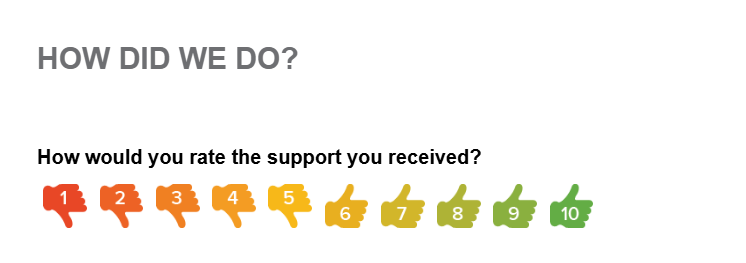
The Feedback Form (example below) includes a 10-point Likert scale on which Customers can rate their satisfaction or overall experience. Upon selecting a score, Customers may choose to provide further commentary in an open-ended text box.
By default, Feedback Forms are delivered a few minutes after Tickets are closed and responses have been sent. System Administrators may customize delivery of a Feedback Form to from 1 to 24 hours after a Ticket has been closed.
By default, Customers will only receive one Feedback Form, the first time a Ticket is closed, even if it is later re-opened. System Administrators may customize the account to allow Users to resend Feedback Forms and for Customers to resubmit scores after the district has provided additional information.
System Administrators can update Opt-Out, Delay, and Resubmission of Feedback Forms by selecting Feedback Form Template on the Settings menu.
Where Does the Data Go?
If a Customer chooses to complete the Feedback Form, the data from the form is captured in the Timeline of the original Ticket within the Ticket Details page. The score and additional commentary (if any) are displayed within the Timeline.

Closed Ticket Inbox
The data from the Likert scale is also captured in the Closed Tickets Inbox view through both the icon in the Feedback Score column and the Average Feedback Score measure in the Inbox Ticker in the top right-hand corner.

Dashboard
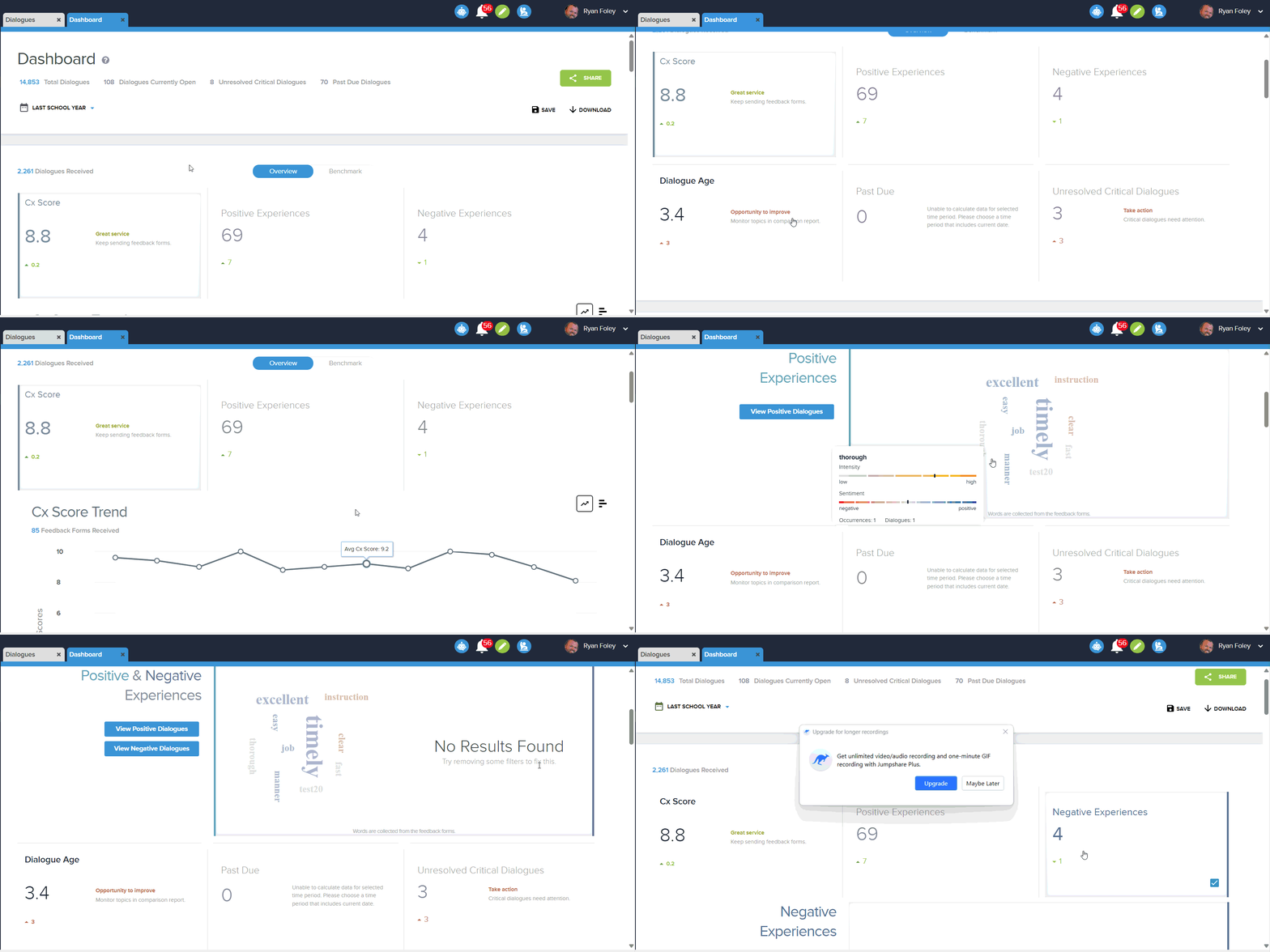
Data from the Likert scale is also used to calculate the overall Average Feedback Score performance indicator found in reports on the Dashboard, including CX Score (below). The Average Feedback Score calculation can be viewed at the User level, by individual Topics, or at an overall account level by adjusting filters on the Dashboard.