
Do you have a Onflo (formerly Let’s Talk) Form that you want students and/or staff to be able to easily access on the desktop of their school-issued devices? Share the below instructions with your Network or IT Administrator!
You might use this when:
- You have a customized bullying form that you want all students to have access to on their school-issued devices (ie. Chromebooks or iPads).
- You have a “kiosk” system and you want customers to quickly and easily access a form to submit their information.
- You have an intranet landing page that you want all staff to be able to access on their devices.
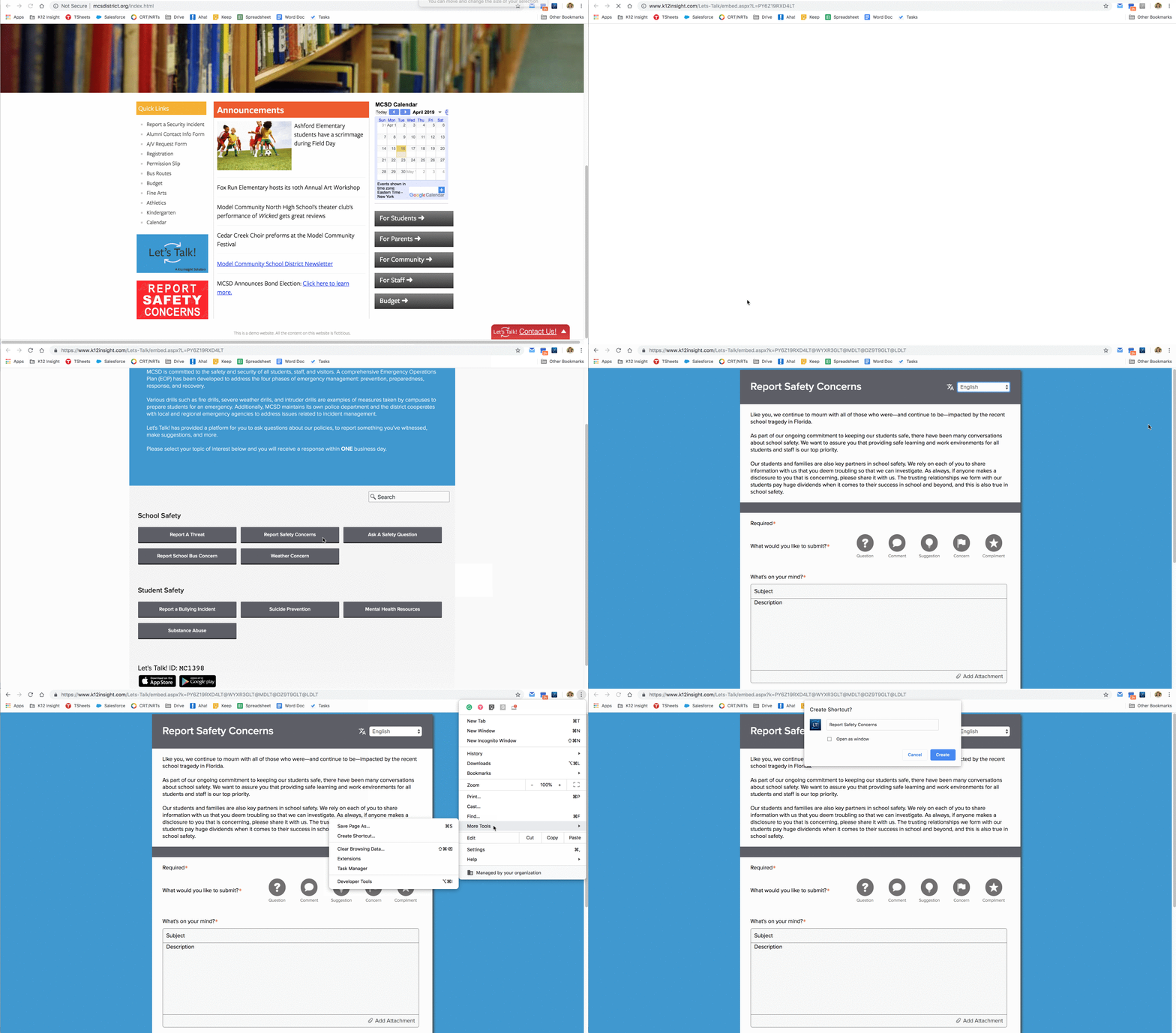
Steps to add Onflo shortcut via Chrome browser on multiple operating systems.
- Open the Chrome web browser.
- Navigate to the form that you wish to add to the desktop. (Download the Form links from Settings as needed)
- Open Chrome's main menu button, located in the upper right-hand corner of the browser and represented by three vertically-aligned dots.
- Go to More tools and then select either Add to the desktop, Create shortcut, or Create application shortcuts (the option you see depends on your operating system).
- Type a name for the shortcut or leave it as the default name.
- Click Create to add the shortcut to your desktop. You will now have a desktop shortcut with the Onflo Icon.
Steps to add Onflo shortcut via Safari browser on iPhone/iPad.
- Open the Safari browser.
- Navigate to the Form that you wish to add as a home screen icon. (Download the Embed Form links from Settings as needed)
- Tap on the Share button at the bottom of the browser window. It's represented by a square with an up arrow in the foreground.
- The iOS Share Sheet will now appear, overlaying the main browser window. Select the option labeled Add to Home Screen.
- The Add to Home interface should now be visible. Edit the name of the shortcut icon you are creating. This text is important: It represents the title that will be displayed on the home screen. Once you are done, tap the Add button.
- You will be taken back to your iPad/iPhone's home screen, which now contains a new icon mapped to your chosen web page.
Note: The Onflo icon won't be mapped in the shortcuts created on any Mac machines.
Once the form has been added, whenever the icon is selected, it will open up to the topic form or landing page.