
Allow your district community to be able to text their questions, concerns, or comments to a number provided by Onflo (formerly Let’s Talk) The system then instantly turns that message into a ticket.
On the backend, your team can manage and track the message just as they would with any other Onflo submission. When your team responds, that message is delivered to the community member’s phone as a text message.
Turn on Text into Onflo for your district!
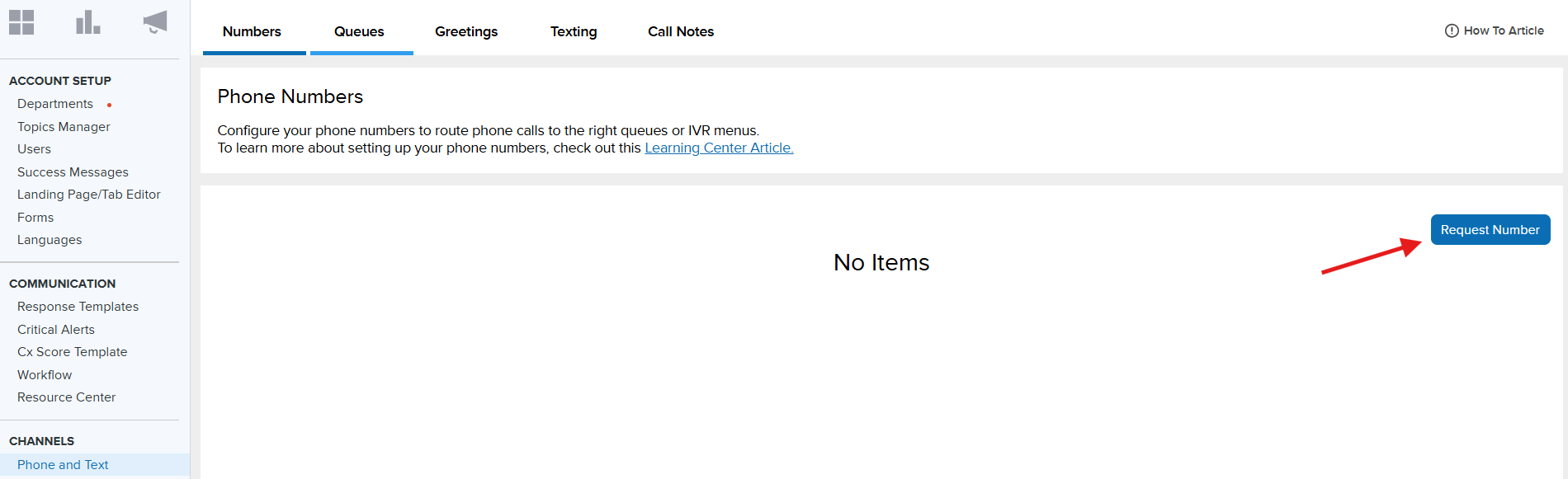
System Admins can activate this feature for your district’s account by going to Settings > Channels > Phone
Request a Onflo Number
For accounts that have never requested a number before - You’ll click the Request Number button. This will submit your request to our team, and the request will show as Pending until it is processed.
While the request is processing you will be able to complete setting up the phone number including the following:
- Call Routing
- Customer Feedback Message
- Enable Call Recording
- Enable Hold Music
- Select Queues for Outgoing Calls
- Create Ticket Option
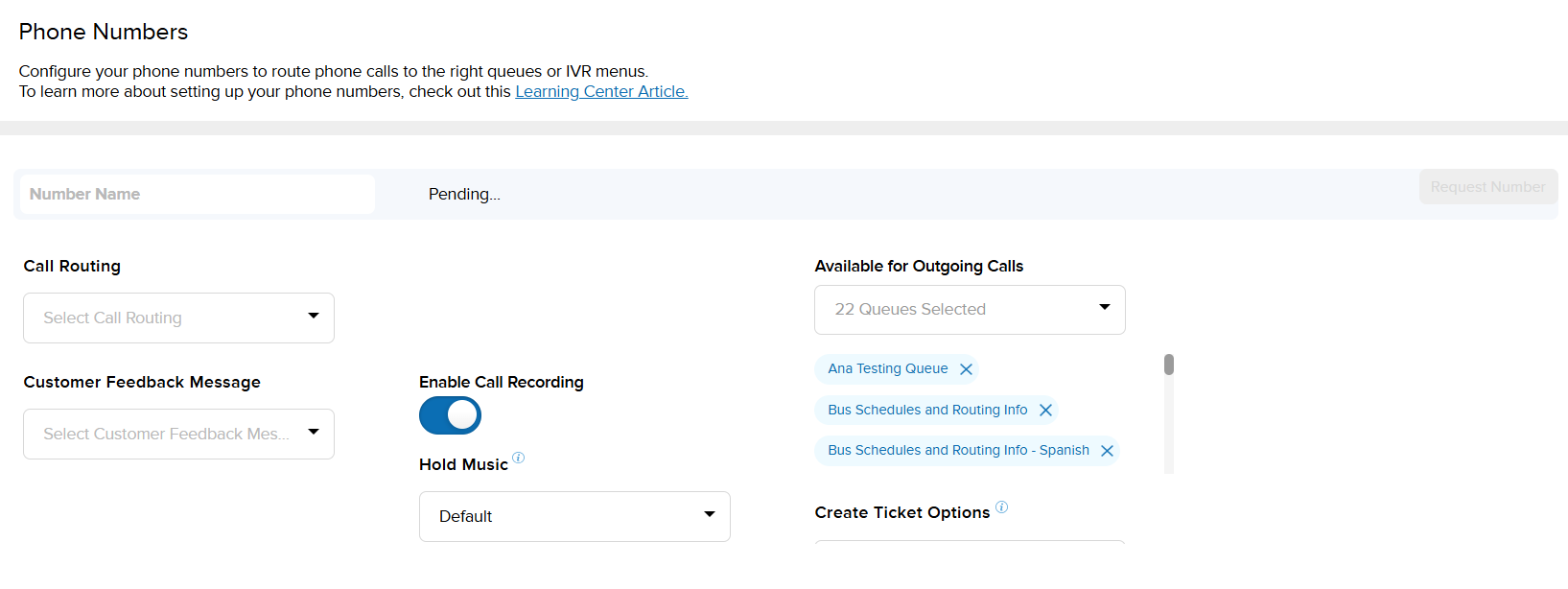
Requests generally take around 2 business days to complete. Once complete, a team member from K12 Insight will notify the System Admin(s).
Set up
Select the Text tab at the top of the Phone Settings page to access the Text feature.
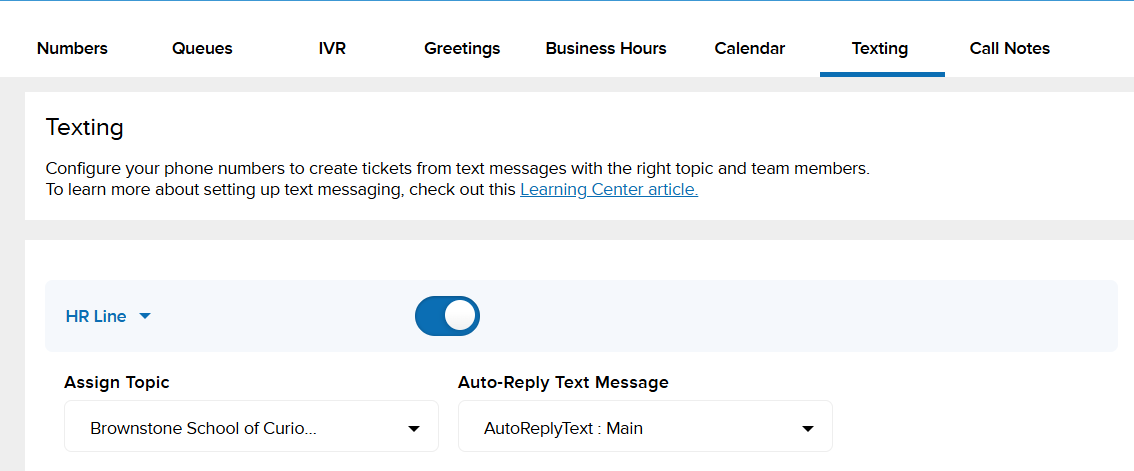
- Under the Number Name (ex. HR), activate the feature by switching the toggle from grey to blue.
- You will be able to select both a topic to assign the number to and enable an Auto-Reply Text Message
Auto-Replies and Saved Replies
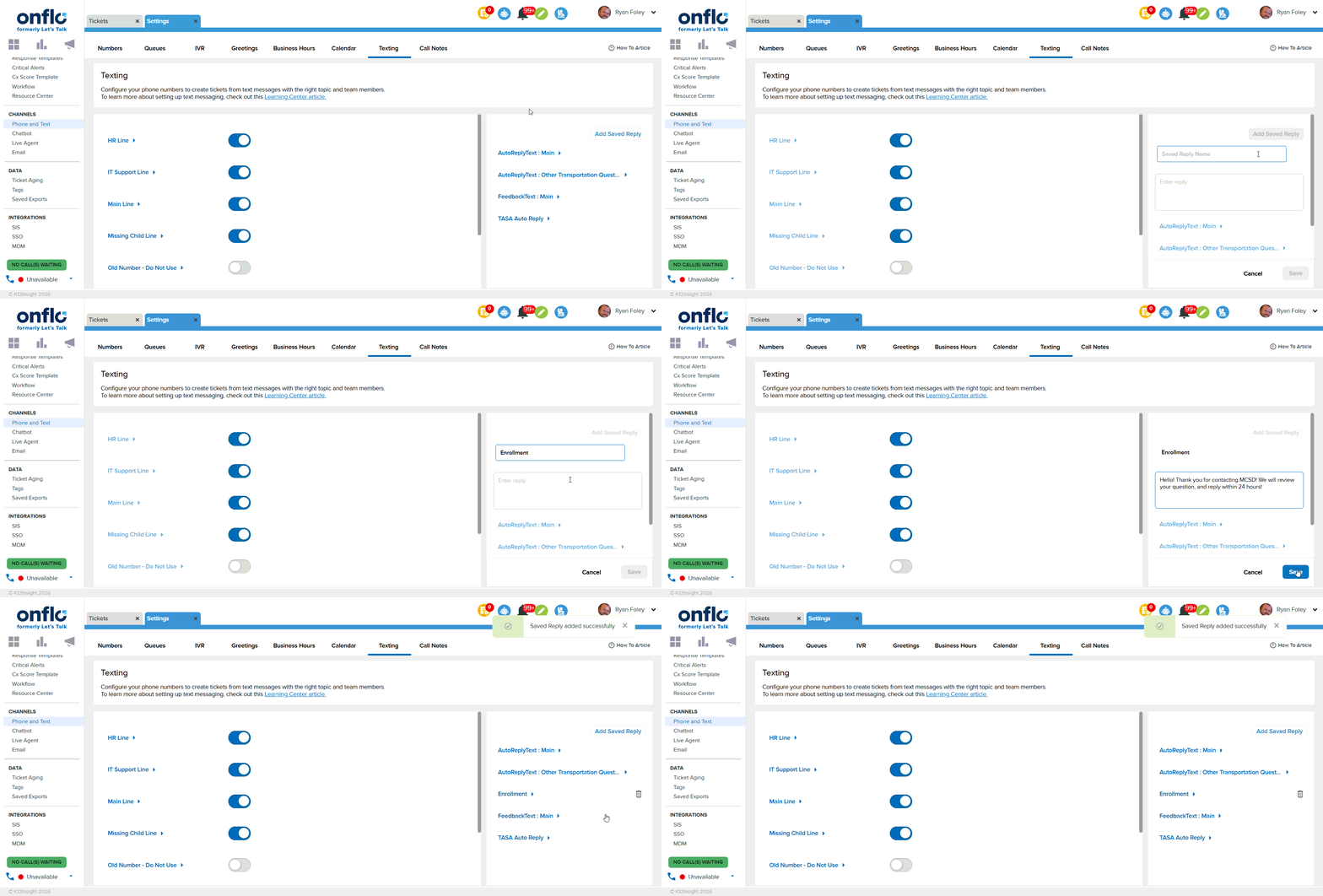
- You can enable or disable an auto-reply text that is sent to customers when they text into the Onflo Number. By default, it is enabled with a standard message.
- You have the option to customize the auto-response in the text box.
- You can also create saved replies (similar to response templates) for use on tickets received through text messages.
- Remember to save your changes and customizations!
What does it look like in action?
Once your district has received a Onflo Number and team members have been set up to receive text tickets, it’s time to PROMOTE that number!
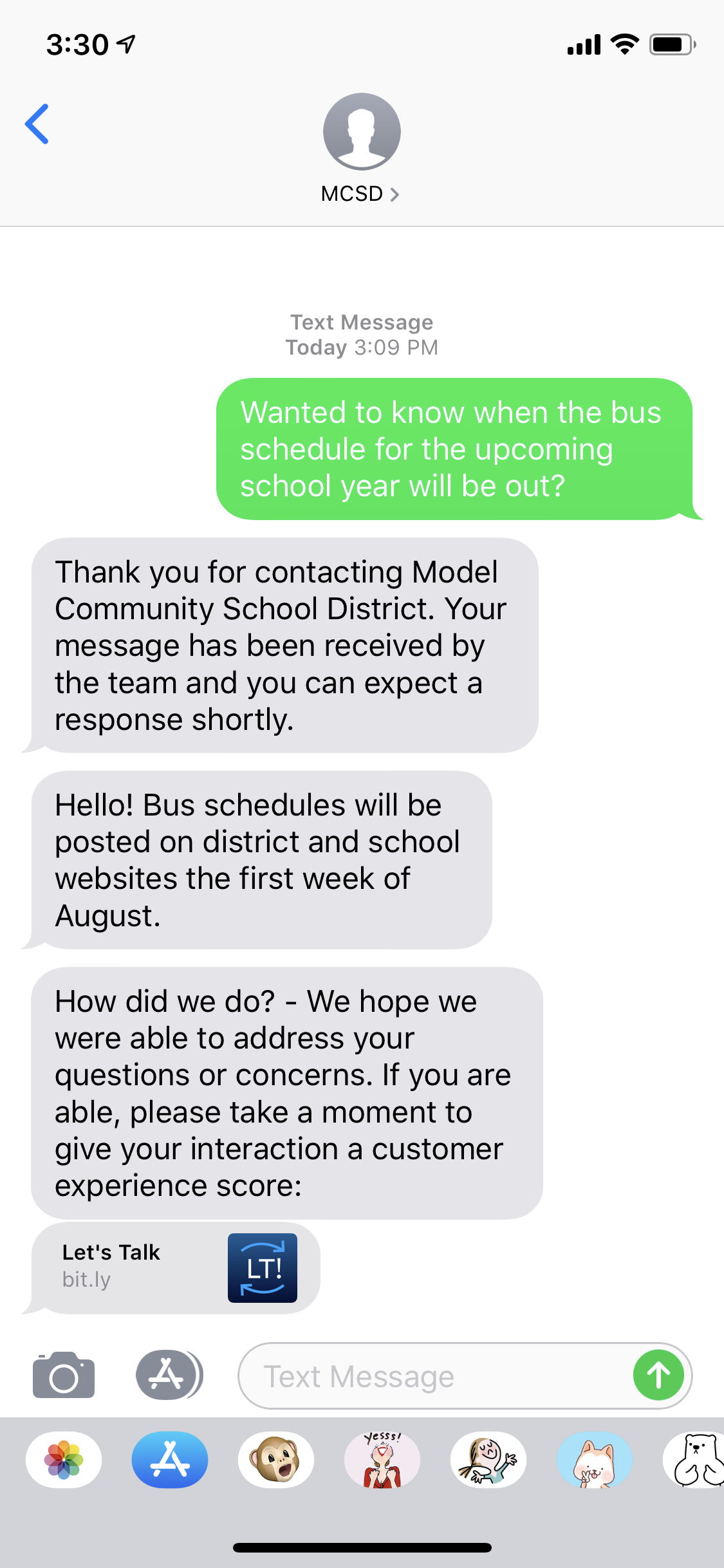
- A customer sends a text message to the Onflo Number and immediately receive the auto-reply (unless disabled in settings).
- Their message will then land in the inbox of the selected texting team, without being assigned an topic.
- A member of the texting team will review the ticket and assign it to the proper topic.
- Proceed as with any Onflo Ticket
- If you know additional contact information about the customer who texted in, you can update it under Customer Information within the ticket.
- Replies will be sent back as a text message reply. The option to send an email response will be available if the customer email address is added to Customer Information.
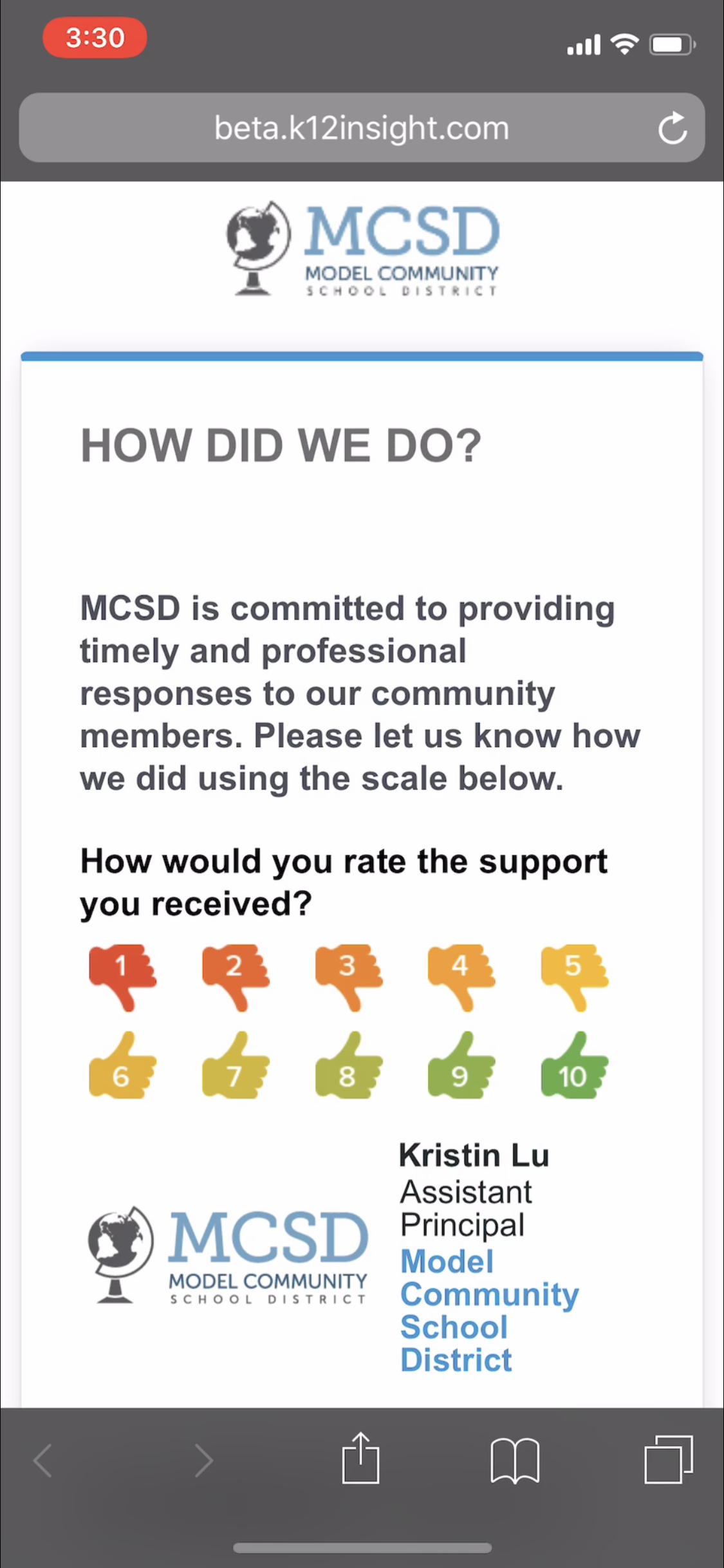
- When the ticket is closed, the customer will receive a feedback form sent as a link through their text messages.
Text into Onflo is a service-related messaging feature, accordingly, it does not contain an opt-out option. Districts using this feature are responsible for all communications and opt-out requests that come in through the texting channel.