Access all conversations from a customer
Sometimes customers might refer to previous requests, questions, or interactions they’ve had with your district when they submit a ticket, and in some cases, being able to see that history can better help you understand and serve their needs.
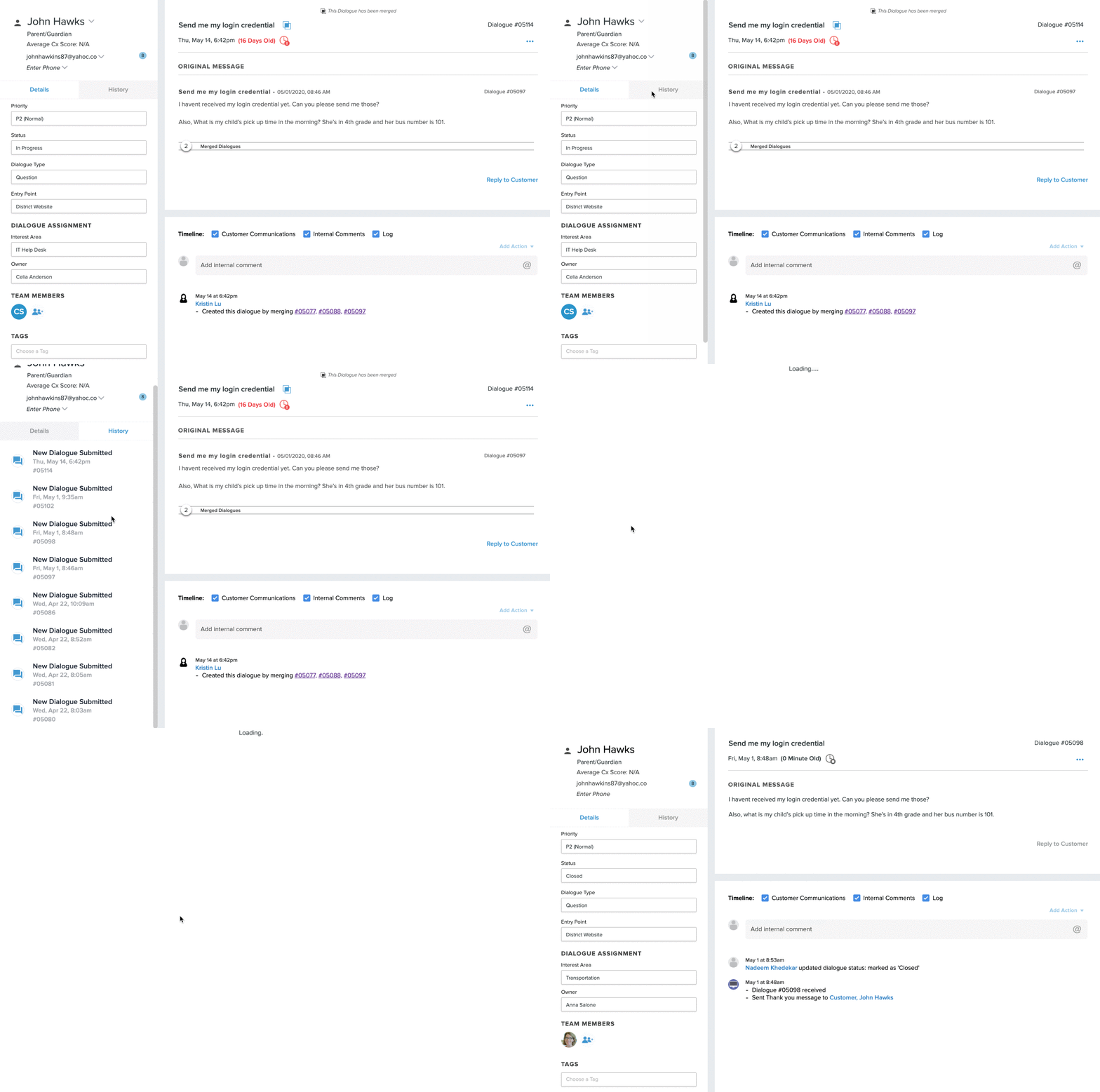
Use the Customer History feature to quickly see some key information from the customer you are serving.
Here’s how -
- Jump into the ticket.
- On the left-hand navigation, you’ll see the customer information.
- Name: The name of the customer
- Customer Type: Who they are in the district (Parent, Employee, Student, Community Member)
- Average Cx Score: What their average feedback score is
- Email on file: Their email address. Notice the number next to their email. That represents the number of tickets they’ve submitted.
- Phone number on file: Their phone number.
- To see a list of all the tickets they’ve submitted, click on History to toggle to the ticket list view.
- Click on any of the ticket to automatically be taken to it.