
Ready to enhance the customer experience in your organization?
We’ve compiled a few example workflows that System Administrators can build to automate simple tasks, like following up on low Cx scores. These workflows will help you continually strive toward exceptional service - all while saving you time.
In this article you will find the following examples:
- Escalate Past Due Tickets to a Supervisor
- Follow up on Low Cx Scores
- Send Password Questions to Technology Support
Navigate to Settings > Workflow to get started!
Note: If this is your first time using workflows, be sure to check out this article for more detailed information.
Escalate Past Due Tickets to a Supervisor
Keep your commitment to timely responses alive by escalating tickets that aren’t resolved within your standard of service to a supervisor.
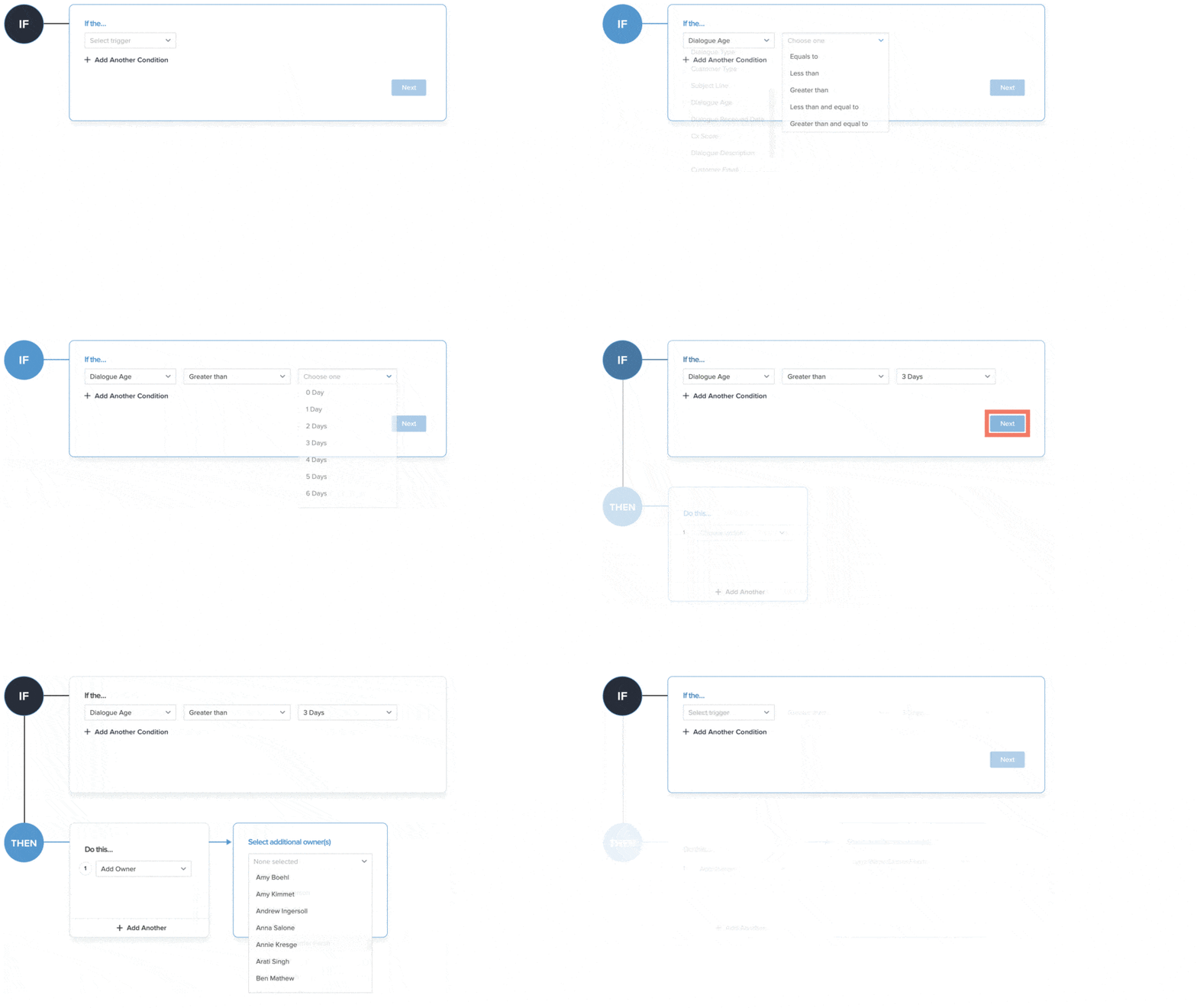
IF
- Select “Ticket Age” from the “Select trigger” drop-down menu
- Select “Greater Than” from the “Choose one” dropdown menu
- Select the appropriate length of time (for example, “2 Days”).
- Click “Next”
THEN
- Select “Add Owner” from the “Choose action” dropdown menu
- Select the name of the appropriate Supervisor
- Click Save in the top right corner
Following up on Low Cx Scores
Asking for the context behind low Cx scores is a simple practice that can make all the difference. Use this workflow to define which low ratings should receive a follow up message.
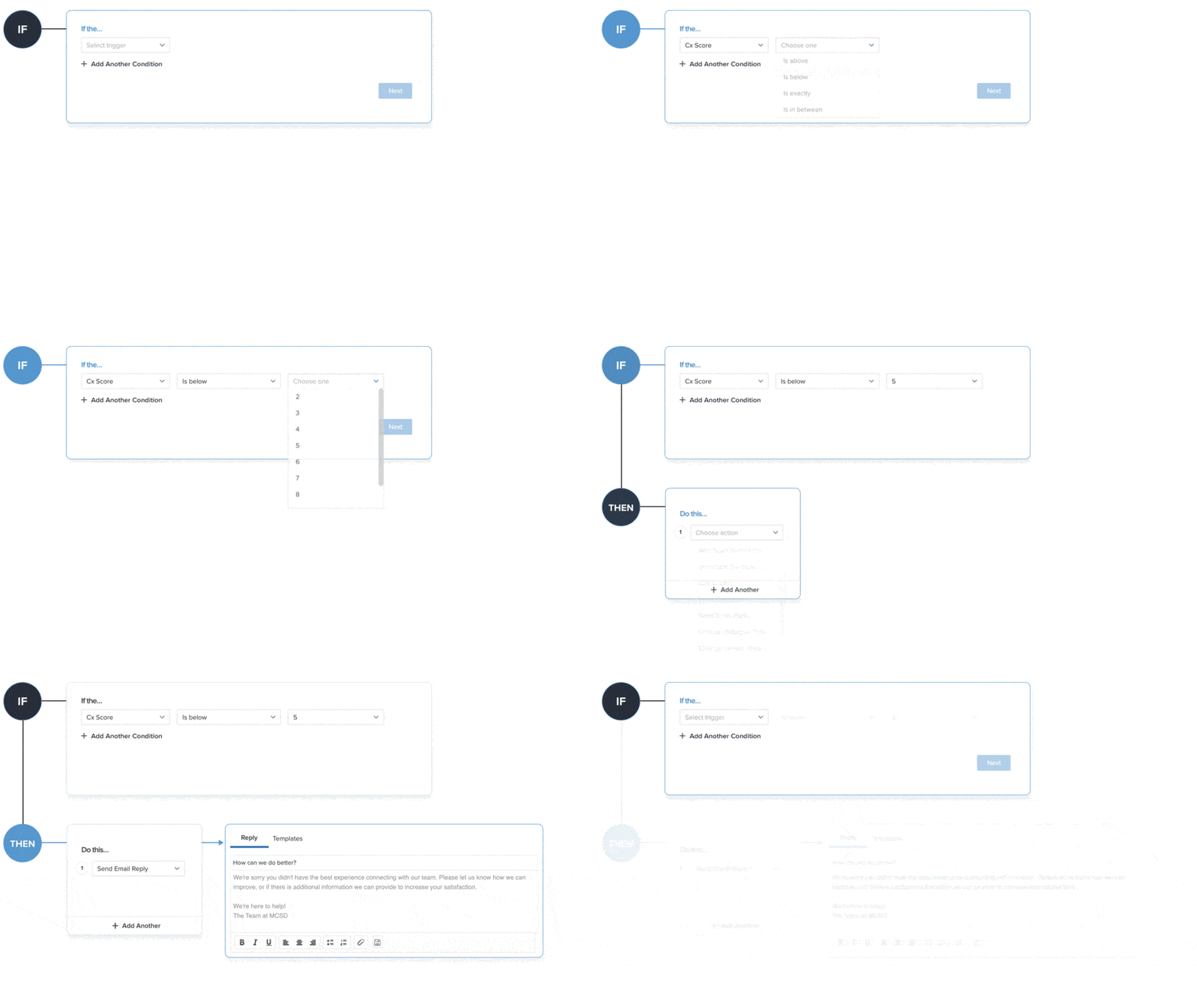
IF
- Select “Cx Score” from the “Select trigger” drop-down menu
- Select “Is below” from the “Choose one” dropdown menu
- Determine the which Cx Score value (and below) should require a follow-up
- Cx Score value chosen in example is 5 (and below)
- Click “Next”
THEN
- Select “Send Email Reply” from the “Choose action” dropdown menu
- Type the desired follow-up message to send to low-scoring customers
- Example: “ We’re sorry for your negative experience with our team. Please let us know how we can improve, or if there is additional information we can provide to increase your satisfaction with our service.”
- Click Save in the top right corner
Send Password Concerns to Technology Support
Ensure that tickets mentioning “password” make it to Technology Support regardless of its original Topic. This helps the right team get an answer in the hands of the customer faster.
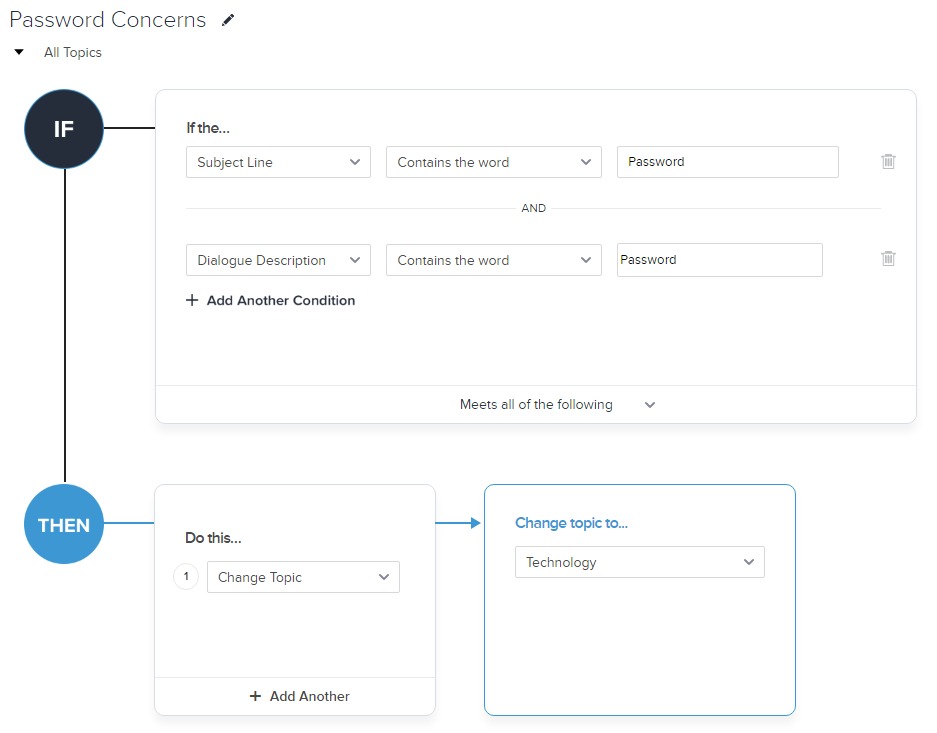
IF
- Select “Subject Line” from the “Select trigger” drop-down menu
- Select “Contains the word” from the “Choose one” dropdown menu
- Next, enter the keyword “Password”
- Click “+ Add Another” and select Ticket Description
- Repeat Steps 2 and 3
- Click “Next” when finished
THEN
- Select “Change Topic” from the “Choose action” dropdown menu
- Select the Topic related to Technology Support
- Click Save in the top right corner