
How to Assign a Ticket to a Team Member

Generic selectors
Exact matches only
Search in title
Search in content
Post Type Selectors

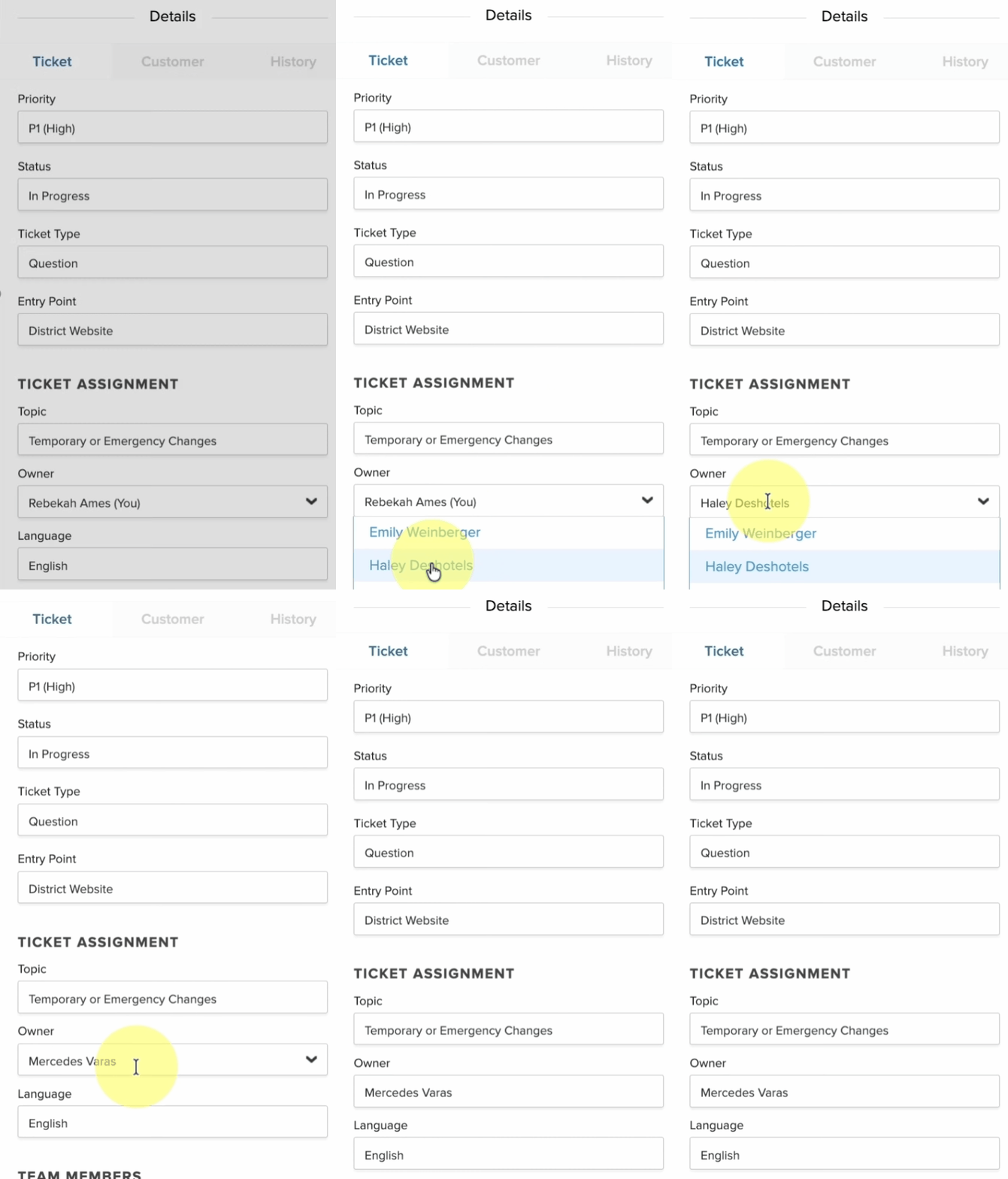
If you want to assign a team member as the owner of a Ticket, simply:

  • Click in the Owner field
    • If you are the current owner this will be displayed as "Me".
  • From the dropdown menu that appears, you will see the names of your team members.
  • Select the name of desired new owner from the list.
  • The new owner will receive an alert of the change and their name will now be displayed in the Owner field.
Best Practice
Providing additional follow-up instructions (through internal comments) to the new owner helps avoid confusion and leads to faster Ticket close times.

Related Post

Bulk Edit IT Assets

Build a custom list of assets by searching, pasting, or scanning — then run bulk operations on them Overview Edit Assets lets you assemble an exact list of assets without building filters. You can search for assets one at a

Read More ➜

IT Workflow Enhancements

New triggers, stop-after control, and execution sequencing for Ticket and Asset workflows Overview This release introduces three enhancements to Workflows that give you finer control over when a workflow runs and in what order. You can now target ticket creation

Read More ➜