
Separate a single ticket into two tickets
When someone in your community submits a ticket that contains multiple questions or requires the work from multiple departments, rather than passing it back and forth between Topics or Owners, you can split the ticket into multiple tickets!
Here’s how -
- Open the ticket that you want to separate into multiple tickets
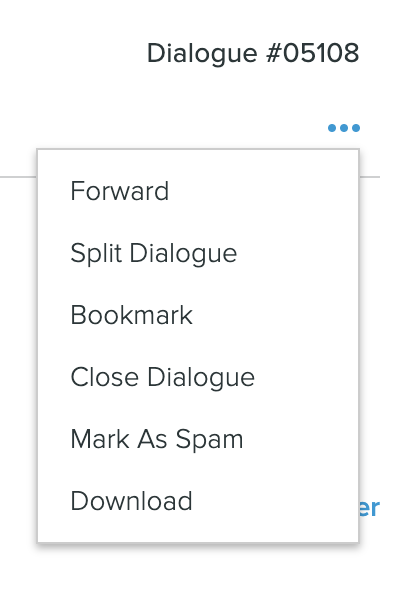
- Click on the vertical ellipsis button at the top right-hand corner of the ticket to open the dropdown menu and select Split Ticket. This will allow you to create a new ticket from the one you are currently viewing.
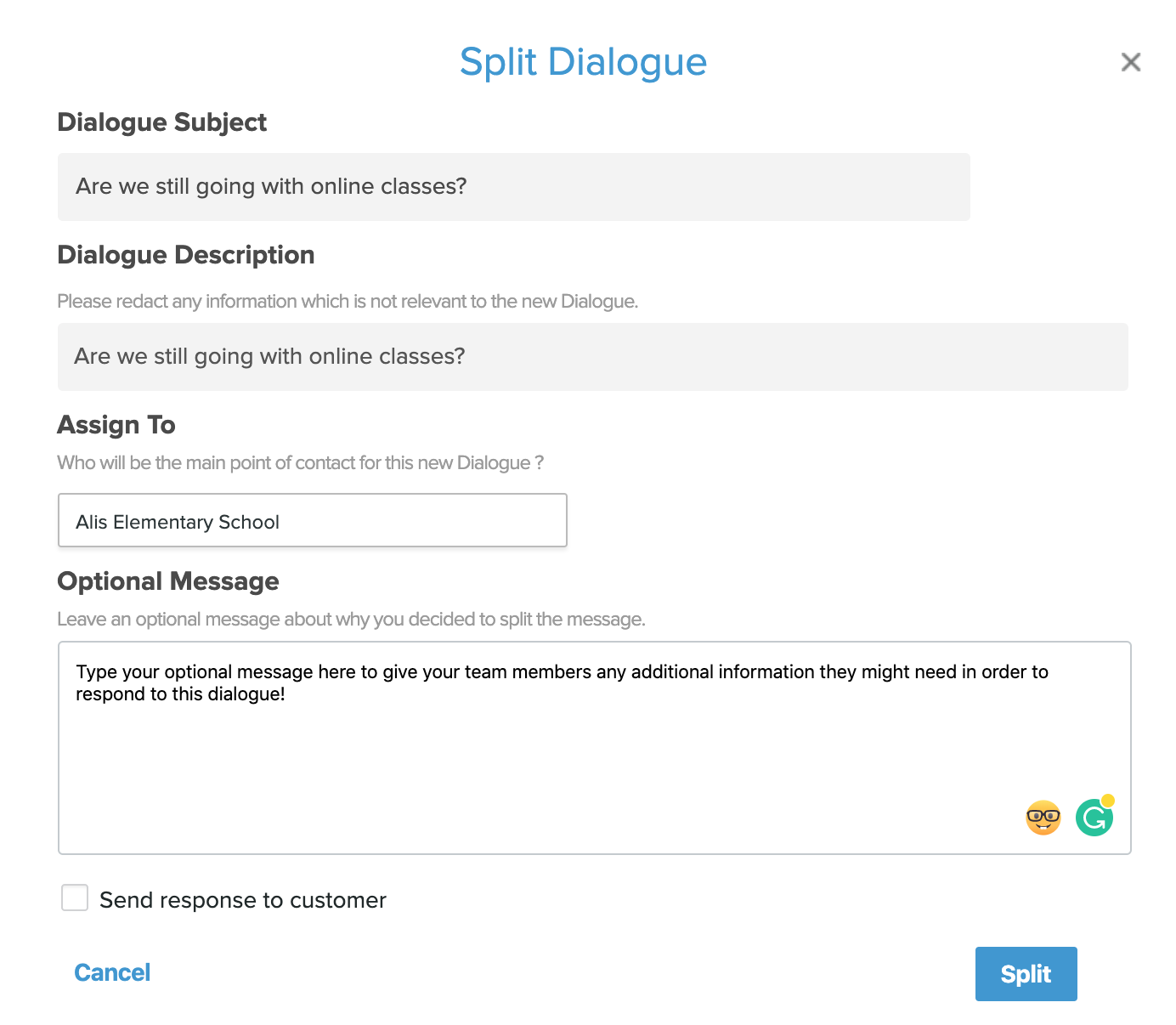
- Fill out the pop-up screen with the appropriate information for the second ticket.
- Ticket Subject: Populates the current ticket subject, but can be changed.
- Ticket Description: Populates the current ticket description, but can be edited as needed.
- Assign to: Select the Topic in which you would like to assign the second ticket.
- Optional Message: Write out any additional details you might want to share with the team, such as why you decided to split this ticket into two.
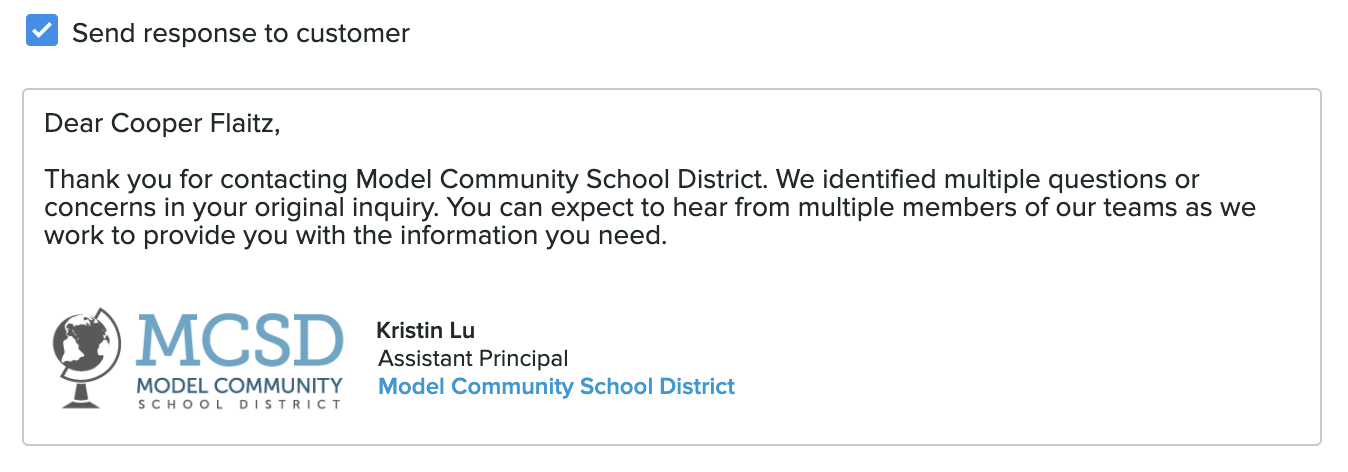
- Check the Send response to customer box if you want to notify the customer that a second ticket has been submitted from their original message. Onflo (formerly Let’s Talk) automatically uses the following message, but you can customize the response to the customer with your own message.
- Click the Split button and the second ticket is now created!
A couple of things to keep in mind when using this feature -
- Closed tickets cannot be split.
- You can only split one ticket into two tickets. If you are looking to split it into multiple tickets, split it once and do the process over again for the second ticket.