
How to Translate Tickets

Generic selectors
Exact matches only
Search in title
Search in content
Post Type Selectors

The convenience of auto-translation is now available for every ticket, regardless of entry point (including phone, text message, email, or online form). Simply select the language in ticket details to instantly translate the message.


Click on any ticket in your inbox
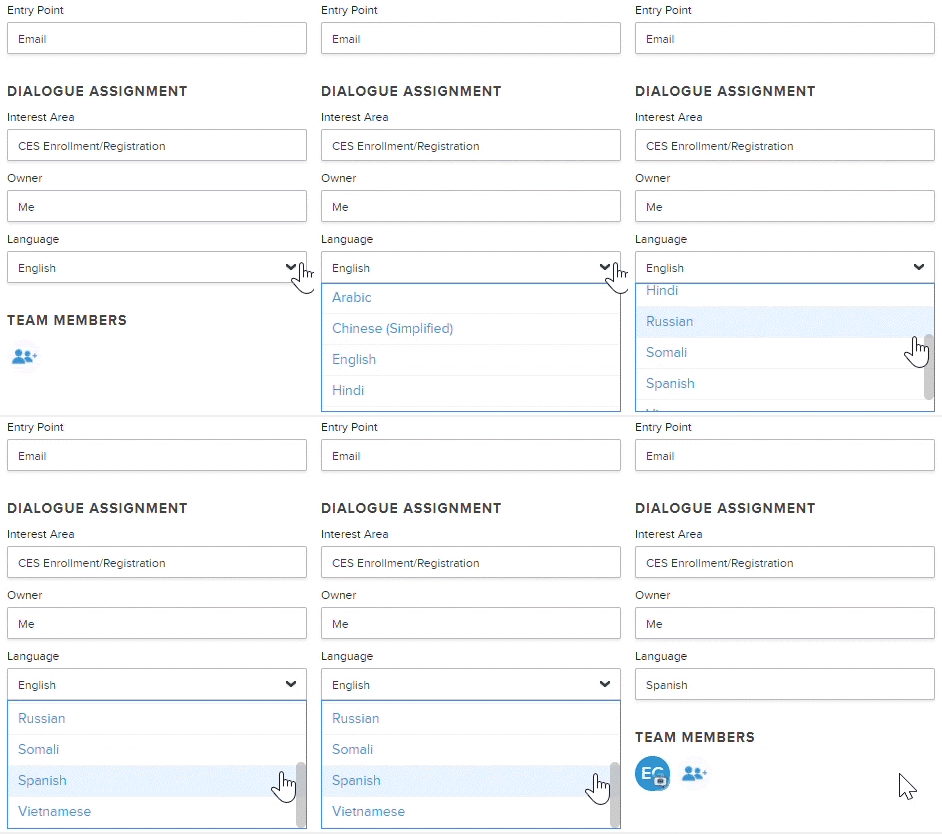
  • In the Ticket Details of your customer’s ticket, locate the Ticket Assignment section
  • Click on the Language drop-down menu and select the language used by the customer
  • The new translation will appear under the Original Message and the translator(s) for that language will be added to the ticket
  • Translators can click on the “Approve Bing Translation” checkbox to confirm that the translation is acceptable
  • Reply to the customer in the ticket’s original language by typing a response then clicking the translation button before sending


Note: To take advantage of this feature, languages must be enabled in your Onflo (formerly Let’s Talk) Account.


Related Articles 

Related Post

Webhooks

Automatically send Onflo ticket and asset information to your other business systems. Overview Webhooks let Onflo automatically send information to another system the moment something happens. When a ticket is created or an asset is added, Onflo can instantly push

Read More ➜

API Tokens

How customers create and manage the tokens that let their software connect to the Onflo API Overview API Tokens is a feature in Onflo Settings that lets a customer generate a secure key which their own software can use to

Read More ➜

Community Promotion Toolkit

Ideas and ready-to-use templates to help you introduce or reintroduce Onflo to your community. Choose Your Approach There’s more than one way to introduce your service desk to your community. The approach you choose will depend on your district’s communication

Read More ➜