
Sharing a Ticket via Hyperlink

Generic selectors
Exact matches only
Search in title
Search in content
Post Type Selectors

Users can now easily share a ticket with their team by copying the hyperlinked ticket number. Users must log into Onflo (formerly Let's Talk!) to view the ticket if they are logged out when they receive a ticket link.
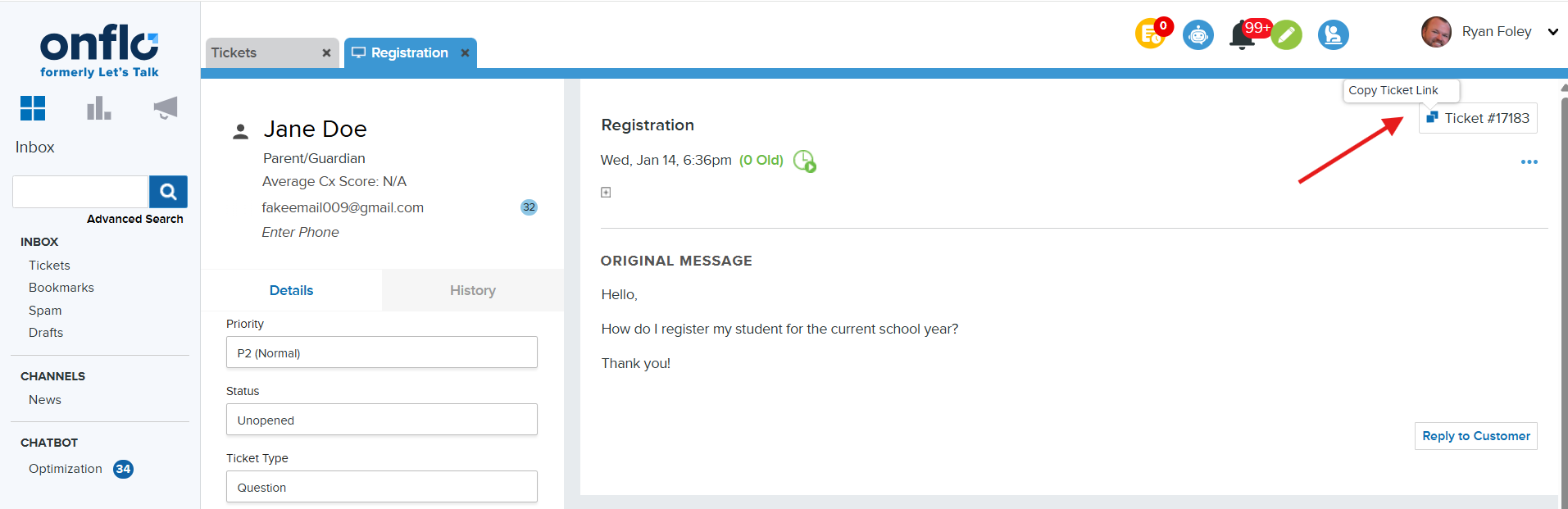
Access Hyperlink in Ticket

To access the hyperlink log into Onflo, then locate the specific ticket number you need the hyperlink. Next, click the ticket, then hover over the Ticket # in the upper right-hand corner. Finally, click on the Copy Link icon. 

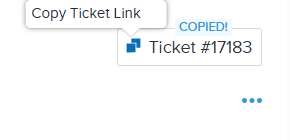
You will know that the link has been copied by viewing the Copied! alert.
 

Related Post

Bulk Edit IT Assets

Build a custom list of assets by searching, pasting, or scanning — then run bulk operations on them Overview Edit Assets lets you assemble an exact list of assets without building filters. You can search for assets one at a

Read More ➜

IT Workflow Enhancements

New triggers, stop-after control, and execution sequencing for Ticket and Asset workflows Overview This release introduces three enhancements to Workflows that give you finer control over when a workflow runs and in what order. You can now target ticket creation

Read More ➜