
All users can now download Tickets in Word, Excel, or CSV from the Advanced Search page.
How to Download Ticket from Advanced Search
Click on Advanced Search under the search bar, select the filters of your choice, then click Search down below.
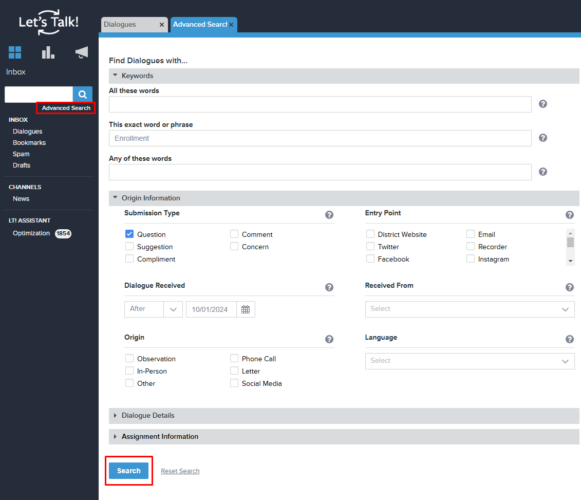
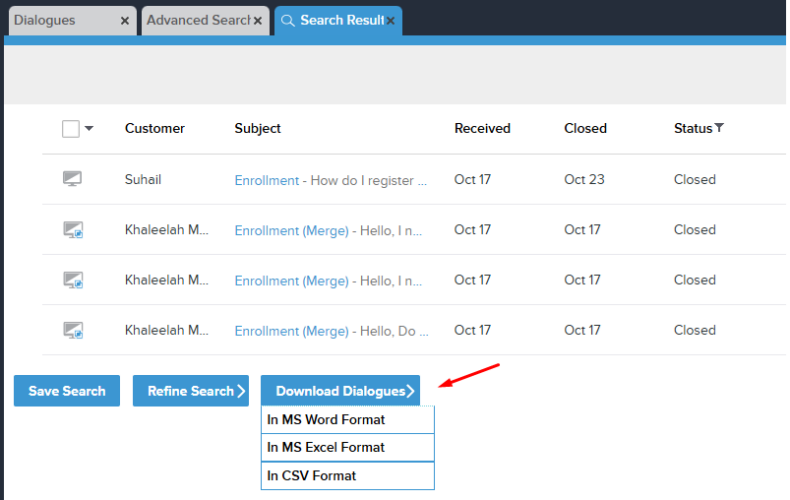
Once the Tickets load, scroll to the bottom of the page to click Download Tickets and select a format type.
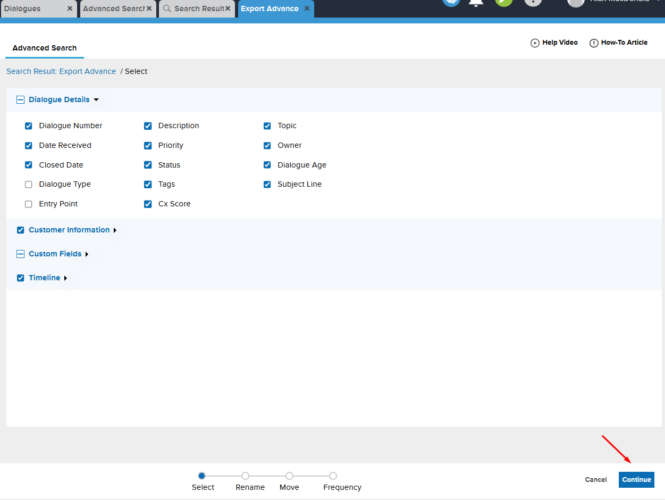
Uncheck the details you do not need to be included in the download and click Continue below.
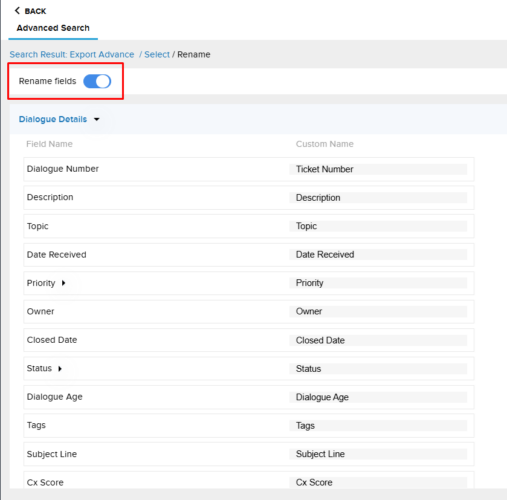
RENAME: If you need to rename any field(s), toggle on the option and enter the new field name under the Custom Name column.
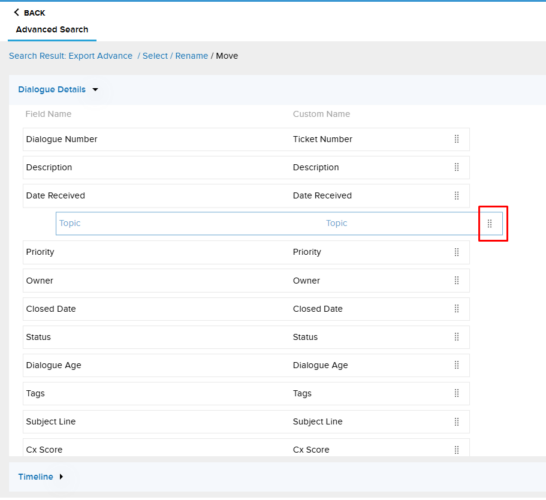
MOVE: Rearrange the order of fields by using the Move icon to drag and drop.
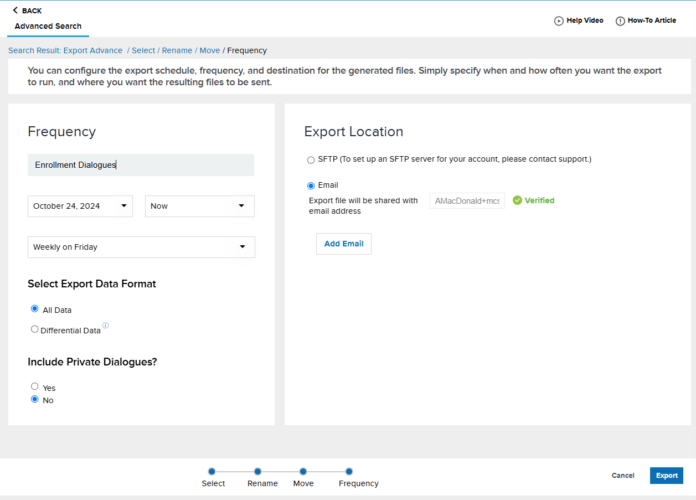
FREQUENCY: You can set up the export schedule, the frequency, and where the generated files should be sent. Just indicate the timing and recurrence of the export, as well as the desired destination for the files. Be sure to enter a name for the file export along with the date, time, and frequency.
Selecting the Export Data Format
All Data: the export will include all of the data that meets the selected criteria
Differential Data: the export will include new data from the last time the report was run.
Export Location
Email: The email address entered must be verified before it can be used for sharing the export file. An authentication code will be sent to the email address for this process. Add additional emails as needed.
SFTP: Only clients with an SFTP location set up will have this option. If you need an SFTP location arranged for this purpose, please contact us!
Once everything is ready to go, select Export below. To see completed exports, go to Settings > Saved Exports listed under Reporting. Here you can Run Export, edit, and delete.