How to Set Up Call Center Business Hours

Generic selectors
Exact matches only
Search in title
Search in content
Post Type Selectors

Create business hour rules to indicate when phone queues are open and when calls will be routed to voicemail. 

Add Business Hours

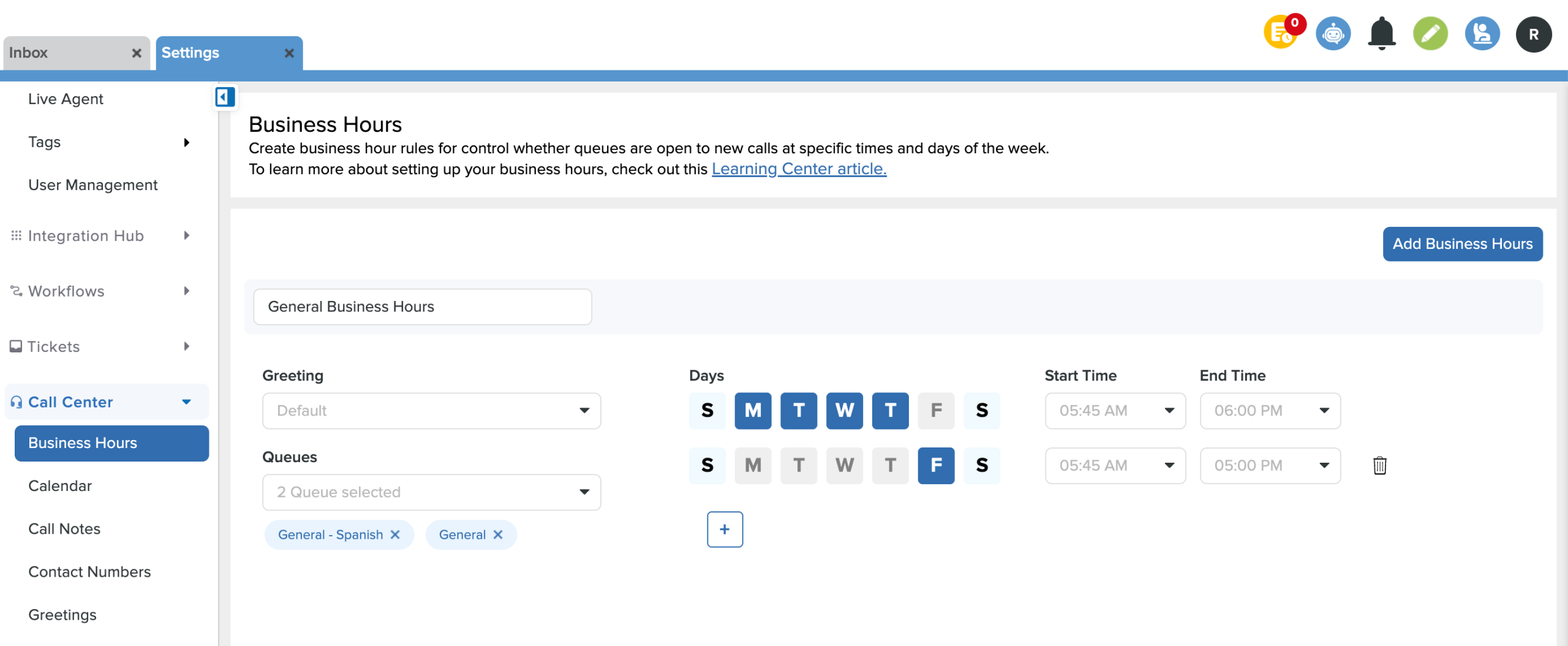
  • From Settings, scroll down to Call Center and click on Business Hours.
  • Click the Add Business Hours button.
  • Name the entry and choose which greeting, queues, days, and times the business hours will be in effect.
  • Set up to seven configurations for each day within the same queue. (Ex: Transportation queue is open 8 am - 5 pm on M, T, W & 9 am - 3 pm on Th and F)
  • Click Save in the bottom right corner.
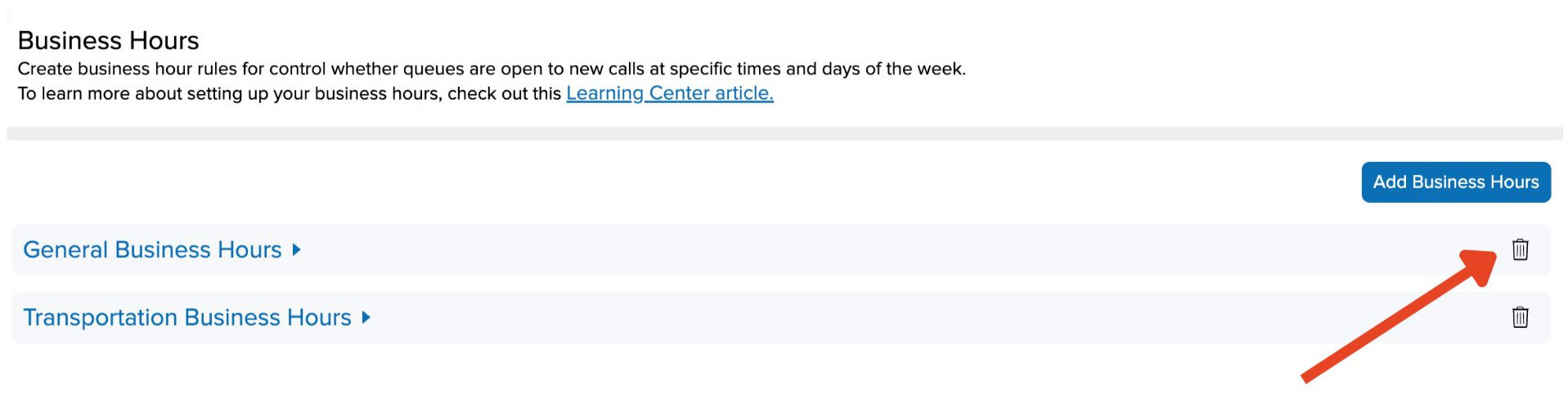
Remove Business Hours

  •  Click the trash can icon next to the business hours & Save

Related Post

Webhooks

Automatically send Onflo ticket and asset information to your other business systems. Overview Webhooks let Onflo automatically send information to another system the moment something happens. When a ticket is created or an asset is added, Onflo can instantly push

Read More ➜

API Tokens

How customers create and manage the tokens that let their software connect to the Onflo API Overview API Tokens is a feature in Onflo Settings that lets a customer generate a secure key which their own software can use to

Read More ➜

Community Promotion Toolkit

Ideas and ready-to-use templates to help you introduce or reintroduce Onflo to your community. Choose Your Approach There’s more than one way to introduce your service desk to your community. The approach you choose will depend on your district’s communication

Read More ➜