
Loading...
Skip to content
  • Home
  • Articles
    • How-to Articles
    • Getting Started
    • Integrations Marketplace
    • Best Practices
    • FAQs
  • Product Updates
  • Onflo Academy
    • New User Training
    • System Administrator Training
    • Beyond the Basics
  • Support
  • Home
  • Articles
    • How-to Articles
    • Getting Started
    • Integrations Marketplace
    • Best Practices
    • FAQs
  • Product Updates
  • Onflo Academy
    • New User Training
    • System Administrator Training
    • Beyond the Basics
  • Support
Log in

Topic Planning for Your Team

  • Category: How-to Articles
  • Tags: Account Setup, Back to School, Department Implementation
Generic selectors
Exact matches only
Search in title
Search in content
Post Type Selectors
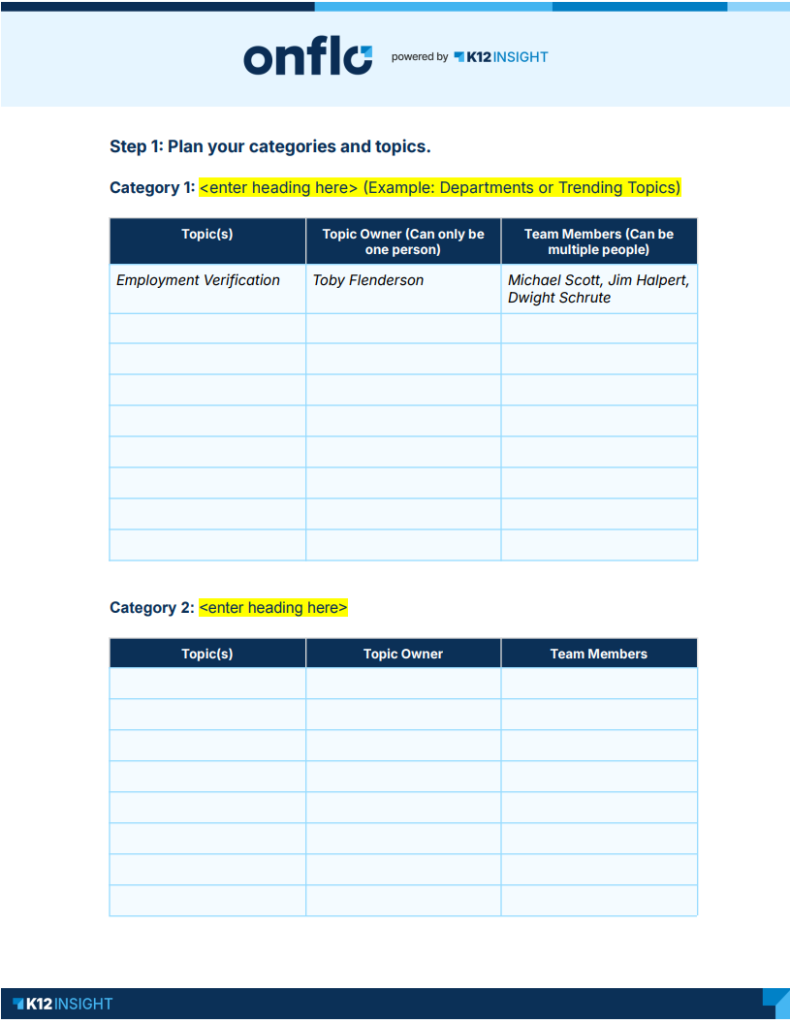
image of the worksheet for reference

Your team knows your work best. Use this worksheet to map out the categories and topics that reflect how you operate — it only takes a few minutes to complete. Once you're done, share it with your system administrator or category owner so they can add your topics and categories to Onflo.

Key Terms

Category — Bold headings that organize topics into groups on your landing page. Examples: Trending Topics, Departments.

Topic — Buttons customers click to submit a question, comment, suggestion, compliment, or concern. Examples: Superintendent Search, Inclement Weather, Transportation Requests.

Topic Owner — The person responsible for managing submissions for a topic. There can be only one per topic.

Team Member — Anyone who supports the topic owner by responding to or viewing submissions. A topic can have multiple team members.

How to complete your worksheet

  1. Define your categories. Enter each category name in the Category field.
  2. Add your topics. List each topic under the category it belongs to. Topics should reflect the most common reasons people reach out to your team.
  3. Assign a topic owner. Enter one topic owner per topic in the Topic Owner column.
  4. Add team members (optional). List anyone who will support the topic owner in the Team Members column.
  5. Submit to your system administrator. Once complete, send your worksheet to your system administrator — they'll use it to configure your team's topics.
Click Here to Download the Topic Planning Worksheet
PreviousTopic Comparison Reports
NextOnflo Asset Import

Related Post

Webhooks

Automatically send Onflo ticket and asset information to your other business systems. Overview Webhooks let Onflo automatically send information to another system the moment something happens. When a ticket is created or an asset is added, Onflo can instantly push

Read More ➜

API Tokens

How customers create and manage the tokens that let their software connect to the Onflo API Overview API Tokens is a feature in Onflo Settings that lets a customer generate a secure key which their own software can use to

Read More ➜

Community Promotion Toolkit

Ideas and ready-to-use templates to help you introduce or reintroduce Onflo to your community. Choose Your Approach There’s more than one way to introduce your service desk to your community. The approach you choose will depend on your district’s communication

Read More ➜

Need support?

Our Client Services Team is here to help between 7 a.m. – 7 p.m. ET. Get support here or call us at (703) 542-9601.

Mobile App

apple store
g play

Follow Us on

Linkedin Youtube

Quick links

  • Privacy
  • Security
  • Support
  • Training
  • Credits

Articles

  • How-to Articles
  • Product Updates
  • Get Started
  • Best Practices
  • FAQs

Get Newsletter

Sign up to get platform Tips & Tricks delivered directly to your inbox.

Scroll to top