
The Account Activity Log is your account’s timeline. It captures key actions—including reporting, user account management, setting changes, and more! You always know what happened, when, and by whom. Whether you're tracking changes or ensuring account security, the log keeps you informed and in control. If you are a System Admin, you have the ability to access the account's activity log.
Accessing the Activity Log
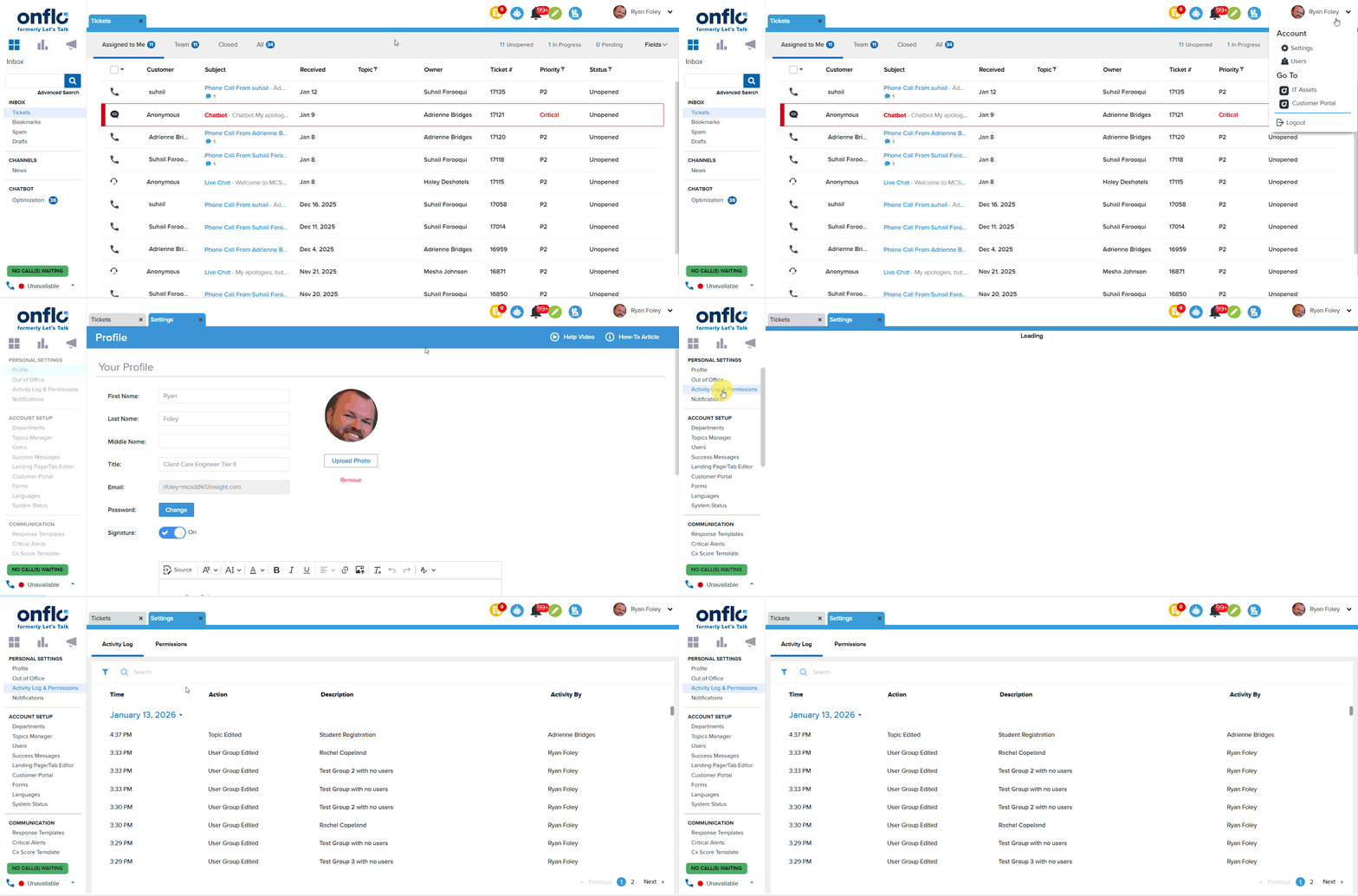
- Click on Settings > Your Settings > Activity Log & Permissions
- System Admins will be able to see the Activity Log in addition to their Permissions' page
Information in Activity Log
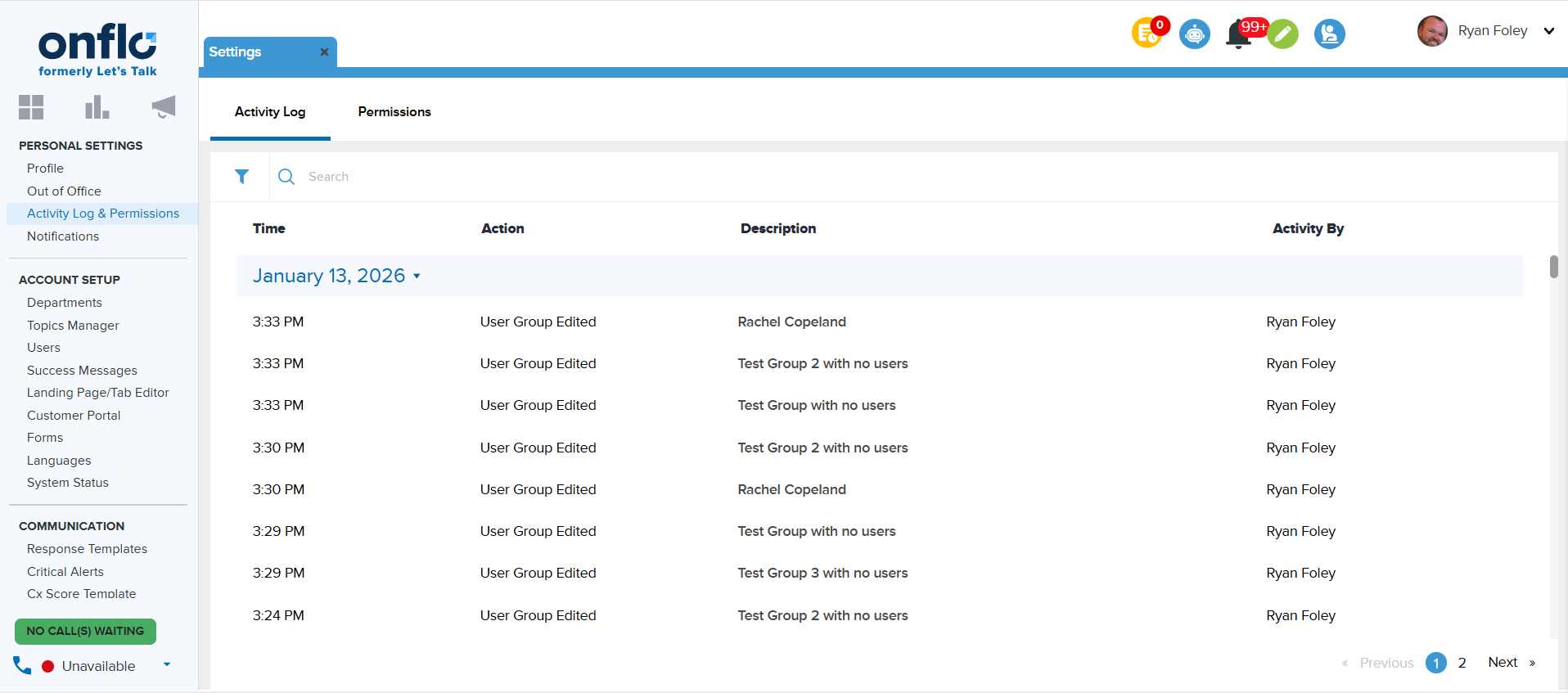
The activities are logged and separated by date of occurrence and include a time, action, description, and user who performed the action. The activities are grouped by the date they were performed.
Onflo (formerly Let's Talk) tracks many types of actions. Below are categories and actions that are recorded in the log:
Dashboard
- Report activities
- Report - Generated, Downloaded, Saved, Shared
Account Setup
- Campaign activities
- Campaign - New Campaign Added, Campaigns Email Sent
- Landing Page Topics activities
- Page changes - Added, Edited, Deleted, Translate Landing Page updated
- Embed Code - Downloaded or Tab Embed Code Downloaded, FAB Embed Code Downloaded
- Category activities
- Status- Private or Public
- Changes - Category set as Active or Inactive, Deleted
- Owner - Edited
- Topic activities
- Status - Active/Inactive
- Changes - Added, Deleted, Edited, Marked Private, Marked Public, Translation Text Updated
- Chatbot (LTA)
- LTA Settings - Edited
- LTA Script - Added, Edited, Deleted
- LTA Profile - Added, Edited, Deleted
- Resources
- Resource - Added, Edited, Deleted
- Resource Section - Added, Edited, Deleted
- FAQ
- FAQ Section - Added, Edited, Deleted
Communication
- Response Templates
- Template Changes - Added, Edited, Deleted
- Workflows and Out of Office
- Workflows - Added, Edited, Deleted, Disabled, Enabled
- Out of Office - New Event Added, Out of Office Event Edited, Out of Office Event Deleted
- Success Messages, Critical Alerts, and Languages
- Success Message Card - Added, Edited, Published, Copied, Deleted, Set As Default
- Critical Alerts - Enabled, Edited, and Disabled
- Languages - Added, Deleted, Translator Edited
Channels
- Social Media
- Channel Changes - Enabled, Edited, Disabled
- Features Used - Nudge, Cheer, or Manual Nudge
- Phone & Text
- IVR - Added, Edited, Deleted
- Greeting - Added, Edited, Deleted
- Business Hours - Added, Edited, Deleted
- Holiday Calendar - Added, Edited, Deleted
- Text Settings - Edited, Deleted
- Saved Reply - Added, Edited, Deleted