
Internal Comments
Internal Comments offer the opportunity to collaborate with colleagues — sharing information and setting expectations while simplifying the Customer’s experience. They also are a helpful tool for documenting follow-up that occurs outside of Onflo (formerly Let’s Talk) such as in-person meetings and phone calls. Internal Comments are visible to all team members, but not to the Customer.
Adding Comments
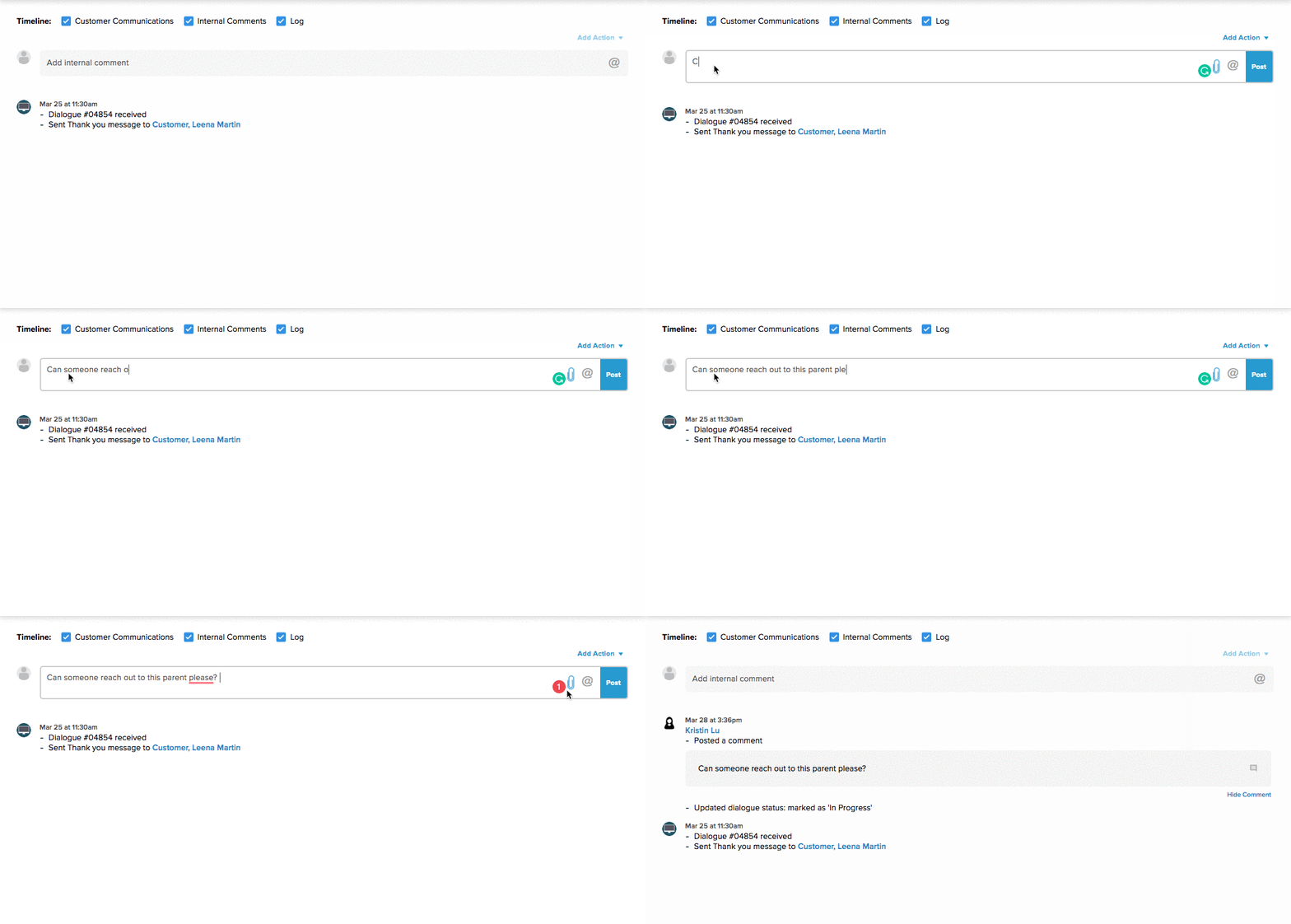
- To add an internal comment, click on the text box that is labeled "Add internal comment" in the timeline.
- Enter text to leave a comment for the team. To mention or direct your message toward a certain team member, type the “@” followed by the team member’s name. If you would like to direct a comment toward someone who is not on the team, you may add this user to the Ticket in the same step.
- To note a specific action you’re taking in connection with this Ticket — either to address the feedback or as a follow-up — click on Add Action Taken in the top right-hand corner of this text box and select the relevant action from the list. Provide detail in the text box. For example: Called parent and discussed missing homework. Parent will review agenda and sign for the rest of the month to ensure nothing is missed. Parent appreciated call.
- To add any relevant attachments to be shared with colleagues, click on the paperclip icon or simply drag & drop the file into the textbox. Up to two attachments of up to 5 MB each may be added to each comment.
- Click on Post to submit your internal comment.
Editing or Removing Comments
- You can only edit or remove Internal Comments made by you.
- Editing:
- To edit a comment, hover over the comment and a box will appear around the text.
- Click on the text itself, or the pencil icon to the right of the text to enable editing.
- Click outside of the box to save your edits.
- Removing:
- Click into the text of the Internal Comment and erase the entire comment.
- Click outside of the box to complete the removal.