
Onflo (formerly Let’s Talk) allows you to support multiple phone lines, each with its set of greetings, voicemail messages, and auto-text replies.
System Administrators can customize these settings in Settings > Phone and Text > Voicemail Message or Topic Phone Number Settings. You can also assign team members on this page!
Topic Phone Number Settings:
Check the box near the number you'd like to edit and select Edit Number Settings. A panel will appear on the right containing Voice Call Settings. Here you can upload your audio files and make other edits to voice and text message settings.
- Incoming Call: Upload your own call greeting with an opening about the district, alternative contact information, or if you enable the Call Recording function, a message regarding the recording of the conversation.
- By default, Onflo will have the following call greeting in place: Thank you for calling. Your call is very important to us and you’ll be routed to the next available person. Please be advised that this call might be recorded for quality assurance and training purposes.
- Voicemail: Upload a message callers would hear if no one from the district was able to answer the call.
- By default, Onflo will have the following voicemail in place: You’ve reached the district’s voicemail box. Your call is very important to us, so please leave your name and a message and we will try our best to reach out with a response as quickly as possible.
Customer Information: 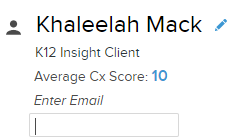
If the customer's name does not appear within the Ticket Details, please click on the name field (pencil icon) to make this edit.
Here you can also edit their email address and best contact number by simply clicking on the fields and typing the information in.
Ticket Details:
Be sure to select the correct Ticket Type and Topic from the Ticket Details Panel.
Types: Question, Comment, Concern, Suggestion, and Compliment.
Please reassign the Ticket to the correct Topic if you believe another Team/User should be responsible for the Ticket.