Overview
Connect to any LDAP-compatible directory service including Microsoft Active Directory, OpenLDAP, or other enterprise directories for user authentication and provisioning.
Features
- LDAP authentication for secure user login
- Automated directory sync for user provisioning and updates
- Group membership mapping to Onflo teams and roles
- Configurable search filters and attribute mapping
Prerequisites
Before you begin make sure you have the following before connecting this integration:
- LDAP server URL and port
- Bind DN (distinguished name) and credentials
- Base DN for search root
- Initial creation of all LT users in AllowLT group
Step 1: In the Integration Marketplace select the Custom LDAP application.
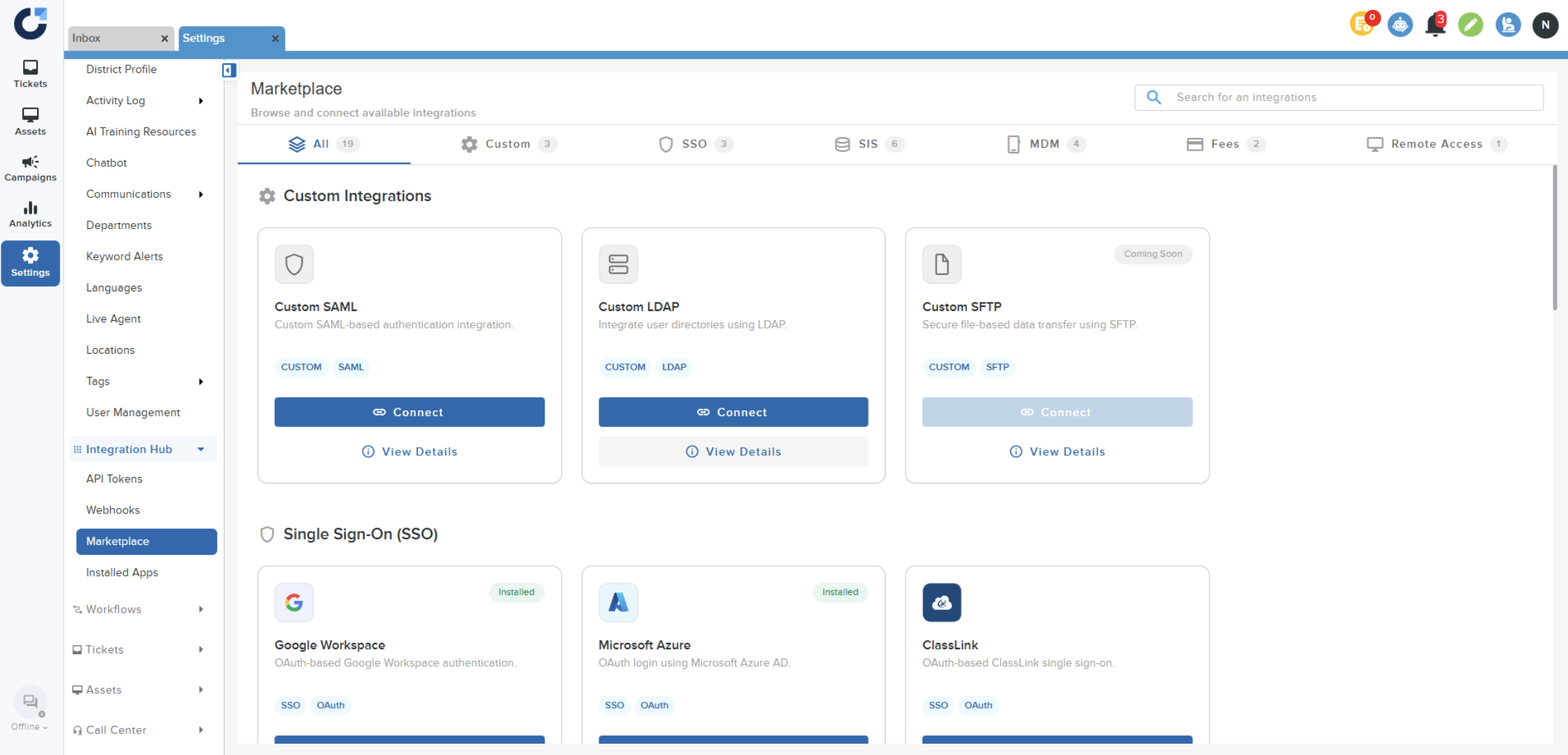
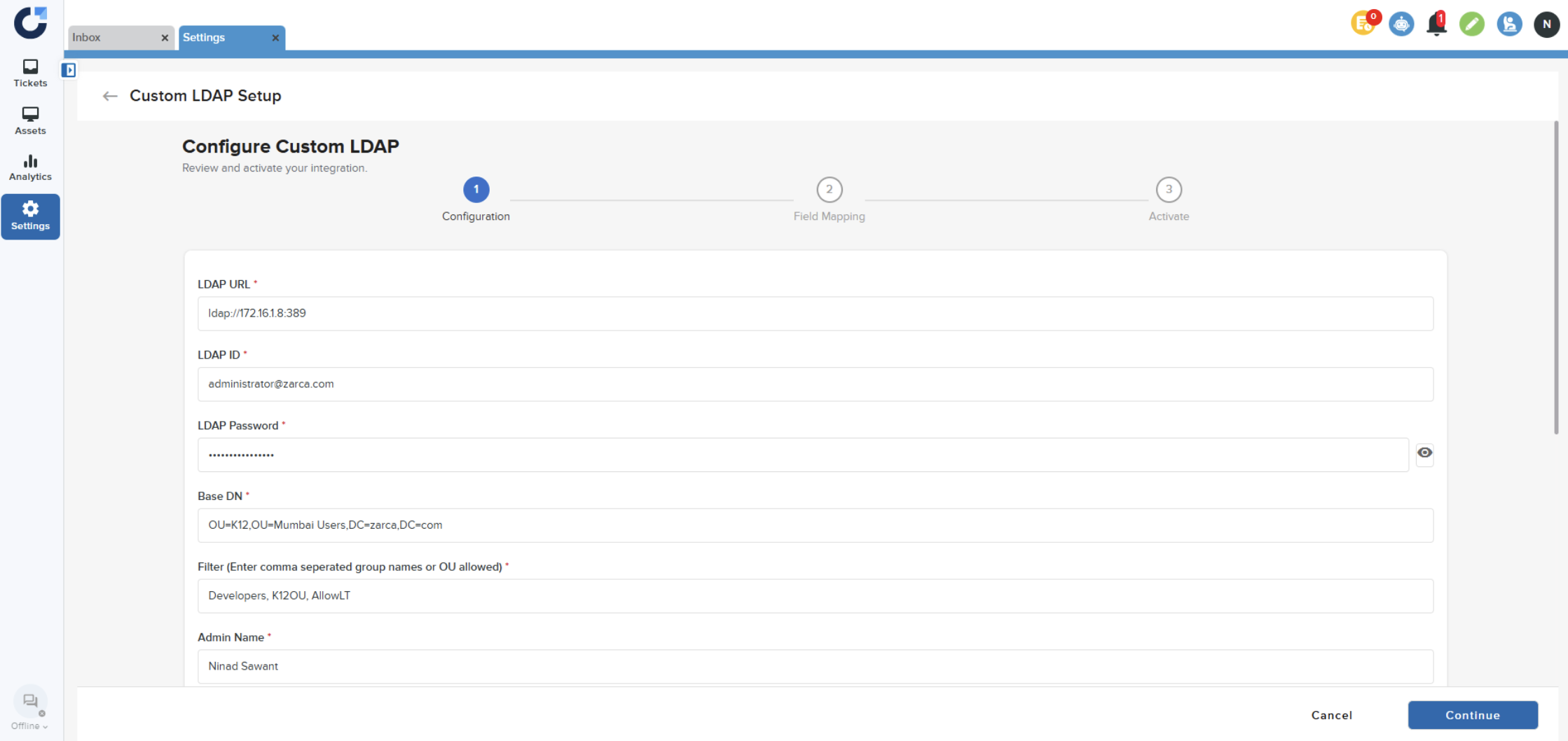
Step 2: Enter the required details.
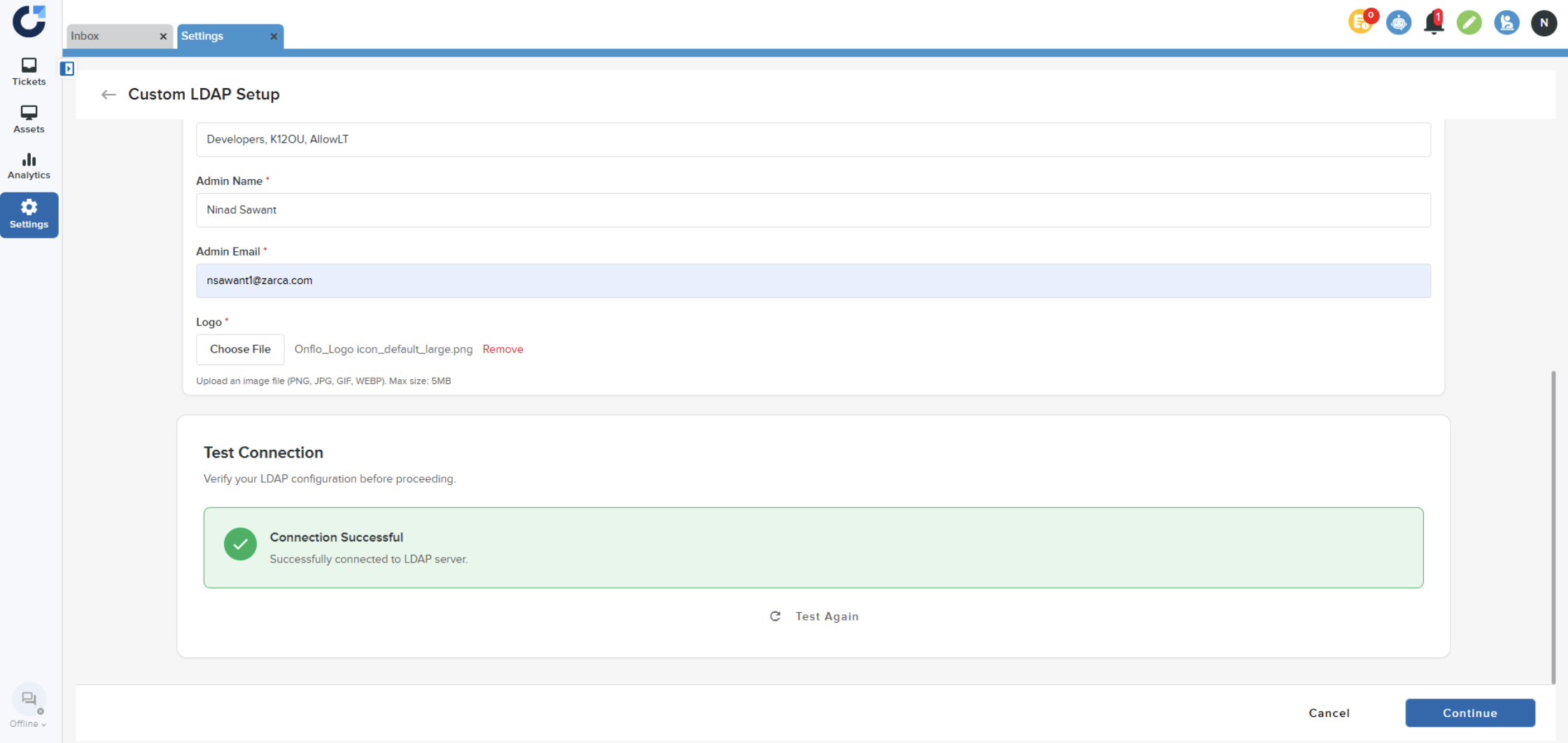
Step 3: Test the connection and click Continue.
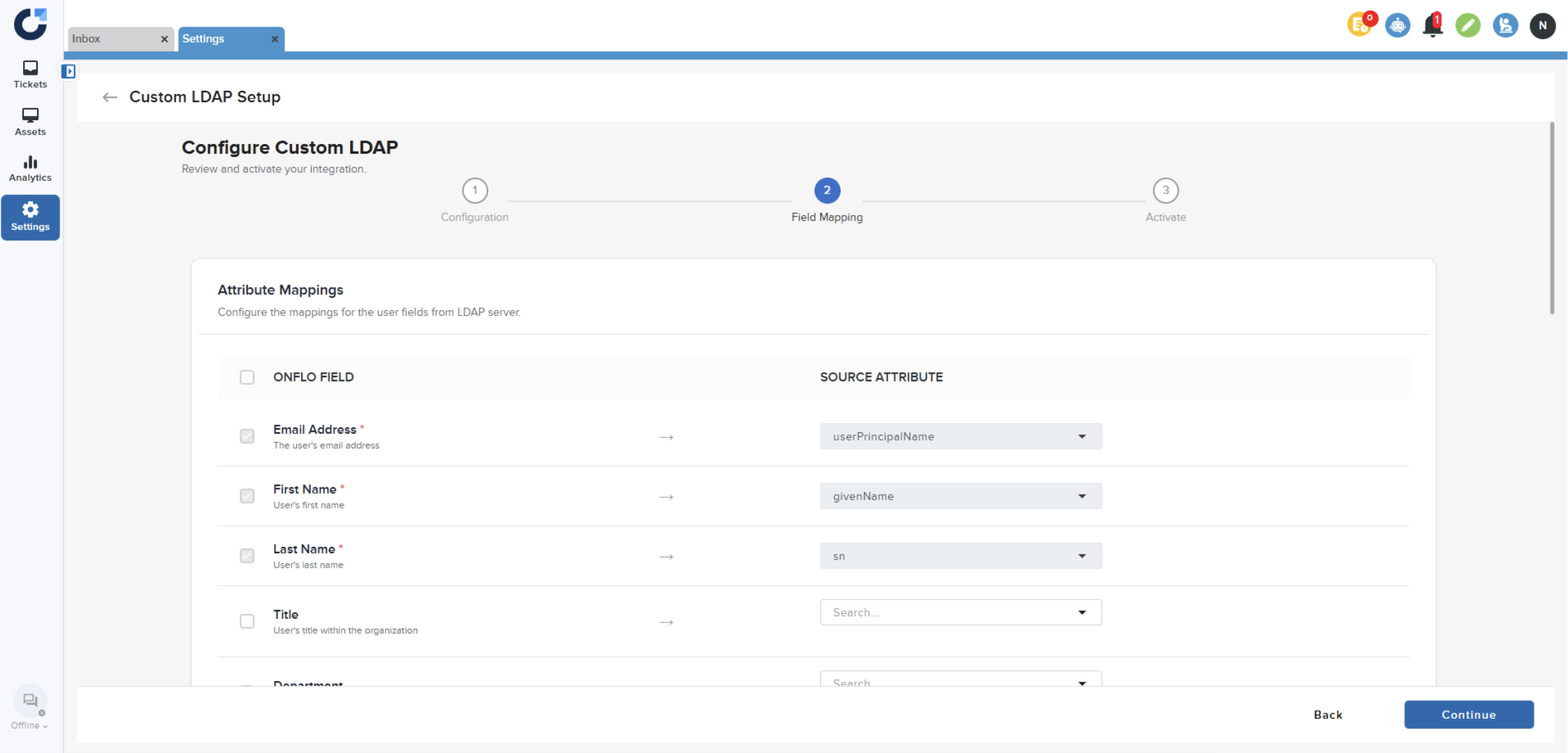
Step 4: Map the fields from LDAP to User fields in Onflo.
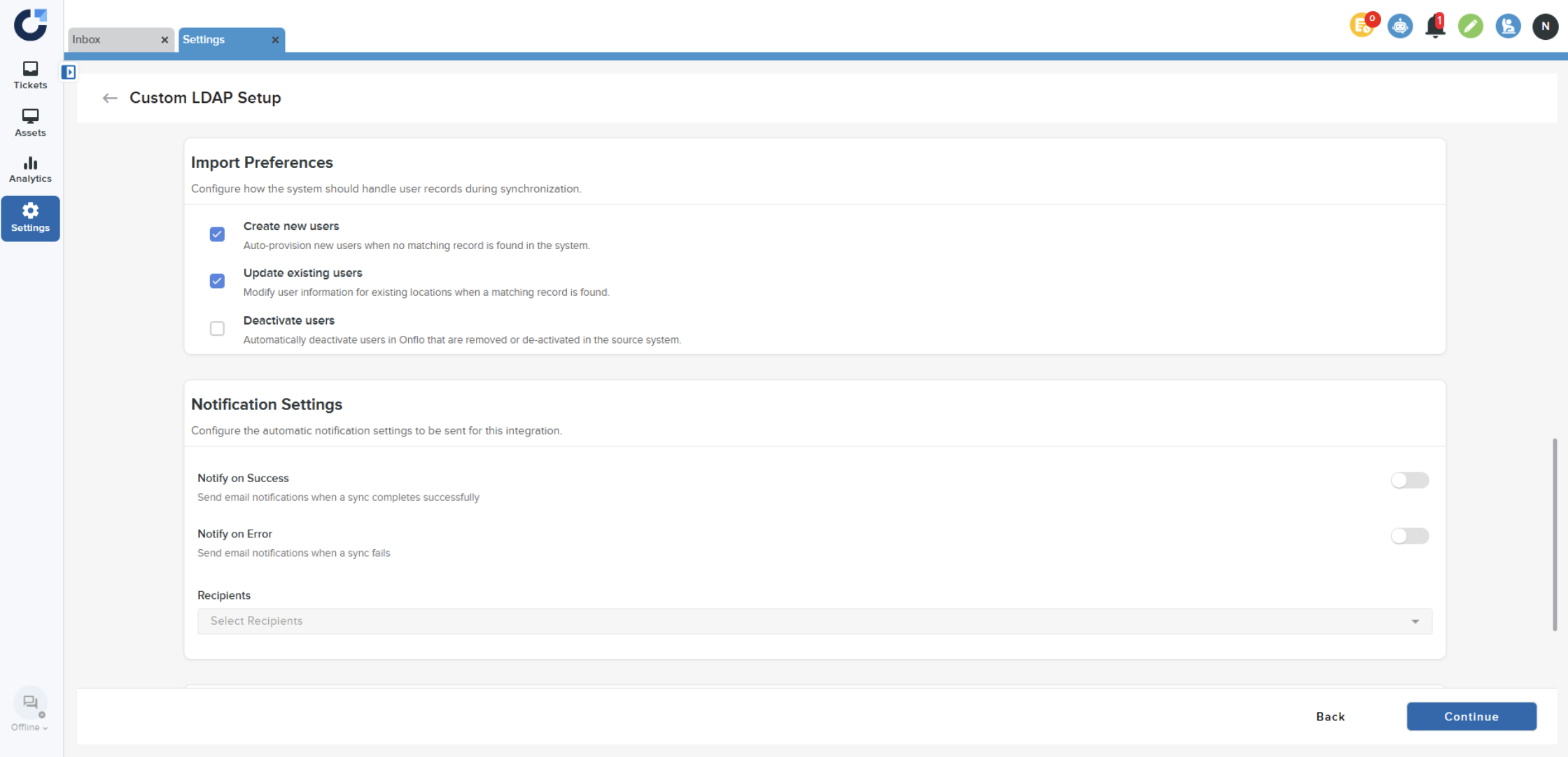
Step 5: Set Import Preferences and Notification settings.
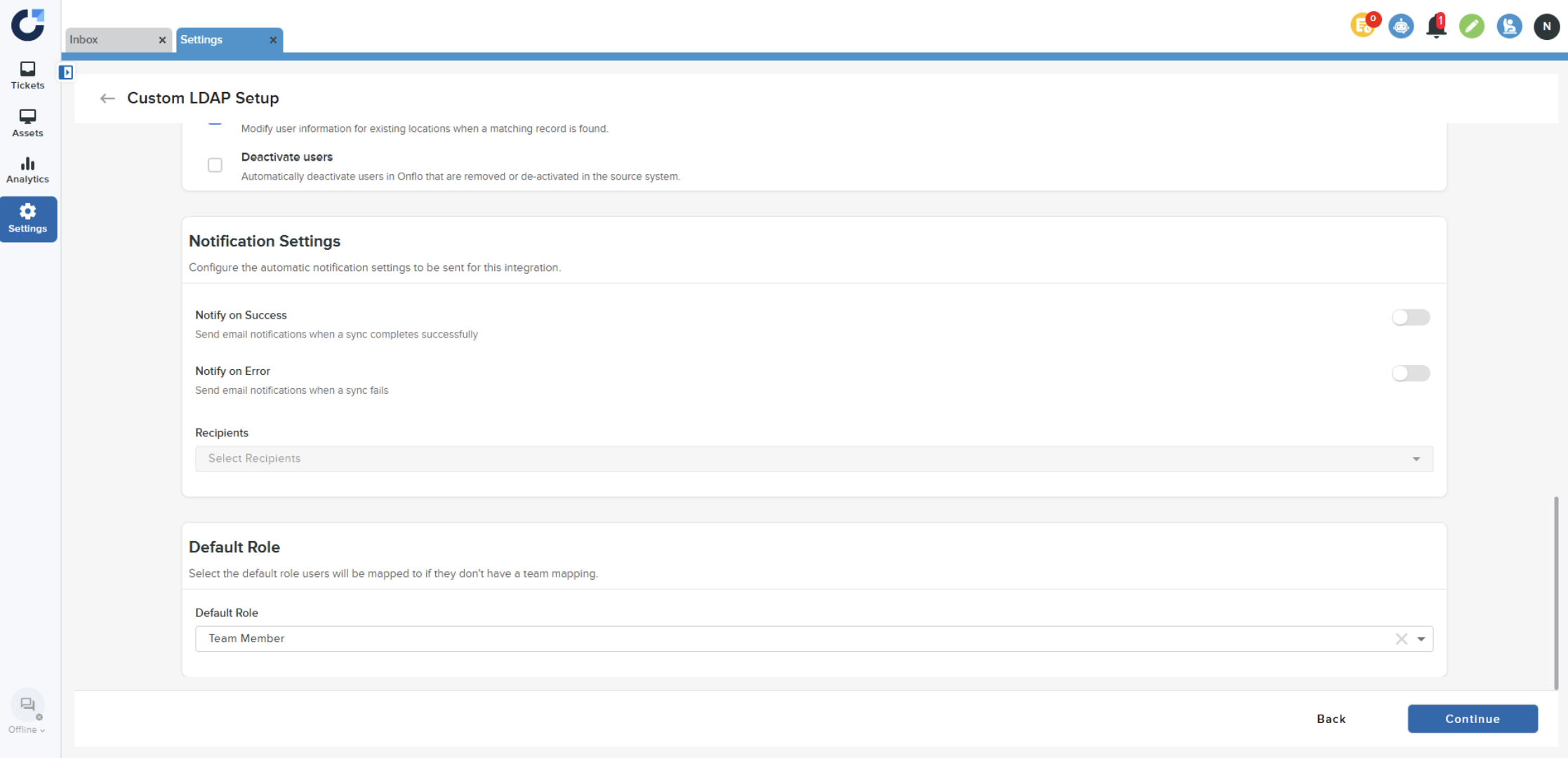
Step 6: Set the default role.
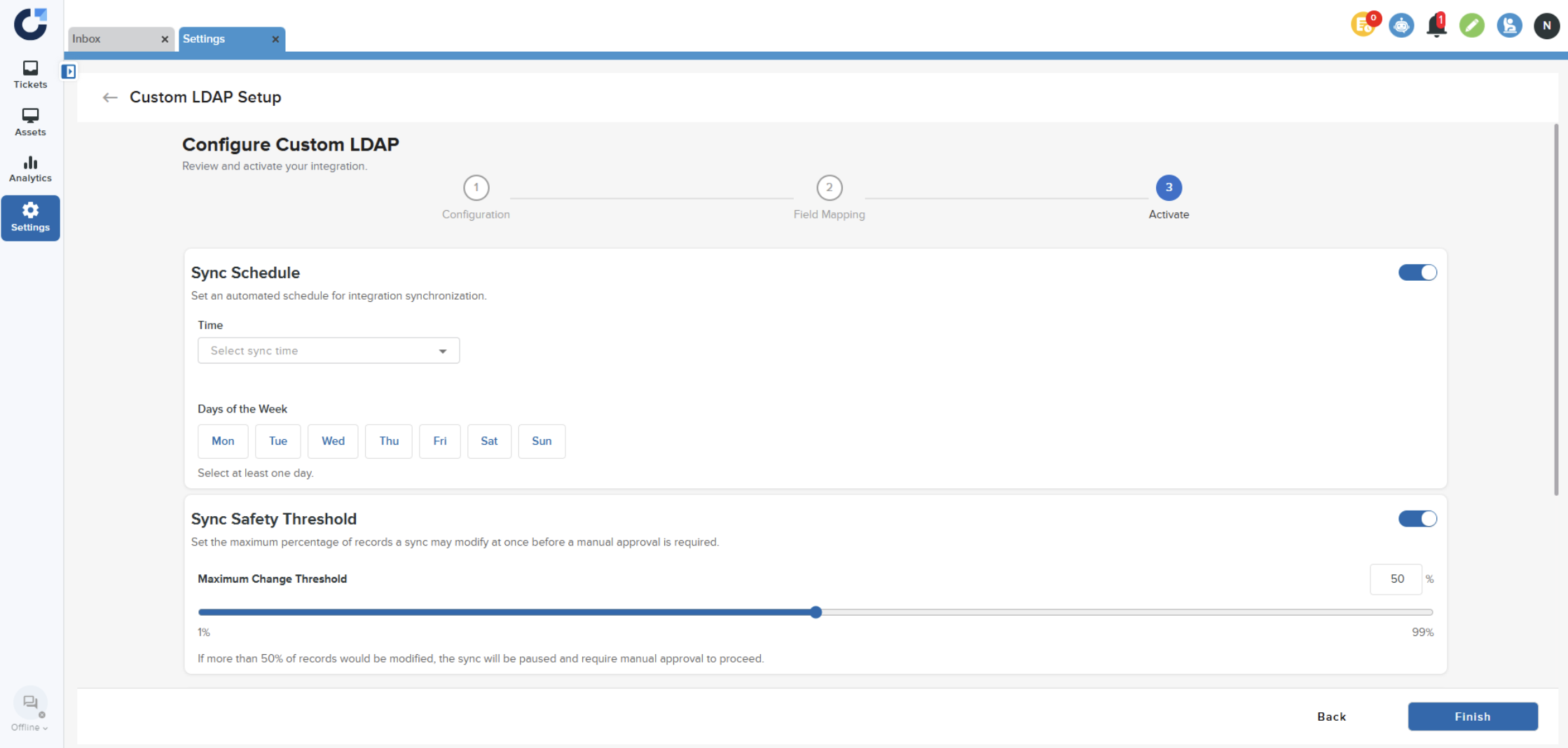
Step 7: Set Sync Schedule and Sync Safety Threshold.
Step 8: Click Enable Integration and click Finish.
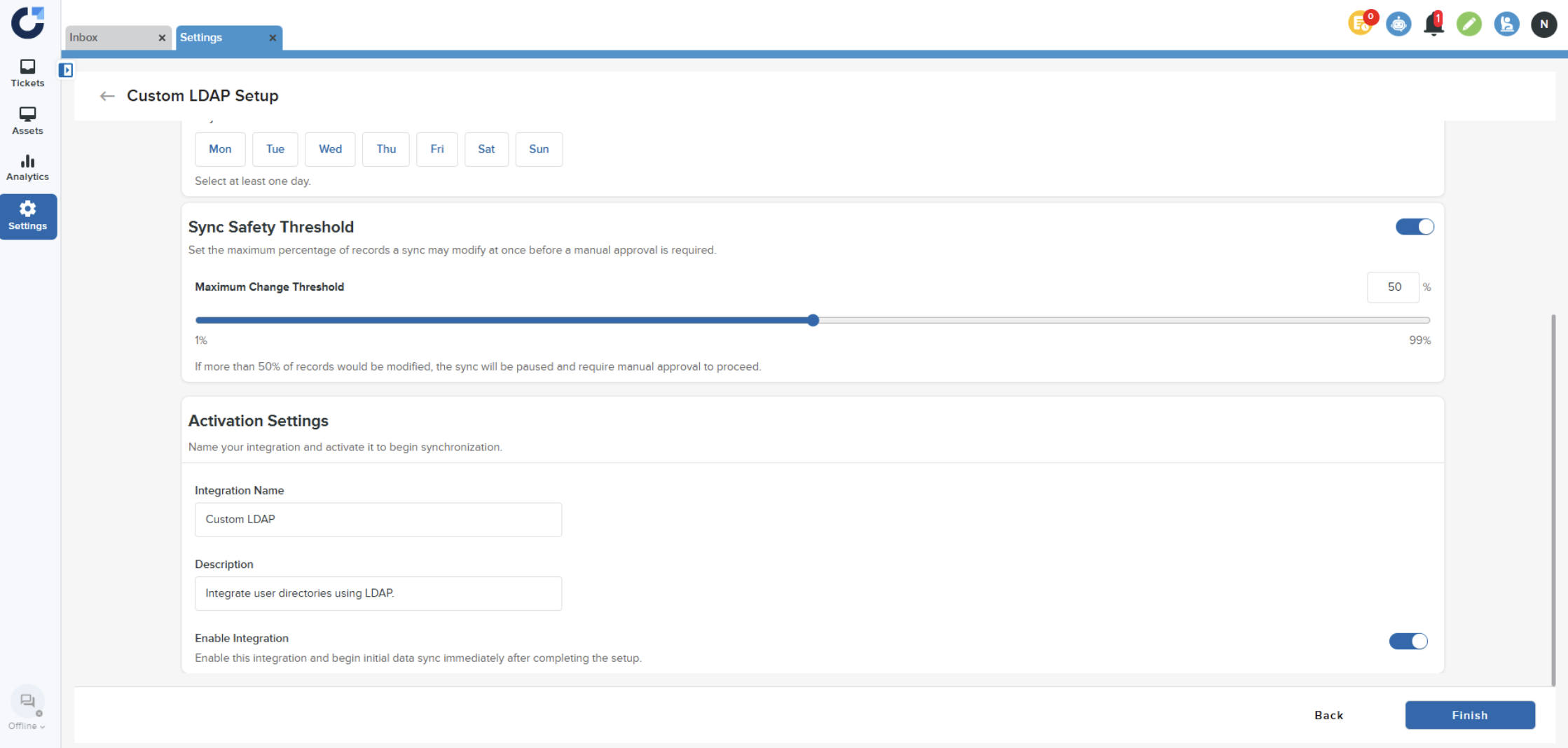
Once the application is activated it will be displayed in the Installed Apps page.
Step 9: Navigate to the Activate page inside the Custom LDAP application to retrieve the Login URL.
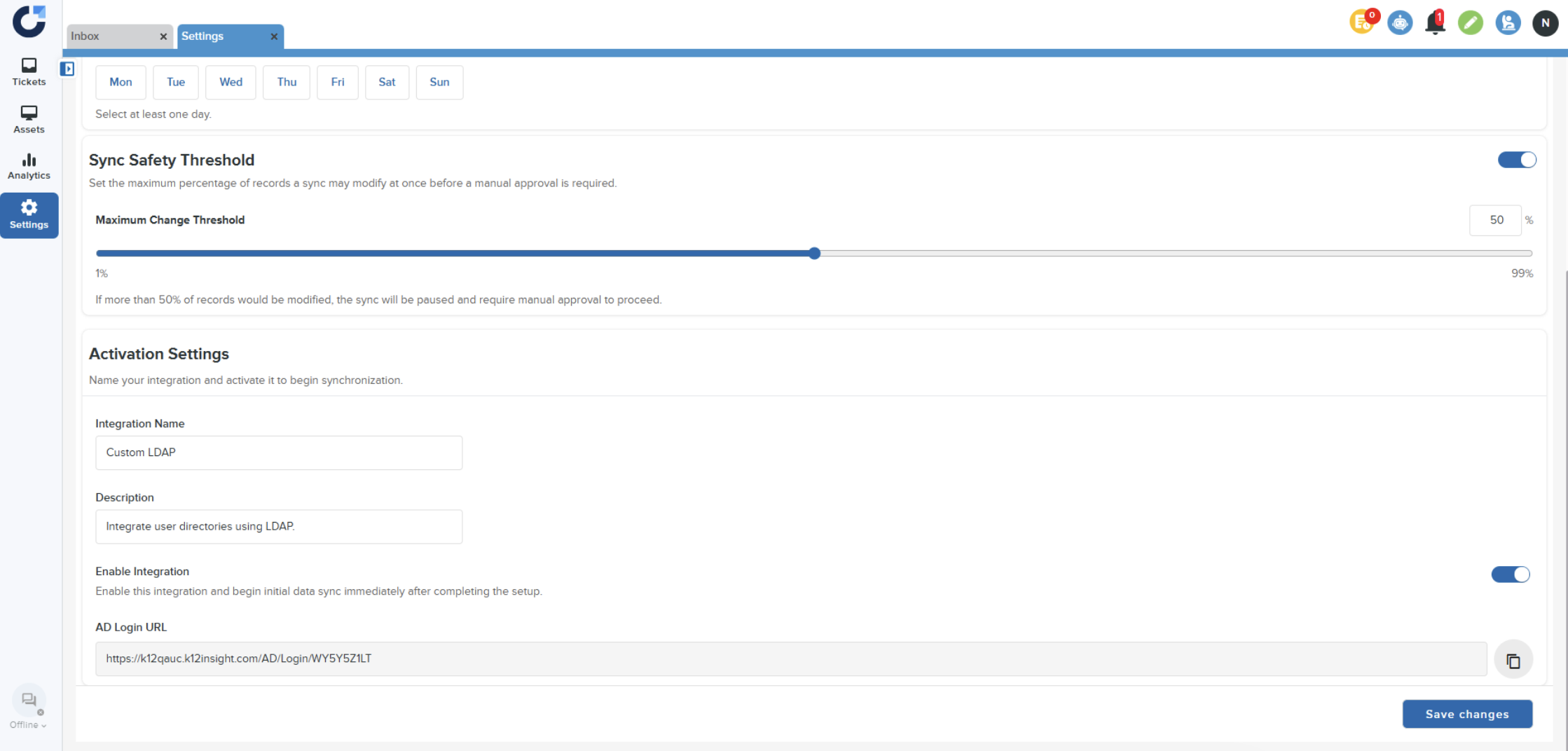
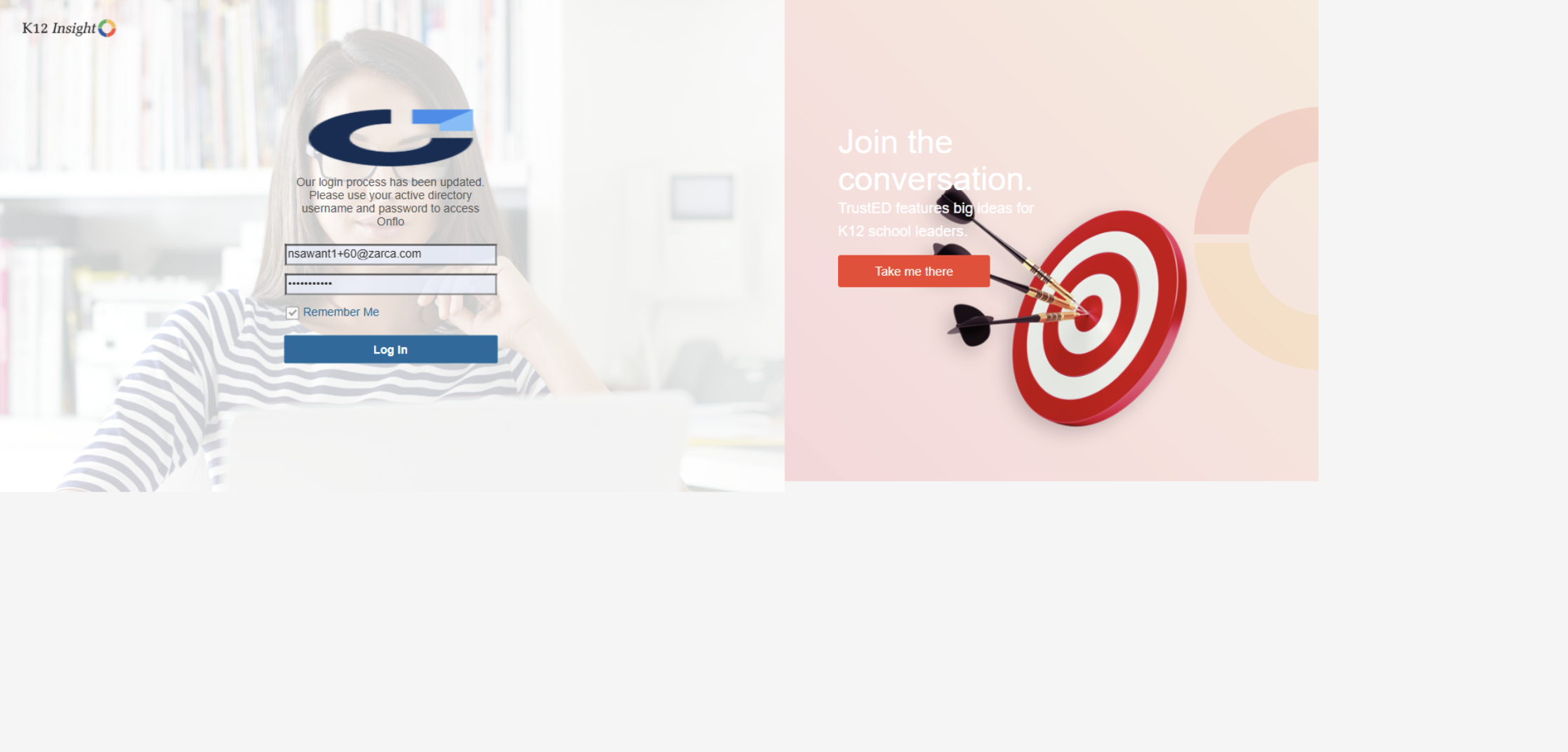
Step 10: Use the given URL to login to Onflo.