About this integration
Integrate Microsoft Azure Active Directory (Entra ID) to provide secure Single Sign-On and automated directory synchronization. Your district's Microsoft 365 users can access Onflo with their existing credentials while user data remains synchronized automatically.
Features
- Single Sign-On via Microsoft accounts
- Automated user provisioning and lifecycle management
- Group synchronization for team mapping
- Role assignment based on group membership or directory attributes
- Directory sync via Microsoft Graph API
Prerequisites
Before you begin make sure you have the following before connecting this integration:
- Microsoft Azure / Entra ID administrator account with Global Admin or Application Admin role
- Authorization to grant Onflo read access to your directory (Microsoft Graph)
- Users provisioned in Azure Active Directory
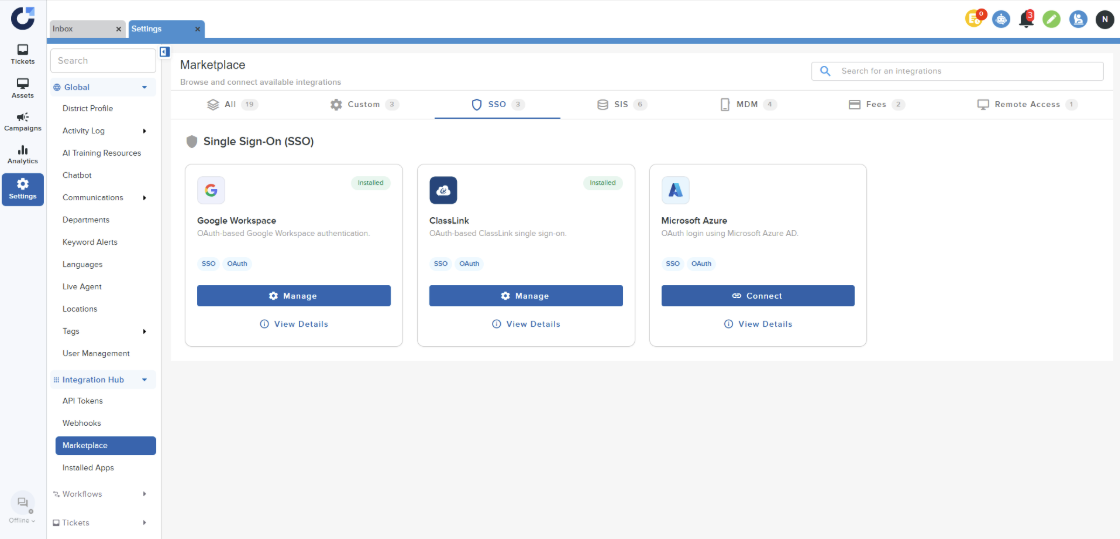
Step 1: In the SSO section of the Integration Marketplace, find the Microsoft Azure application and select Connect.
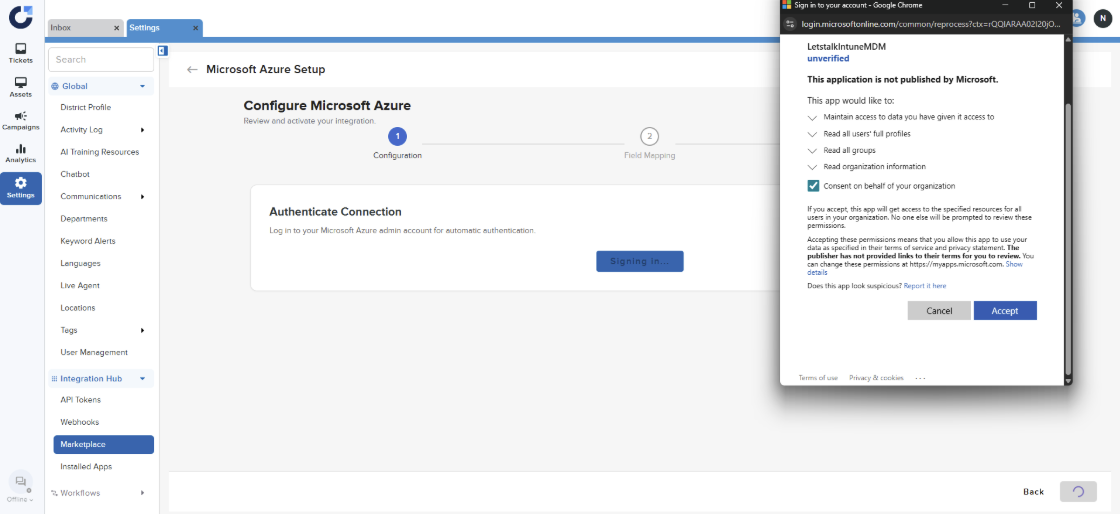
Step 2: Click Sign In and grant the permission on behalf of the District.
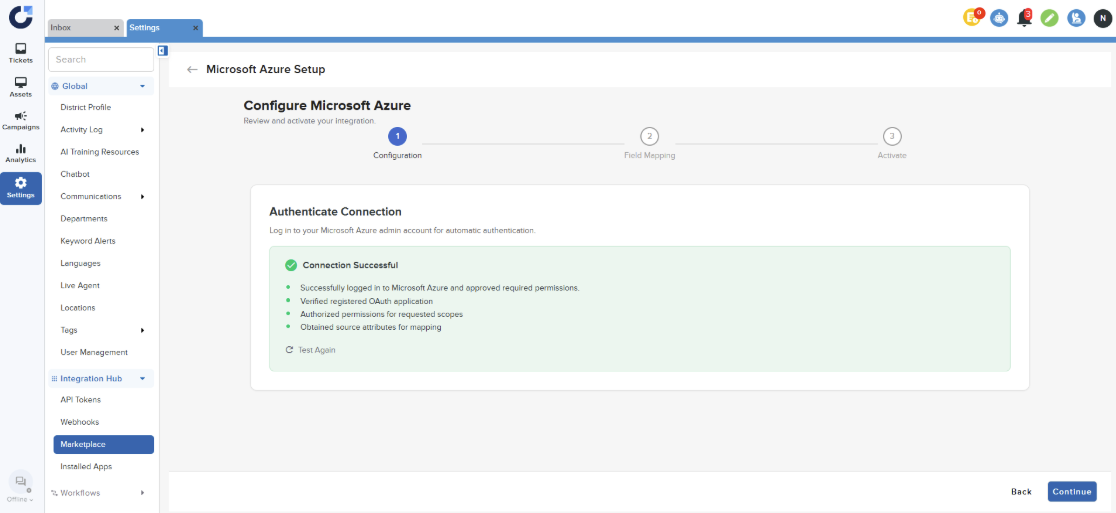
Step 3: Once the connection is successful click Continue.
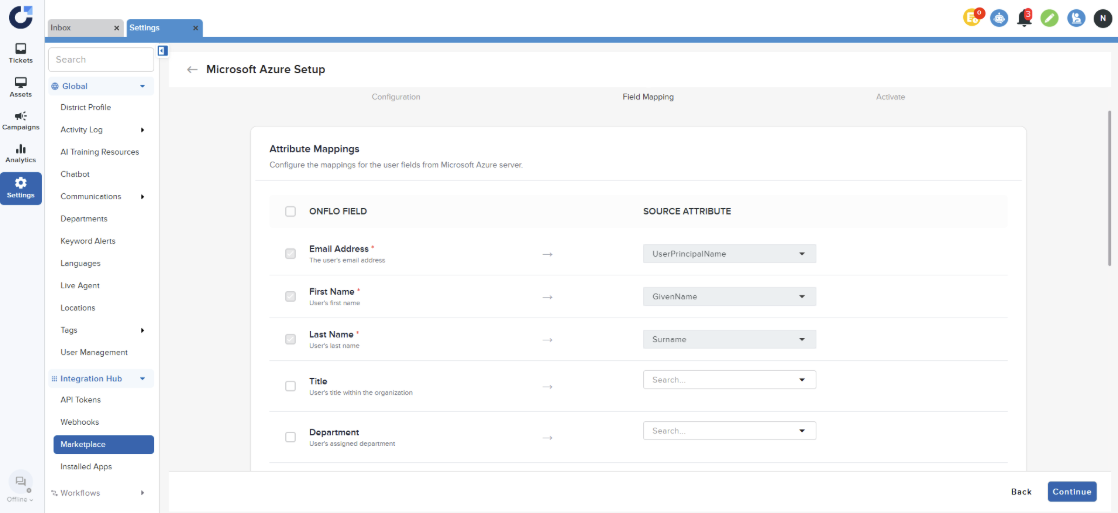
Step 4: Admins can map fields from their Google Workspace to fields in Onflo.
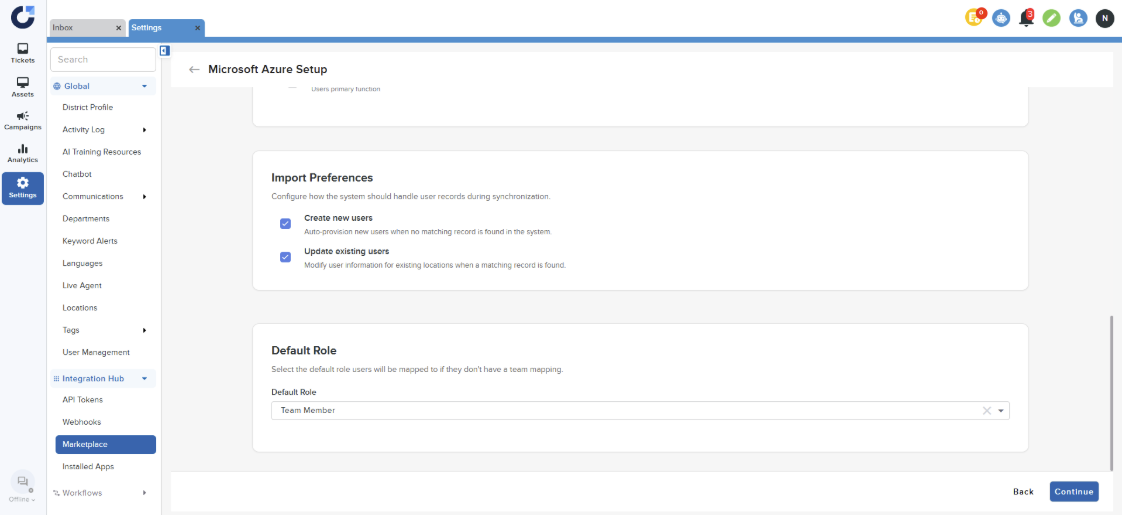
Step 5: Set Import Preferences and set Default Role.
Step 6: Set a sync schedule for this integration by selecting a time and days. (Set an automated schedule for integration synchronization.)
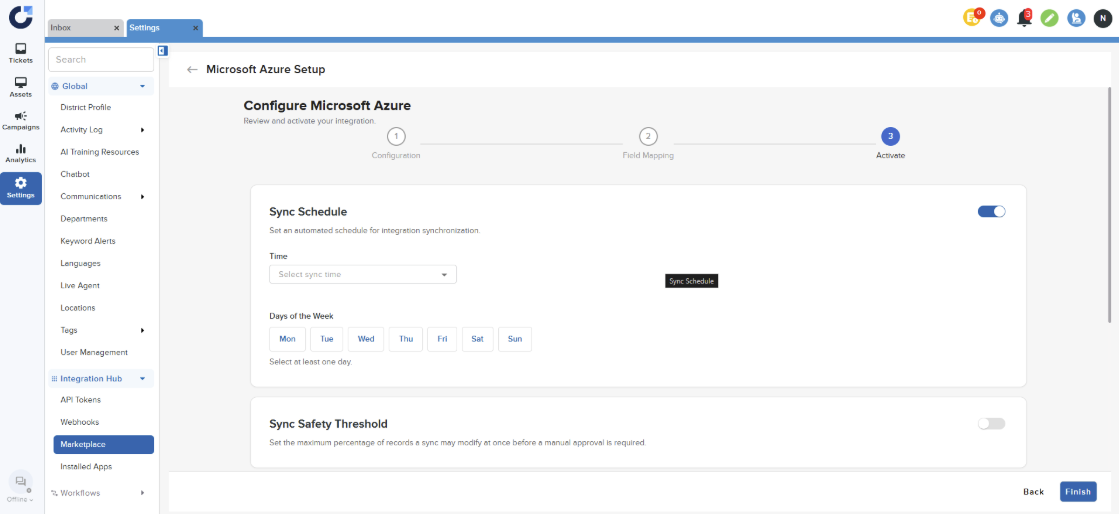
Step 7: Set Sync Safety Threshold (Set the maximum percentage of records a sync may modify at once before a manual approval is required.).
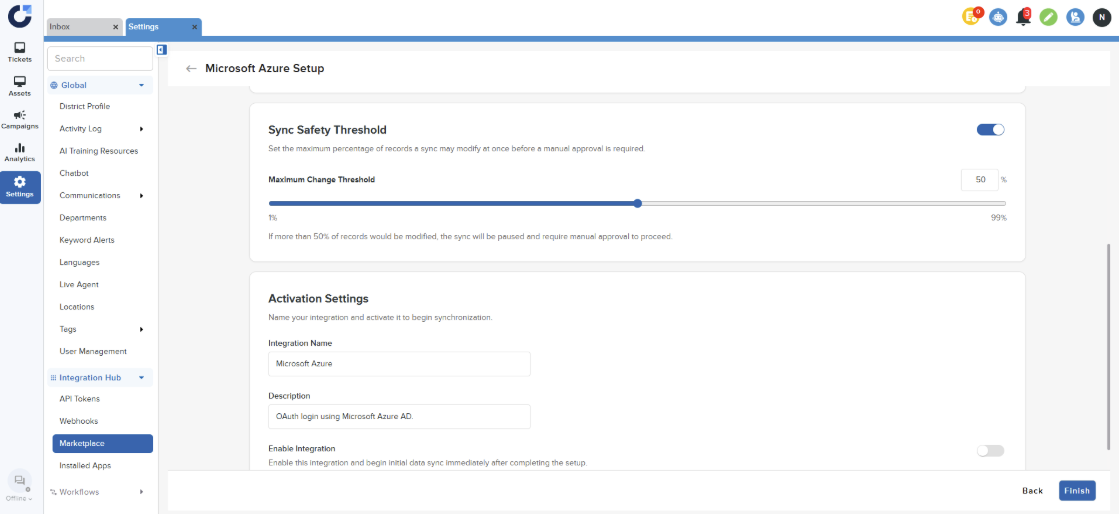
Step 8: Click Enable Integration and click Finish to complete the setup.
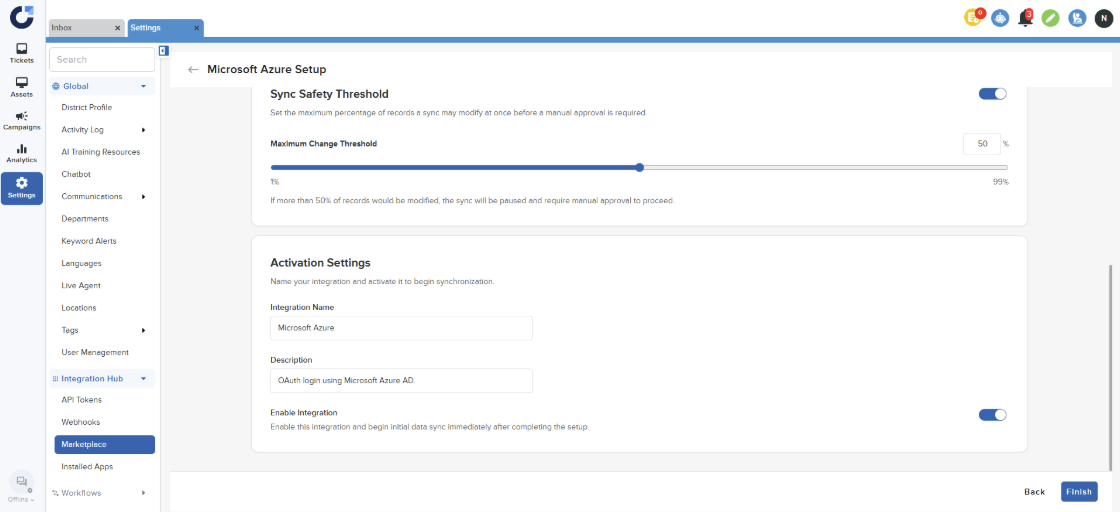
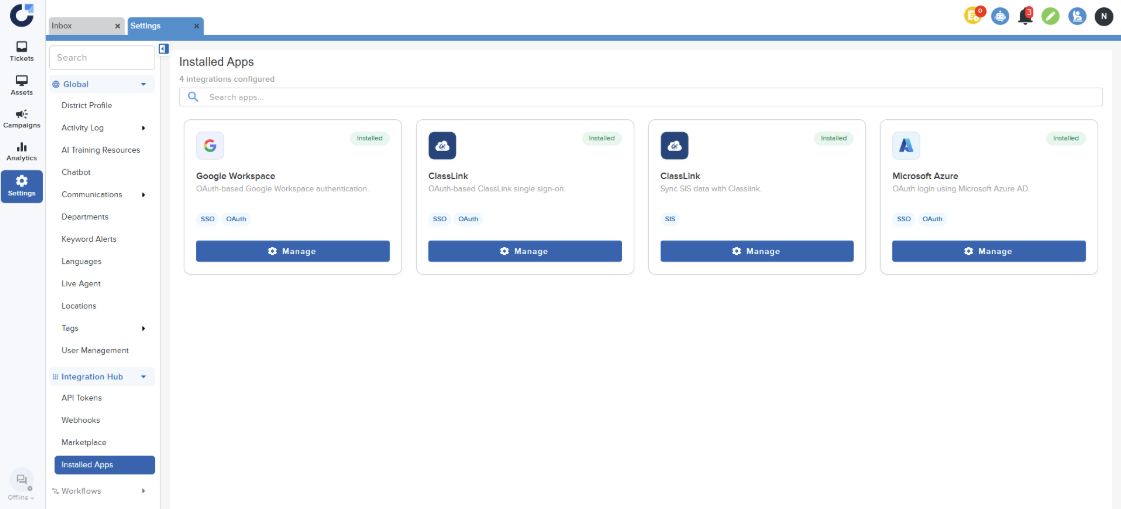
Once the integration is installed it will show up in the Installed Apps section along with other installed applications. Admins can click on Manage to make changes.