
Onflo (formerly Let's Talk!) Call Center feature allows districts to use the platform as their comprehensive customer service solution and call center — allowing you to take incoming calls, make outgoing calls, and manage the call and phone agent queues.
The Call Center can be managed virtually, improve customer experience, increase first-call resolution, and serve as a solution for gathering feedback from calls, texts, emails, chatbot, and other channels.
Interactive Voice Response (IVR) is a system that allows callers to interact with a menu using their phone's keypad. Configure IVR menus to route users to the right queue or play voice memos.
IVR Settings
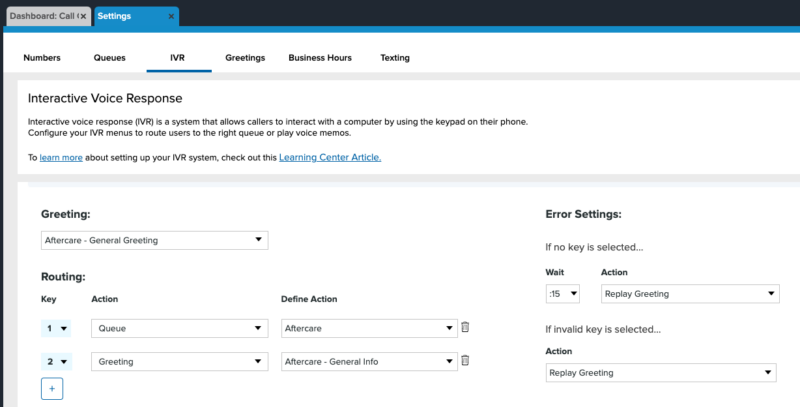
Users can create multiple IVR Menus on the IVR settings page. Within each IVR Menu, you can configure a greeting message or routing instructions to be heard when customers call in.
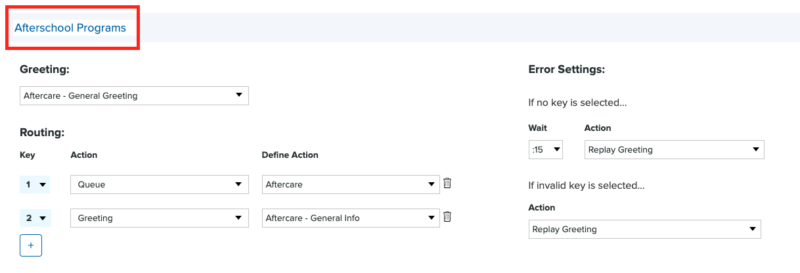
IVR Name
Choose a name for the IVR, which will display in the collapsed view, and select the IVR as a routing option.
Greeting
Creating Greetings
Enhance the caller's experience with personalized greeting messages. Users can upload recordings within the Greetings Library and select one to play as the greeting message for an IVR.

- Click on “Add Greeting” to upload audio files for greetings.
- Each greeting requires a name and accepts .mp3 and .wav files.
Replace Greetings
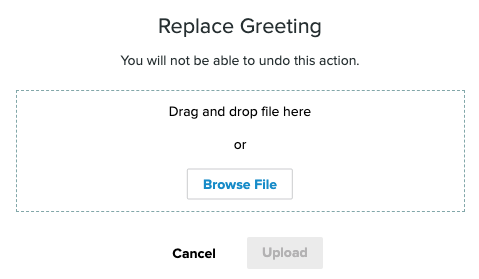
Greetings can be replaced by hovering over the name and selecting Replace.

Select a file to replace the Greeting then Upload. Please note that this action can't be undone once you replace the Greeting.
Call Routing
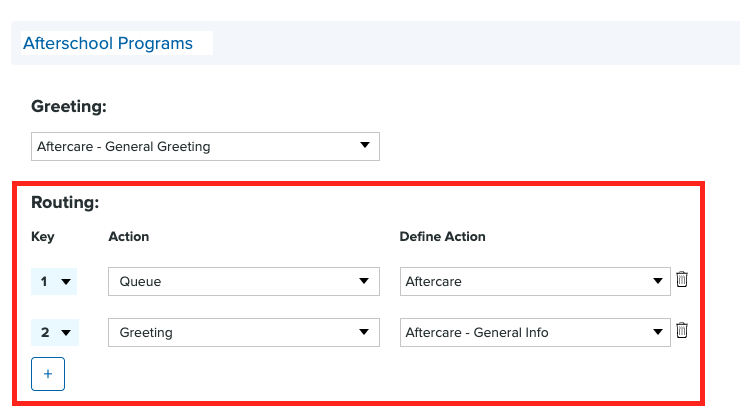
Users can choose how key selections will route to specific actions from the following options:
- Queue: Choose which queue to route calls to.
- IVR: Choose which IVR to route calls to.
- Greeting: Select a Greeting recording to play.
Error Settings
If no key is selected...
Users can decide what happens if callers do NOT select a key after a specific time. They can choose the wait duration before taking any action.
The following actions include:
- End Call
- Replay Greeting
- Greeting: Select another audio recording to play.
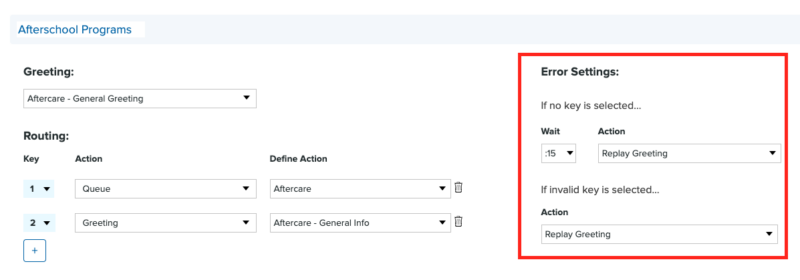
If an invalid key is selected...
An Invalid key is anything that is not configured. Users can choose what happens if callers select an invalid key. They can choose which action to take from the following:
- Replay Greeting
- Recording: Select which recording to play
Find more overview information about the Call Center here.
Click here to learn how to set up phone numbers in Onflo.