Overview
Synchronize your Apple device inventory from Jamf Pro directly into Onflo's asset management system. Maintain accurate, up-to-date records for Mac, iPad, iPhone, and Apple TV devices without manual data entry.
Features
- Automated asset inventory sync for Apple devices
- Hardware specifications and device identification
- Software inventory and managed app tracking
- Compliance and security status monitoring
- Device location and assignment synchronization
- On-demand device details retrieval when viewing assets
Prerequisites
Make sure you have the following before connecting this integration:
- Jamf Pro administrator account
- API credentials (Client ID and Client Secret) with read access to device inventory
- Jamf Pro server URL
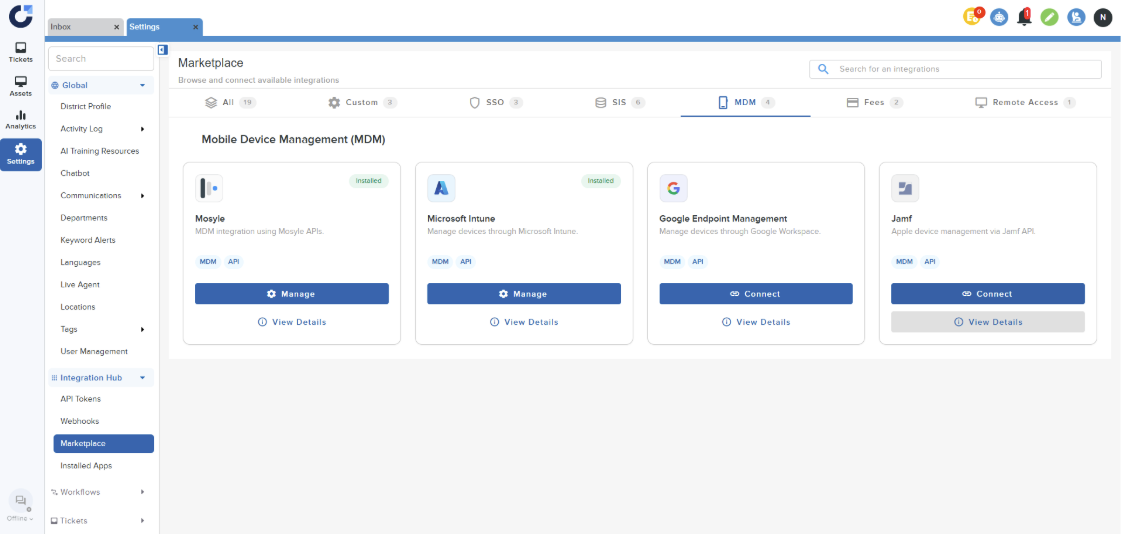
Step 1: Click on Connect on the Jamf App in the MDM section of the Integration Marketplace.
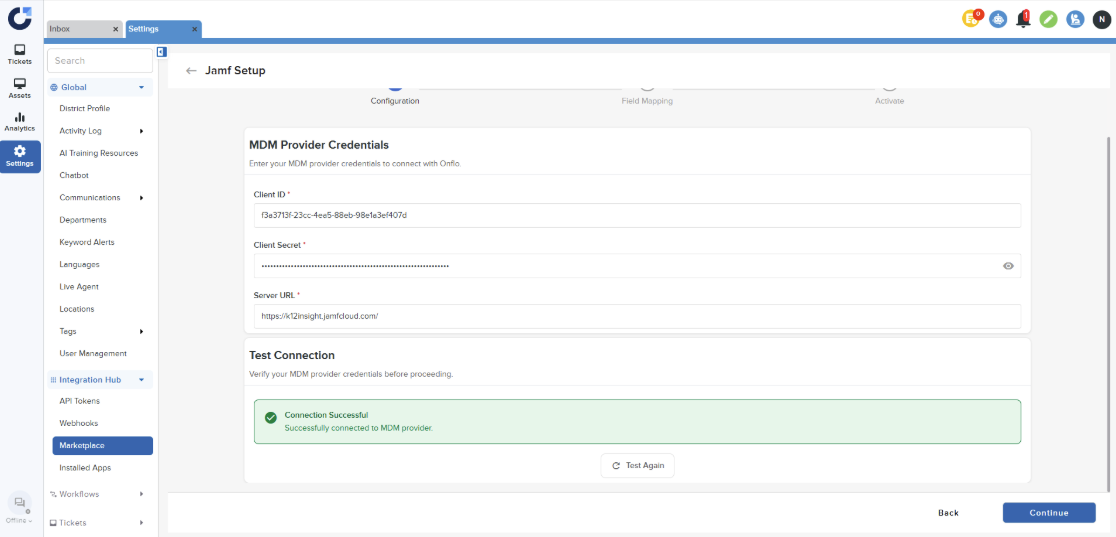
Step 2: Configure the MDM details and verify the connection. For instructions on setting up the Jamf details, please refer to this document. Once the connection is successful, click Continue.
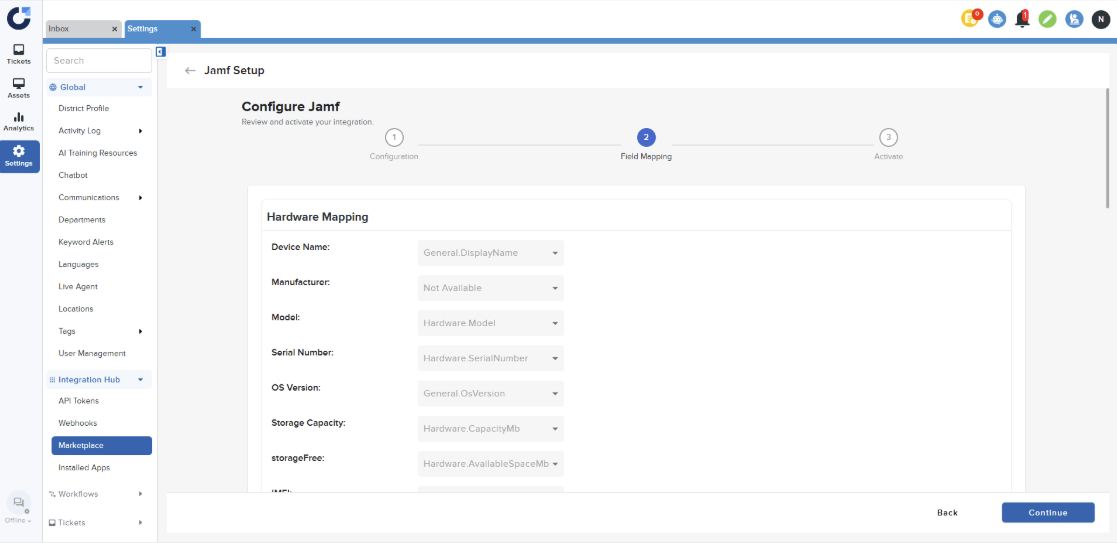
Step 3: Click Continue on the Field Mapping page.
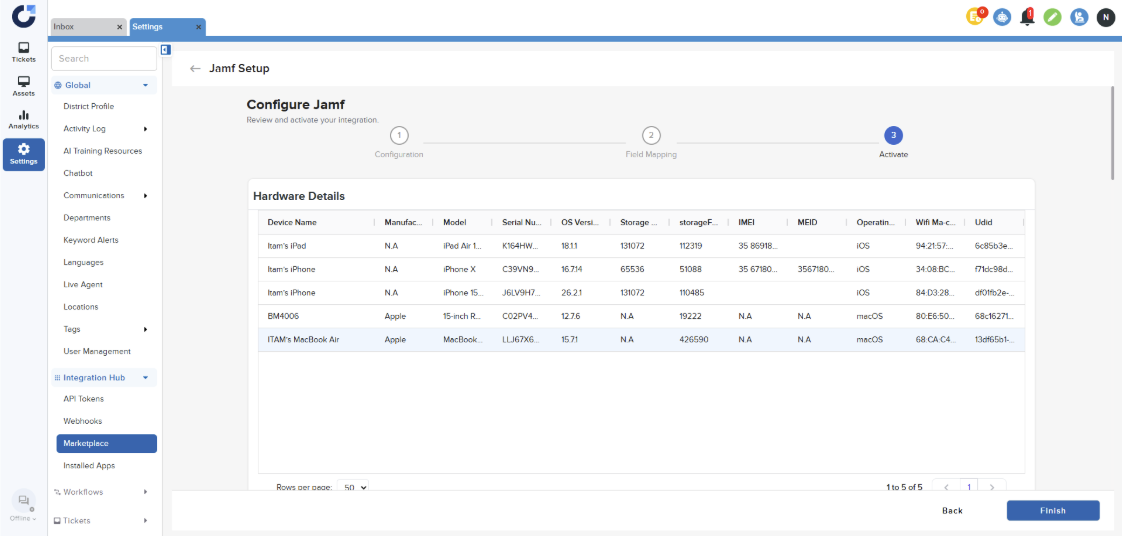
Step 4: On the Activate page click Finish.
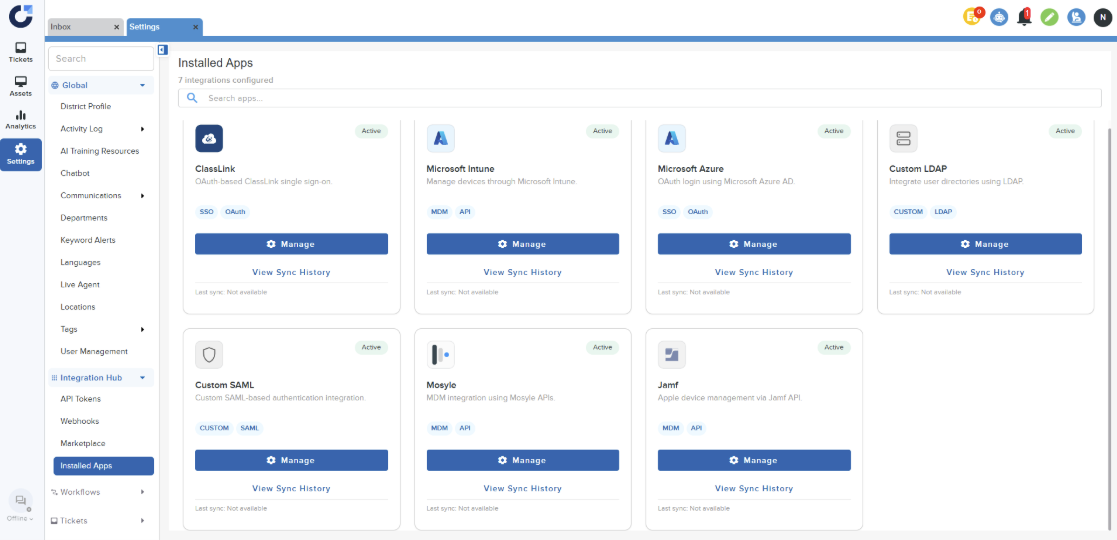
Step 5: Once the application is installed it will be shown in the Installed Apps section of the Integration Hub.