Overview
Integrate Microsoft Intune to synchronize Windows and cross-platform device inventory with Onflo. Track managed devices across your district with automated syncs that capture hardware details, compliance status, and enrollment information.
Features
- Automated asset inventory sync for Windows, iOS, and Android devices
- Hardware details including model, serial number, and OS version
- Device enrollment and provisioning status
- Recent user and last sync tracking
- On-demand device details retrieval when viewing assets
Prerequisites
Make sure you have the following before connecting this integration:
- Microsoft Intune administrator account
- Azure app registration with Intune device read permissions
- Intune tenant ID and API credentials (Client ID and Client Secret)
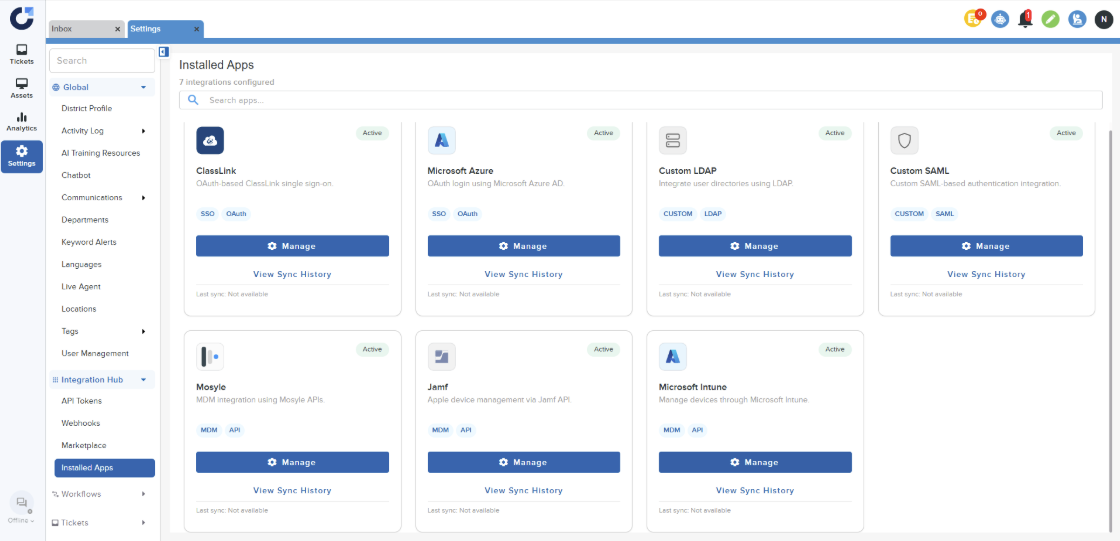
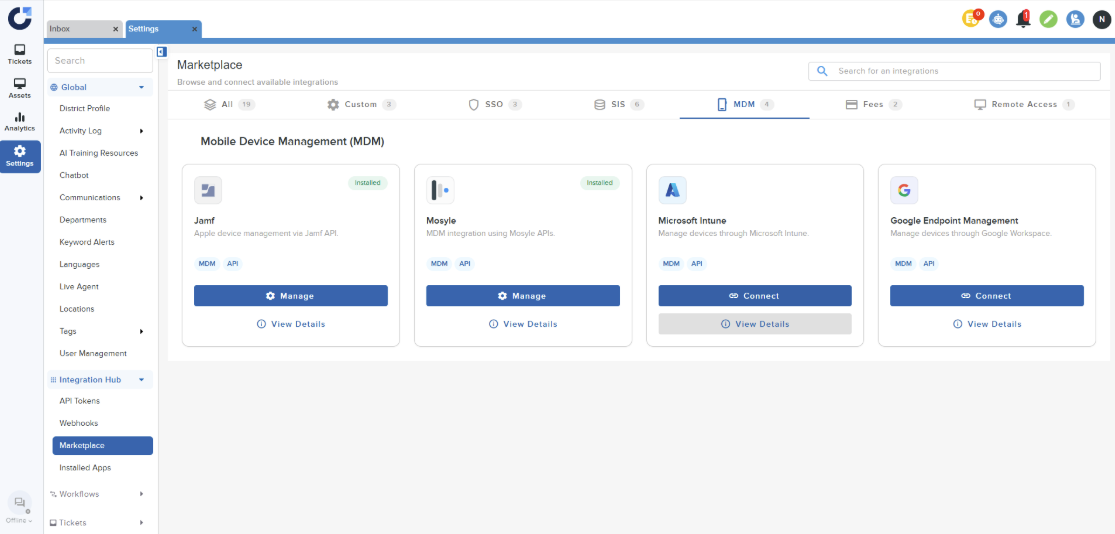
Step 1: Click Connect on the Microsoft Intune Application in the MDM section of the Integration Marketplace.
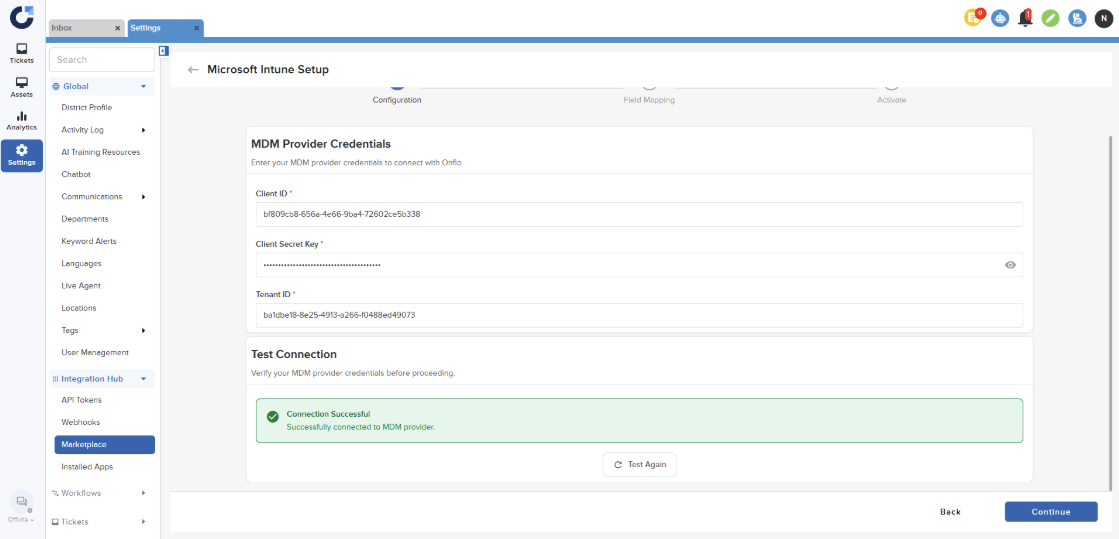
Step 2: Enter the MDM provider credentials. For instructions on obtaining these credentials, please refer to this article. Test the connection and click on Continue once the connection is successful.
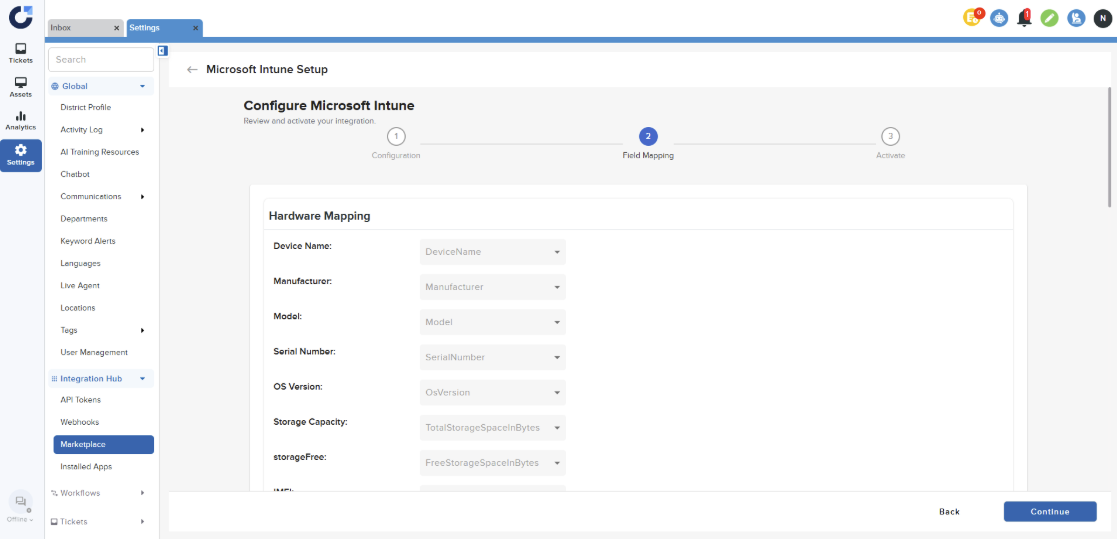
Step 3: Click Continue on the Field Mapping page.
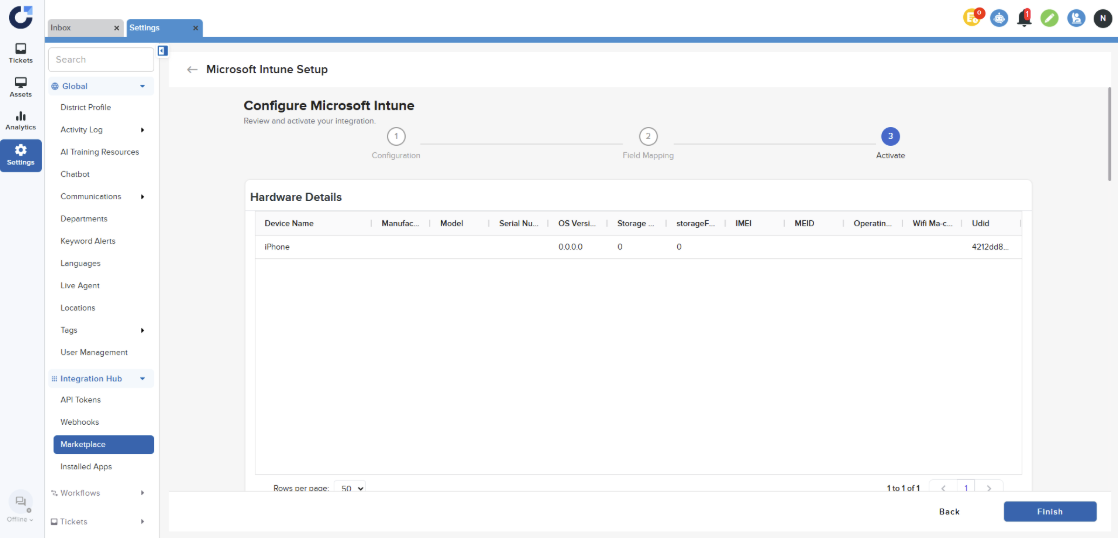
Step 4: Click Finish on the Activate Page to install the application.
Step 5: Once the application is installed it will be shown in the Installed Apps section of the Integration Hub.