
When users no longer require access to Onflo (formerly Let's Talk) (e.g. they no longer work in your organization), they should be made inactive. While all of their previous interactions are archived in the system, they will no longer be able to access Onflo on desktop or mobile.
Deactivating User
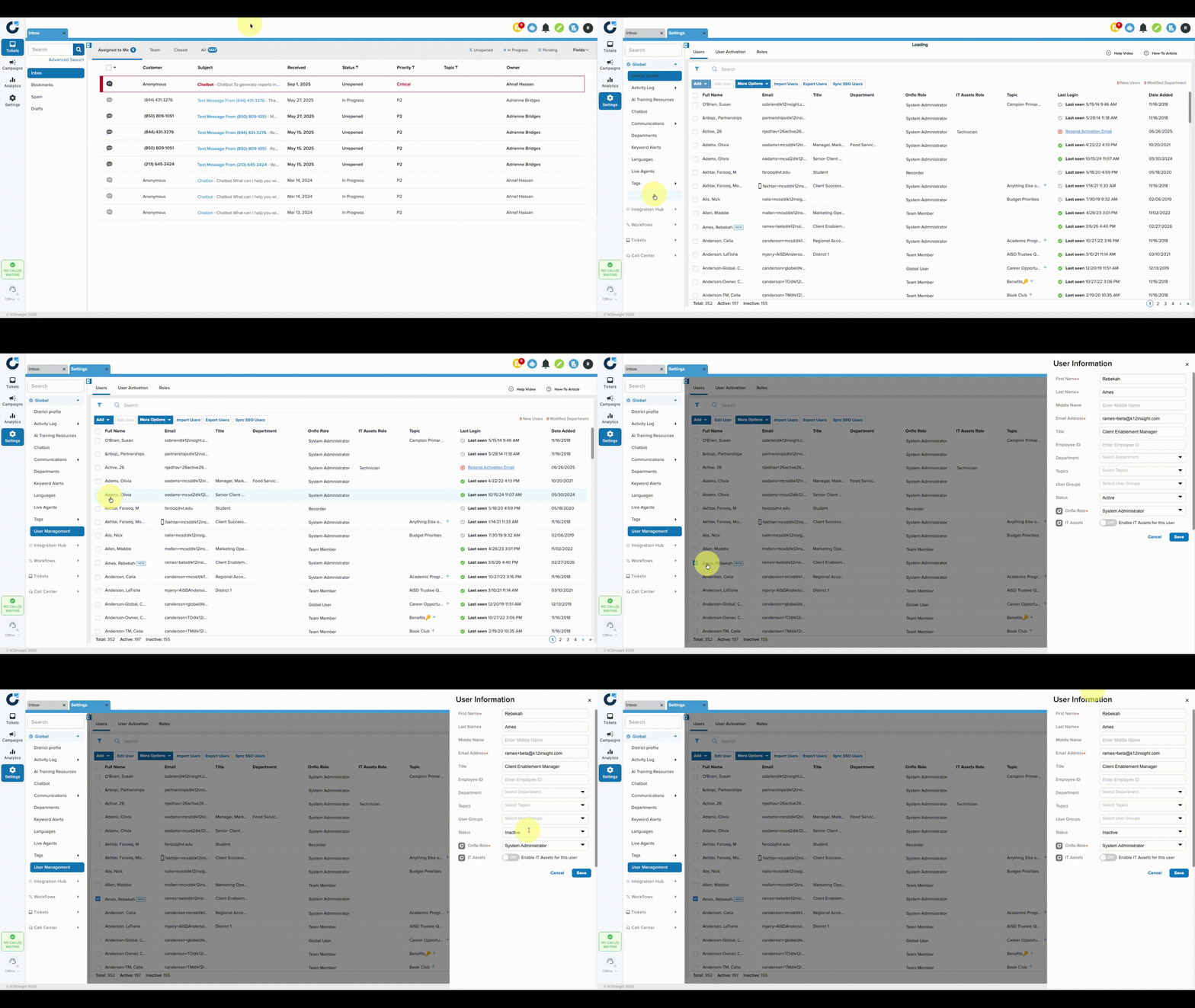
- Navigate to Settings > User Management.
- Click on the user's name to open their profile.
- Change the status of the user from Active to Inactive.
- Click Save.
Deleting User
Once a user is deactivated, they can be deleted by following the steps below:
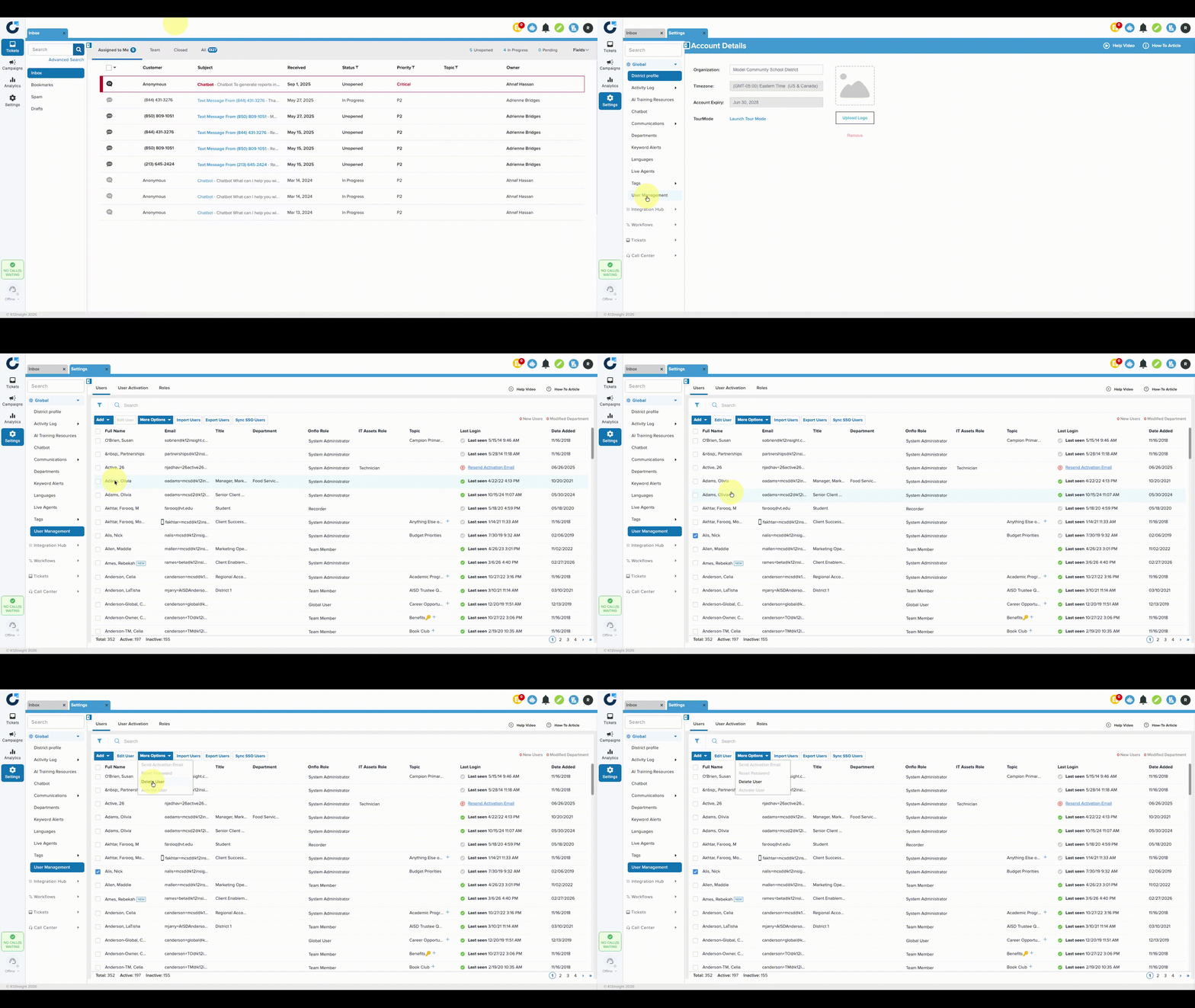
- Check the box next to the inactive user's name.
- Click More Options, then click Delete User.
- Click Delete User(s).
Note: Once the user is deleted this process is irreversible. Retrieving information for tickets associated with deleted users will not be available.