
Sharing a Ticket via Hyperlink

Generic selectors
Exact matches only
Search in title
Search in content
Post Type Selectors

Users can now easily share a ticket with their team by copying the hyperlinked ticket number. Users must log into Onflo (formerly Let's Talk!) to view the ticket if they are logged out when they receive a ticket link.
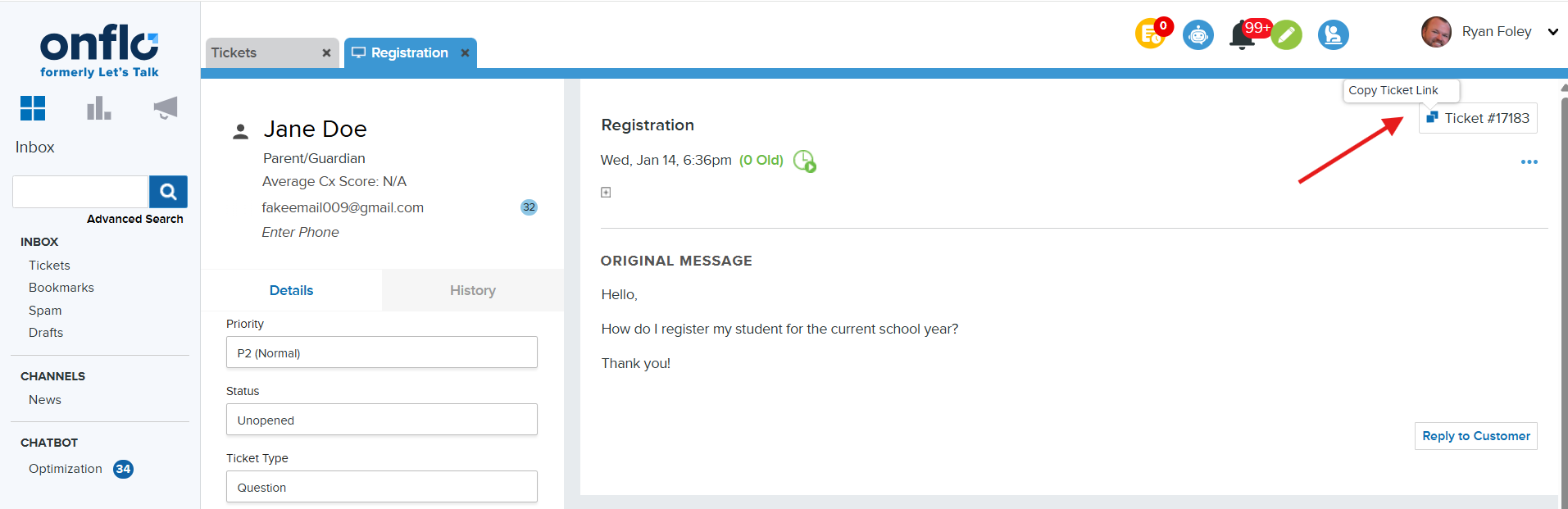
Access Hyperlink in Ticket

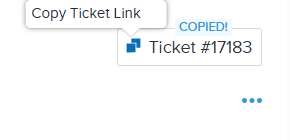
To access the hyperlink log into Onflo, then locate the specific ticket number you need the hyperlink. Next, click the ticket, then hover over the Ticket # in the upper right-hand corner. Finally, click on the Copy Link icon. 

You will know that the link has been copied by viewing the Copied! alert.
 

Related Post

Webhooks

Automatically send Onflo ticket and asset information to your other business systems. Overview Webhooks let Onflo automatically send information to another system the moment something happens. When a ticket is created or an asset is added, Onflo can instantly push

Read More ➜

API Tokens

How customers create and manage the tokens that let their software connect to the Onflo API Overview API Tokens is a feature in Onflo Settings that lets a customer generate a secure key which their own software can use to

Read More ➜

Community Promotion Toolkit

Ideas and ready-to-use templates to help you introduce or reintroduce Onflo to your community. Choose Your Approach There’s more than one way to introduce your service desk to your community. The approach you choose will depend on your district’s communication

Read More ➜