Let's drill down on one specific Ticket. Open a Ticket by clicking on it from the Inbox view.
- Customer Information
- Ticket Details
- Team Members
- Date Received and Ticket Age
- Tags
- Original Message
- Attachments
- Bookmark and Forward Ticket
- Action Buttons
- Timeline
Fields
The following table describes the various fields and sections found on the Ticket Details page.
| Name | Customer name |
|---|---|
| Type | Customer type (parent, student, staff, or community member) |
| Phone | Customer phone number |
| Customer email | |
| Priority | Critical, P1 (Urgent), P2 (Normal), P3 (Low) |
| Status | Unopened: The Ticket has not been opened or action has not been taken yet by any user. In Progress: Action has been taken by a user. Pending Details: Stops the Ticket from aging. To be used when the user is awaiting action or information from the customer. Closed: No further action is needed. The Ticket is considered closed. |
| Type | Question, Comment, Concern, Suggestion, and Compliment |
| Entry Point | The source of the Ticket (District website, Facebook, Twitter, Recorder, etc.) |
| Topic | The assigned area denoted by the customer or user. |
| Owner | The user responsible for the action necessary to Close the Ticket. |
| Team Members | Team Member of the assigned Topic are attached to the Ticket as part of the team. Ownership of the Ticket can be assigned to anyone who is currently on the team. Other users can be brought onto the team by clicking on the plus button. |
| Tags | Tags can be added to any Ticket for further categorization. A default set of tags and tag categories are provided. Custom tags can be added in Settings by the System Administrator. |
| Attachments | Any attachments received from the customer or sent by the user are consolidated here for ease of access. |
Timeline
The Timeline is a record of all activity that occurs with a particular Ticket. Time, date, and responsible User are included in each entry. Changes to the Status, addition of Team Members, Customer replies, internal comments, and more are recorded here to serve as historical data. Use the checkboxes to filter the display (Customer Communications, Internal Comments, and Log).
- Customer Communications: All messages sent to or from the Customer related to this Ticket are displayed.
- Internal Comments: All internal comments related to this Ticket are displayed.
- Log: All activity related to this Ticket is displayed.
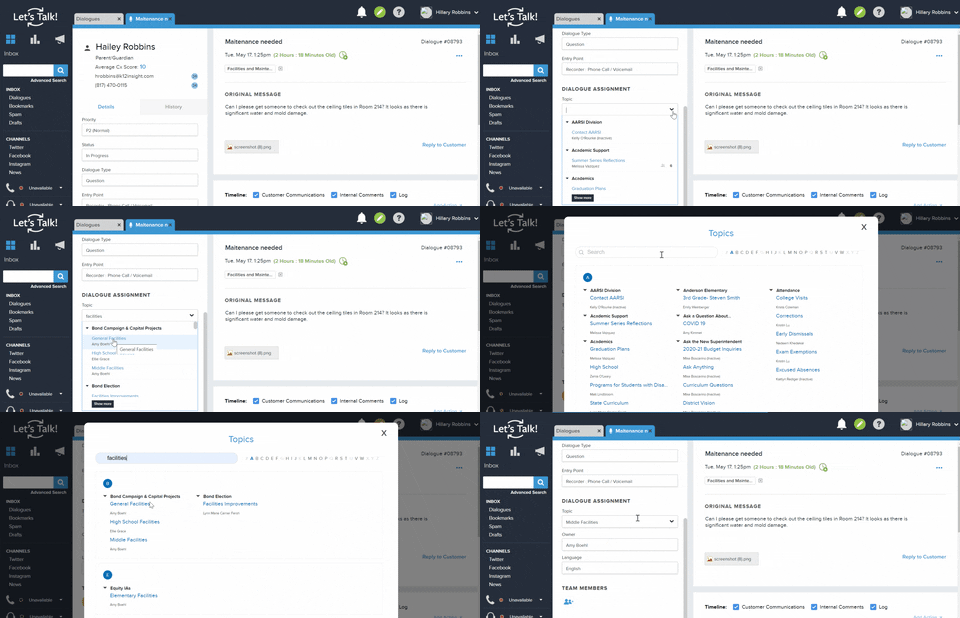
How Do I Change The Topic A Ticket Is Assigned To?
To change the Topic of a Ticket, simply click on the dropdown menu in the Topic field and select the correct Topic. You can also select “Show More” to see an overview list of Topics alphabetized within the account. Keep in mind that if you reassign a Ticket to a Topic you don’t belong to, you may no longer have access to this Ticket.