
Loading...
Skip to content
  • Home
  • Articles
    • How-to Articles
    • Getting Started
    • Integrations Marketplace
    • Best Practices
    • FAQs
  • Product Updates
  • Resources
  • Onflo Academy
    • New User Training
    • System Administrator Training
    • Beyond the Basics
  • Support
  • Home
  • Articles
    • How-to Articles
    • Getting Started
    • Integrations Marketplace
    • Best Practices
    • FAQs
  • Product Updates
  • Resources
  • Onflo Academy
    • New User Training
    • System Administrator Training
    • Beyond the Basics
  • Support
Log in

How to Delete Inactive Users

  • Category: How-to Articles
  • Tags: Account Setup, User Management
Generic selectors
Exact matches only
Search in title
Search in content
Post Type Selectors

User accounts that have a status of "Inactive" or  "Unverified" can be deleted.

Searching Unverified and Inactive Users

  • From the Settings page, click on User Management.
  • Click the Filter icon in the top left corner.  
  • Click the dropdown arrow by Status > then check the boxes for Unverified and/or Inactive.
  • Click Apply Filter at the bottom.

The filter will show only users who are either inactive or unverified, as designated by the red exclamation mark or gray check mark in the Last Login column.

Deleting Unverified and Inactive Users

  • Check the box next to the user's name then click More Options then Delete User.  
  • Because the action cannot be undone, users will be asked to confirm before the user is deleted.
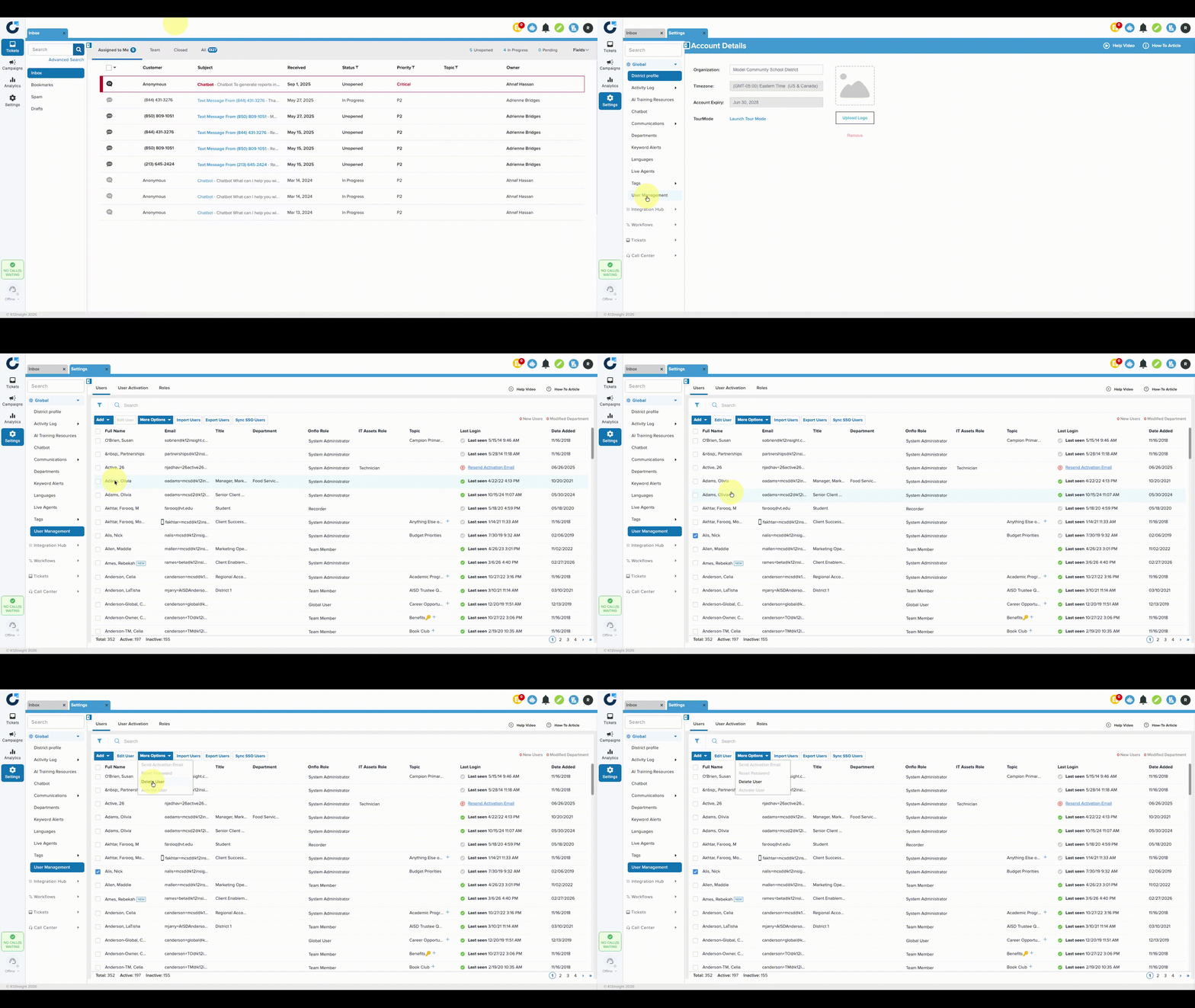
 

Note: System Administrators can delete a user whether they own tickets or not. Once the user is deleted, ownership of their tickets will be transferred to the System Administrator who deleted the user. 

PreviousAnswer-Based Workflows in Forms
NextSharing a Ticket via Hyperlink

Related Post

Bulk Edit IT Assets

Build a custom list of assets by searching, pasting, or scanning — then run bulk operations on them Overview Edit Assets lets you assemble an exact list of assets without building filters. You can search for assets one at a

Read More ➜

IT Workflow Enhancements

New triggers, stop-after control, and execution sequencing for Ticket and Asset workflows Overview This release introduces three enhancements to Workflows that give you finer control over when a workflow runs and in what order. You can now target ticket creation

Read More ➜

How to Collaborate with Team Members on Tickets

Before you start Collaboration is how you bring the right people to the table — to answer a customer's question or to make an important decision together. Before you dive in, confirm you're the right person to address the feedback,

Read More ➜

Need support?

Our Client Services Team is here to help between 7 a.m. – 7 p.m. ET. Get support here or call us at (703) 542-9601.

Mobile App

apple store
g play

Follow Us on

Linkedin Youtube

Quick links

  • Privacy
  • Security
  • Support
  • Training
  • Resources
  • Credits

Articles

  • How-to Articles
  • Product Updates
  • Get Started
  • Best Practices
  • FAQs

Get Newsletter

Sign up to get platform Tips & Tricks delivered directly to your inbox.

Scroll to top