
New triggers, stop-after control, and execution sequencing for Ticket and Asset workflows
Overview
This release introduces three enhancements to Workflows that give you finer control over when a workflow runs and in what order. You can now target ticket creation and ticket updates separately, stop a trigger’s workflow chain once a workflow matches a record, and arrange the exact sequence in which your Asset and Ticket workflows run.
- Separate triggers for ticket creation and updates: New Ticket Created and Ticket Updated are now two distinct triggers.
- Stop after this workflow: an option that prevents any further workflows on the same trigger from running for a record once this workflow matches.
- Workflow execution sequence: Asset and Ticket workflows now live on separate pages, and you can drag and drop them to define the order in which they run.
Separate Ticket Created and Ticket Updated triggers
What changed
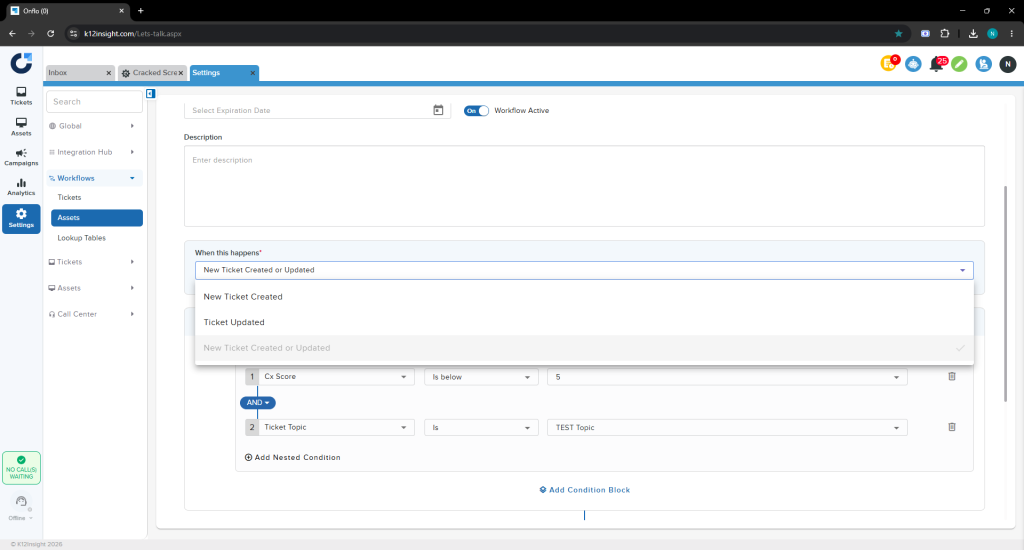
Previously, workflows offered a single combined trigger, New Ticket Created or Updated, which fired both when a ticket was created and whenever it was updated. That trigger has now been split into two distinct triggers — New Ticket Created and Ticket Updated — so a workflow can respond to just one of those events. This lets you build a workflow that runs only at ticket creation, or only when an existing ticket changes, instead of one firing in place of the other.
How to use it
- Open a new or existing workflow in the workflow editor.
- At the top of the workflow, open the When this happens trigger dropdown.
- In the expanded list you will now see New Ticket Created and Ticket Updated as separate options.
- Select New Ticket Created to run the workflow only when a ticket is first created, or Ticket Updated to run it whenever an existing ticket is changed.
- Configure the workflow’s conditions and actions as usual, then click Save.
Stop running workflows after this one
What changed
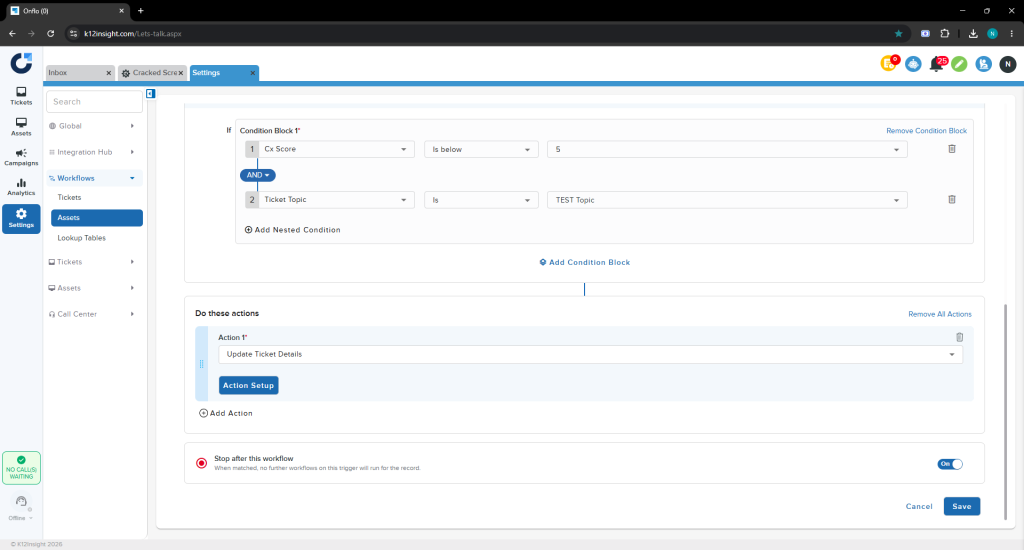
A new Stop after this workflow option has been added to both Asset and Ticket workflows. When it is enabled, once this workflow matches a record no other workflows on the same trigger will run for that record. This gives you a way to short-circuit the workflow chain so that lower-priority workflows are skipped as soon as a match is found.
How to use it
- Open the workflow in the workflow editor and scroll to the bottom, below the Do these actions section.
- Locate the Stop after this workflow option.
- Toggle it On. The helper text confirms the behavior: “When matched, no further workflows on this trigger will run for the record.”
- Click Save to apply the change.
Define the sequence workflows run in
What changed
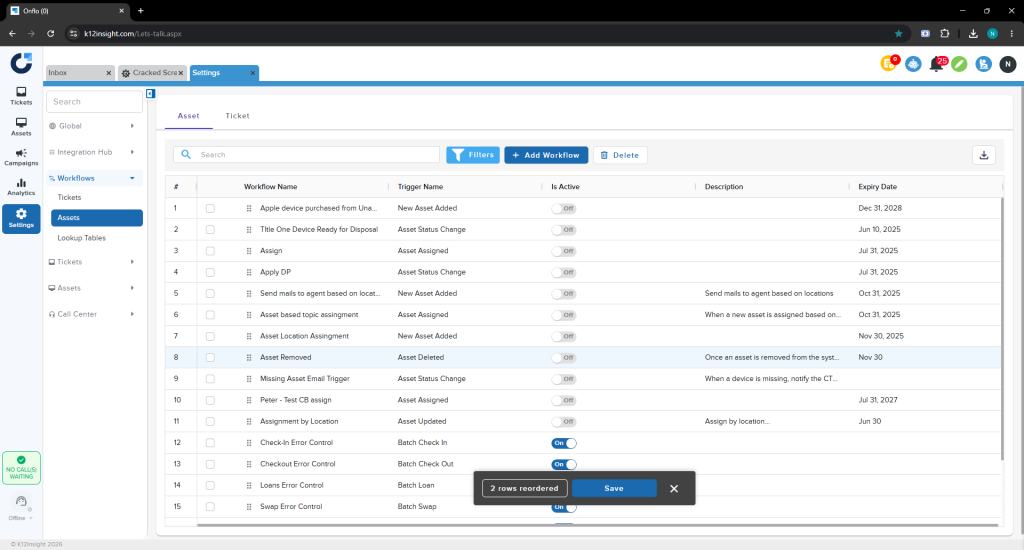
Asset and Ticket workflows are no longer shown together on a single page. The workflow list now has separate Asset and Ticket tabs, each listing only that type’s workflows. Within a tab you can set the order in which workflows are triggered by dragging and dropping rows in the list — workflows run from top to bottom in the order shown.
How to use it
- Go to Settings → Workflows and select the Asset or Ticket tab for the workflows you want to order.
- Use the drag handle on the left of a row to pick up a workflow.
- Drag the workflow up or down to its new position in the list and drop it.
- A confirmation prompt appears showing how many rows changed (for example, 2 rows reordered).
- Click Save in that prompt to lock in the new sequence.
Tip: combine this ordering with Stop after this workflow (above) to control exactly which downstream workflows are skipped once a higher-priority workflow matches a record.