
If your team receives a Ticket that should really be answered by a different team, you can reassign the Ticket to a completely different team by changing the Topic. The owner of that Topic will receive an alert notifying them of the reassignment. The Customer will not receive any notification if a Ticket is assigned to a new team.
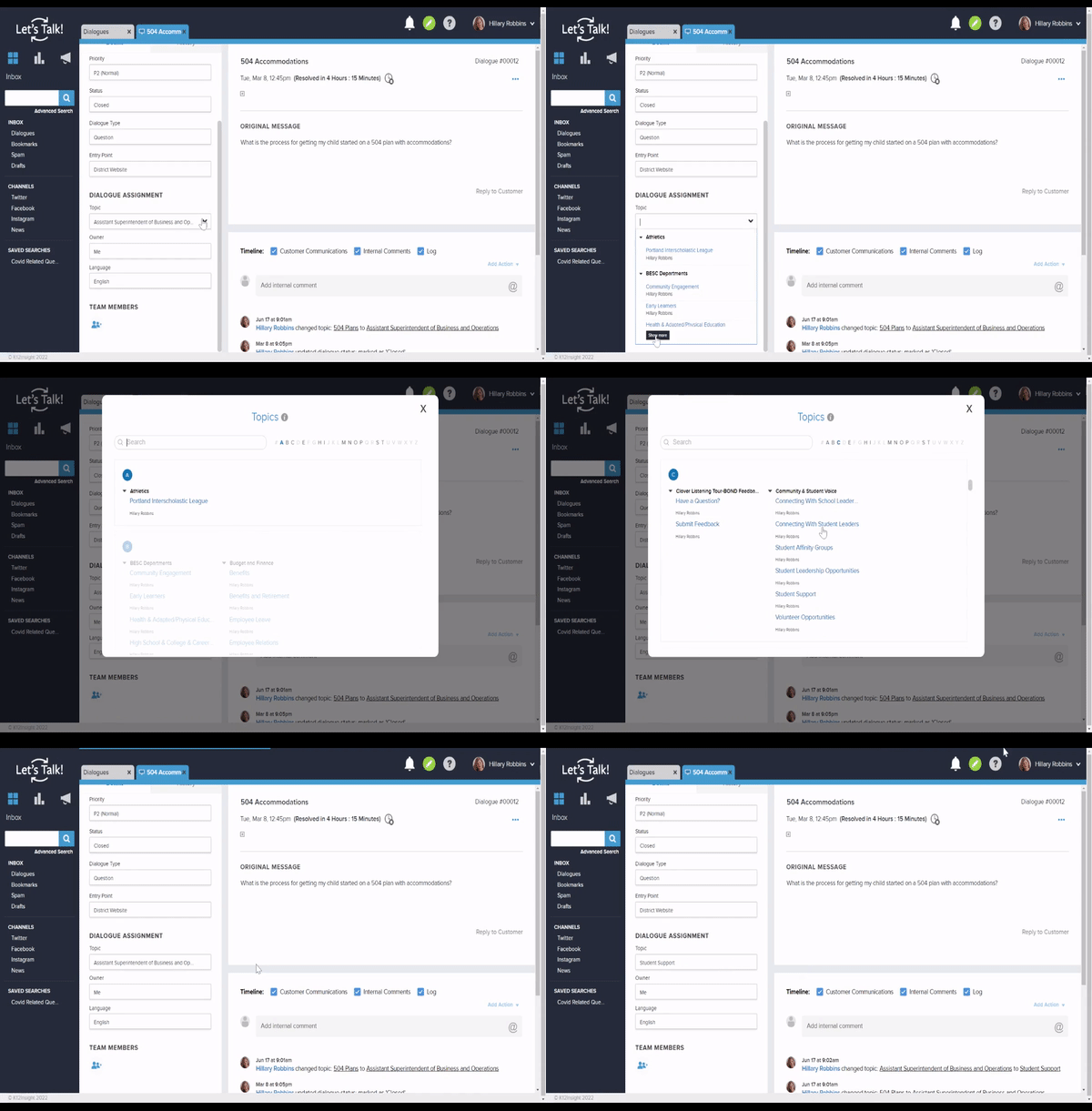
To assign a Ticket to a different team, follow the steps below:
- Consider providing additional context for your colleague through Internal Comments prior to transferring. Once you've reassigned this Ticket away, you may no longer have access to it.
- Click in the Topic drop-down menu
- From the list of Topics that appear or by clicking on "Show More", select the appropriate team to receive this Ticket.
- From the drop-down, you can see a list of Topics and the owner as well as the number of team members on that Topic.
- Your chosen Topic will now appear in the Topic field and that team will be responsible for follow-up.
- If you re-assign a Ticket to a Topic you don't have permission to view, you will no longer have access to this Ticket.
- Any users who were added to the Ticket manually will stay on as team members even after the Ticket is reassigned to another team.