
Onflo (formerly Let's Talk!) Generative AI ticket replies allow you to automatically craft responses to save time and effort. If the content already exists within your district's Resource Center — let the AI do the heavy lifting for you!
Because Onflo AI features are powered only by the content you upload to the Resource Center, you can trust your customers are receiving accurate information.
Generate a reply with Generate AI Response
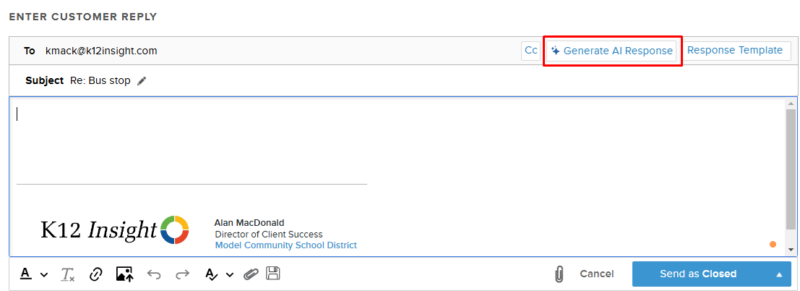
Within the ticket, click on Reply to Customer button to open the text box. Here you will see the Generate AI Response button near the top right corner of the text box.
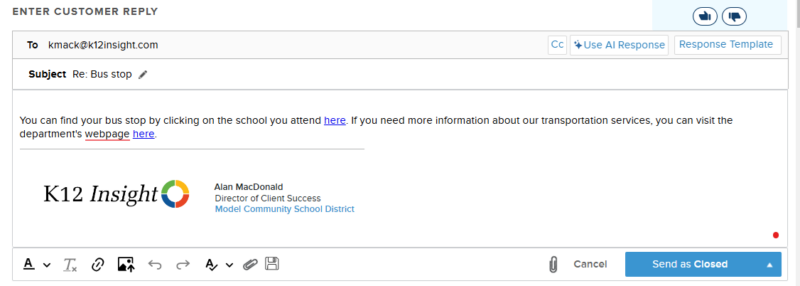
While the response processes, you will see a progress bar along the text box. Once the response loads, you can edit it before sending it to your customer and save it as a Response Template.
You will see the error message below if the AI can't generate a response.
